

Add a secret
Who this is for: people who give workflows and connections the passwords and keys they need.
Before you start: you need the Manage secrets permission (manage_secrets). Admins and editors have it. See Manage users and roles.
A secret is a password, API key, token or certificate that a workflow or a connection uses. Only people can enter secret values, and once a value is saved nobody can see it again, admins included. Your AI assistant only sees a secret’s name and whether it is filled in.
What a secret holds
Section titled “What a secret holds”Each secret has a kind. The kind decides which fields you fill in.
| Kind | Fields |
|---|---|
| API key | Value |
| Username and password | Username, Password |
| OAuth client | Client ID, Client secret |
| Password | Value |
| Text | Value (several lines allowed) |
| Certificate | Certificate (PEM), Private key (PEM, optional) |
A secret name uses lowercase letters, numbers and underscores, starts with a letter and is at most 64 characters long. For example visma_api or erp_login. Workflows and connections refer to the secret by this name.
For an OAuth client, you only store the client ID and secret here. The token URL belongs to the connection that uses the client. See Create a connection.
Add a secret on the Secrets page
Section titled “Add a secret on the Secrets page”- Open Secrets.
- Select Add a secret.
- Type the Name.
- Type a Description if you want to (optional). Say what the secret is for.
- Pick the Kind.
- Paste the value into each field exactly as you got it.
- Pick an Expires on date if the credential expires (optional). We warn you before that date. See Rotate and expire secrets.
- Select Save.
The value is stored encrypted. It is never shown to AI assistants, and it is hidden in run logs and results.
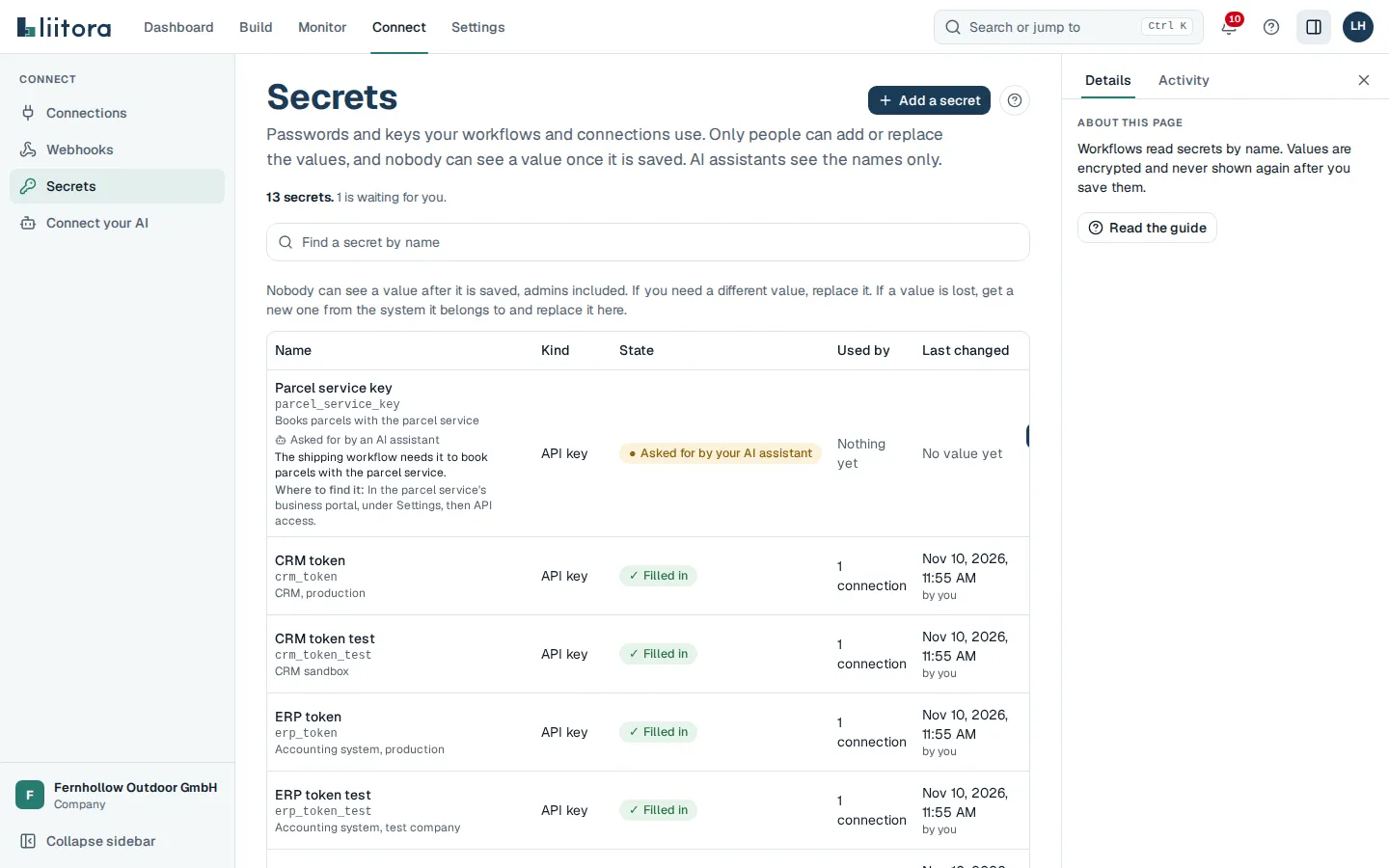
Fill in a secret that someone asked for
Section titled “Fill in a secret that someone asked for”When your AI assistant builds a workflow that needs a credential, it does not ask you to paste the value in the chat. It asks Liitora for the secret by name, with a reason and a hint on where to find it. The request shows up in two places:
- In your chat, as a link. See From a link below.
- On the Secrets page, at the top of the list.
To fill it in on the Secrets page:
- Open Secrets.
- Find the secret at the top of the list. Its line shows who asked for it, why, and Where to find it.
- Select Add the value on its line.
- Paste the value into each field.
- Select Save.
The secret’s state changes from Asked for by your AI assistant (or Asked for) to Filled in. Workflows that were waiting for it can now be activated.
If you do not have the Manage secrets permission, the page says so. Ask an admin in your team to add the value.
From a link
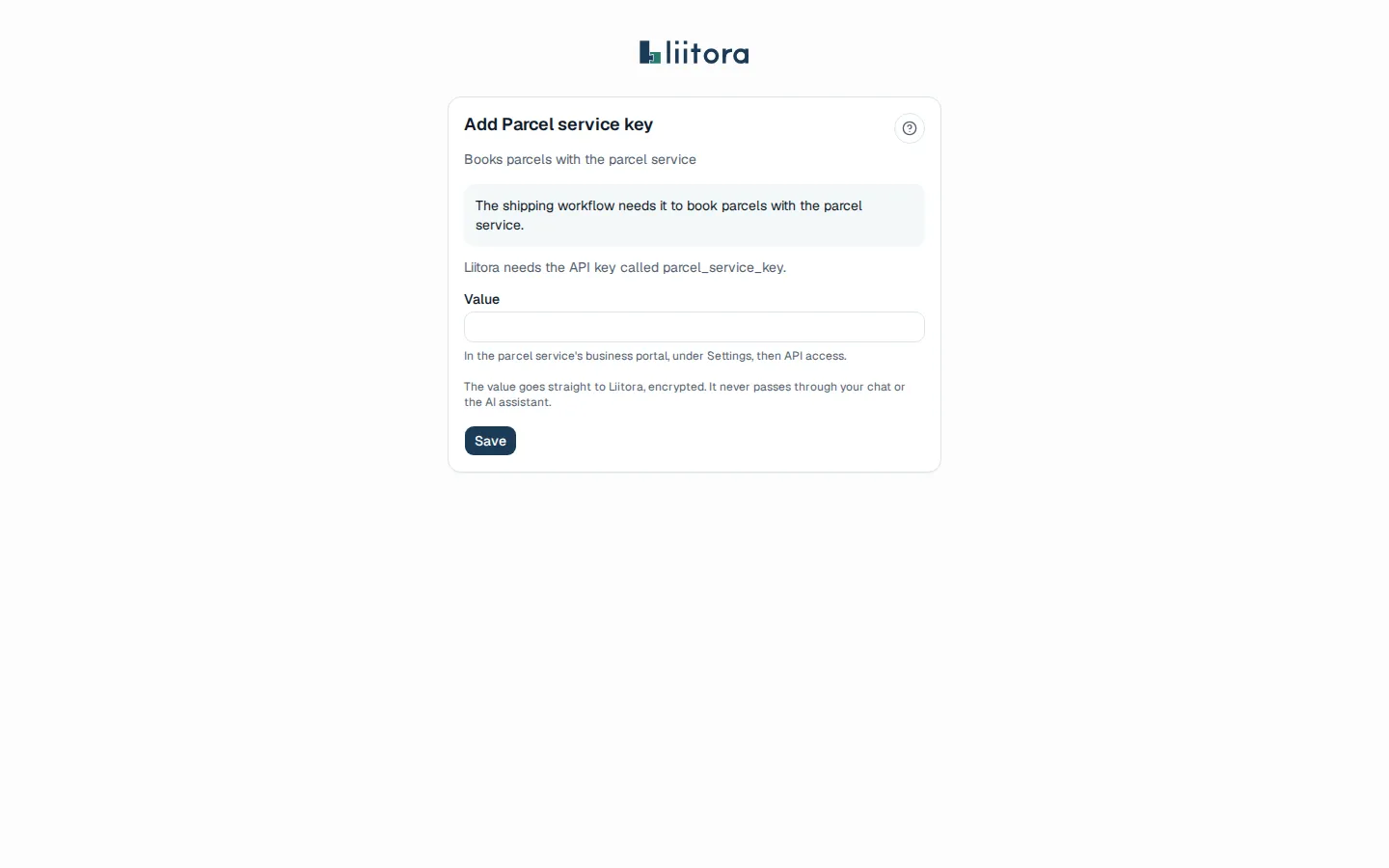
Section titled “From a link”Your AI assistant gives you a link when it needs a secret. The link opens a small page where you type the value. It works the same way for a link a colleague sends you.
- Open the link. It looks like
https://<your Liitora address>/s/fill/.... - Sign in to Liitora if you are asked to. You come back to the same page after you sign in.
- Read what the page says: which secret is needed, why, which workflows use it, and under Liitora sends this value only to the hosts each connection sends it to. If a host looks wrong, don’t save: ask whoever made the connection.
- Paste the value into the fields shown. The page only shows the fields that are needed.
- Select Save. If a connection that uses the secret changed while you were typing, nothing is saved and the page asks you to reload it and check the hosts again.
- When the page says Saved. Go back to your chat., go back to your AI assistant and tell it you are done.
The value goes straight to Liitora, encrypted. It never passes through your chat or the AI assistant.
If the link does not work
Section titled “If the link does not work”| What the page says | What it means | What to do |
|---|---|---|
| This link has expired | Links work for 7 days. | Ask your AI assistant for a new link, or add the value on the Secrets page. |
| This link doesn’t work | The link is mistyped, belongs to another company, or the secret was deleted. | Ask your AI assistant for a new link, or add the value on the Secrets page. |
| This secret is already saved | Someone already added the value. | Nothing else to do. To change the value, rotate it on the Secrets page. |
| Where this secret is sent changed while you were entering it | A connection that uses the secret got a new address while the page was open. Nothing was saved. | Reload the page, check the hosts it lists, and save again. |
If you cannot add secret values
Section titled “If you cannot add secret values”If you open the link without the Manage secrets permission, the page shows Send this request to your admin. Use Copy the link or Email the link to send it to someone who can add the value. The link works for them after they sign in.
Who decides where a secret is sent
Section titled “Who decides where a secret is sent”A secret is only ever sent to hosts that a person with the right to do so chose for it:
- A secret that has no value yet can be named by any connection. The person who fills it in sees every host it goes to before saving, on the fill page and on the Secrets page. If a connection moves while you are typing, nothing is saved and Liitora asks you to check again.
- Once a value is saved, only the person who saved it can point it at another connection or host. Anyone else, admins included, must enter the value again first. AI assistants never can. See Create a connection.
- Nobody can see a saved value again, admins included. You can always replace it.
- Secrets that Liitora manages for you, such as webhook signing secrets, can’t be used by connections, email senders or alert channels at all.
Use a secret
Section titled “Use a secret”You do not paste secret values into a workflow. Instead:
- A connection names the secrets it signs in with. Steps that use the connection sign in for you.
- A script normally never reads a value. It puts
ctx.secrets.ref("name")where the value goes in a request through a connection that lists the secret, or signs withctx.crypto.hmac("name", "sha256", data). See Secrets in the host API. - A script reads the value only when you turn on Scripts may read the value for the secret. See Let scripts read a value.
Let scripts read a value
Section titled “Let scripts read a value”Some scripts must compute with a value themselves, for example to encrypt a file with a key or to sign a token with a private key. For those, a person who manages secrets turns on Scripts may read the value:
- On the Secrets page, with the switch in the secret’s row. You don’t need to enter the value again.
- When you add, fill in or rotate a secret, with the switch under the value.
- On the fill page. When your AI assistant suggests it, the switch is already on and the assistant’s reason is shown above it. You decide: turn it off if the script doesn’t need the value itself.
Leave it off unless a script really needs the value. To sign in to an API, a connection is enough. To send the value to an API, or to sign requests, a script doesn’t need to read it. A secret that is still waiting for its value can’t be turned on.
Each change is recorded in the audit log with who made it, never the value. The switch never shows the value to anyone, admins included. Even with it on, the value is hidden in logs and can only go to the systems of the connections that list the secret. The approval page flags every step that reads a value. See Reading a secret’s value for the details and the risk.
A workflow cannot be activated while a secret it needs is missing, requested or expired. The error codes are secret_missing, secret_requested and secret_expired.