

Page: Connect your AI
Who this is for: people who want to add Liitora to their AI assistant.
Before you start: everyone in your company can open this page. You find it under Connect, then Connect your AI. For Claude Code, or VS Code with an API token, you also need an API token, which an admin creates.
The page first asks Which assistant do you use?: Claude, ChatGPT, Codex, Copilot in VS Code or Claude Code. Pick yours, and a card shows what to do, with one button in a coach bubble. The page never shows a token. Your choice is kept in the page’s address, so you can send someone a link to their assistant’s card.
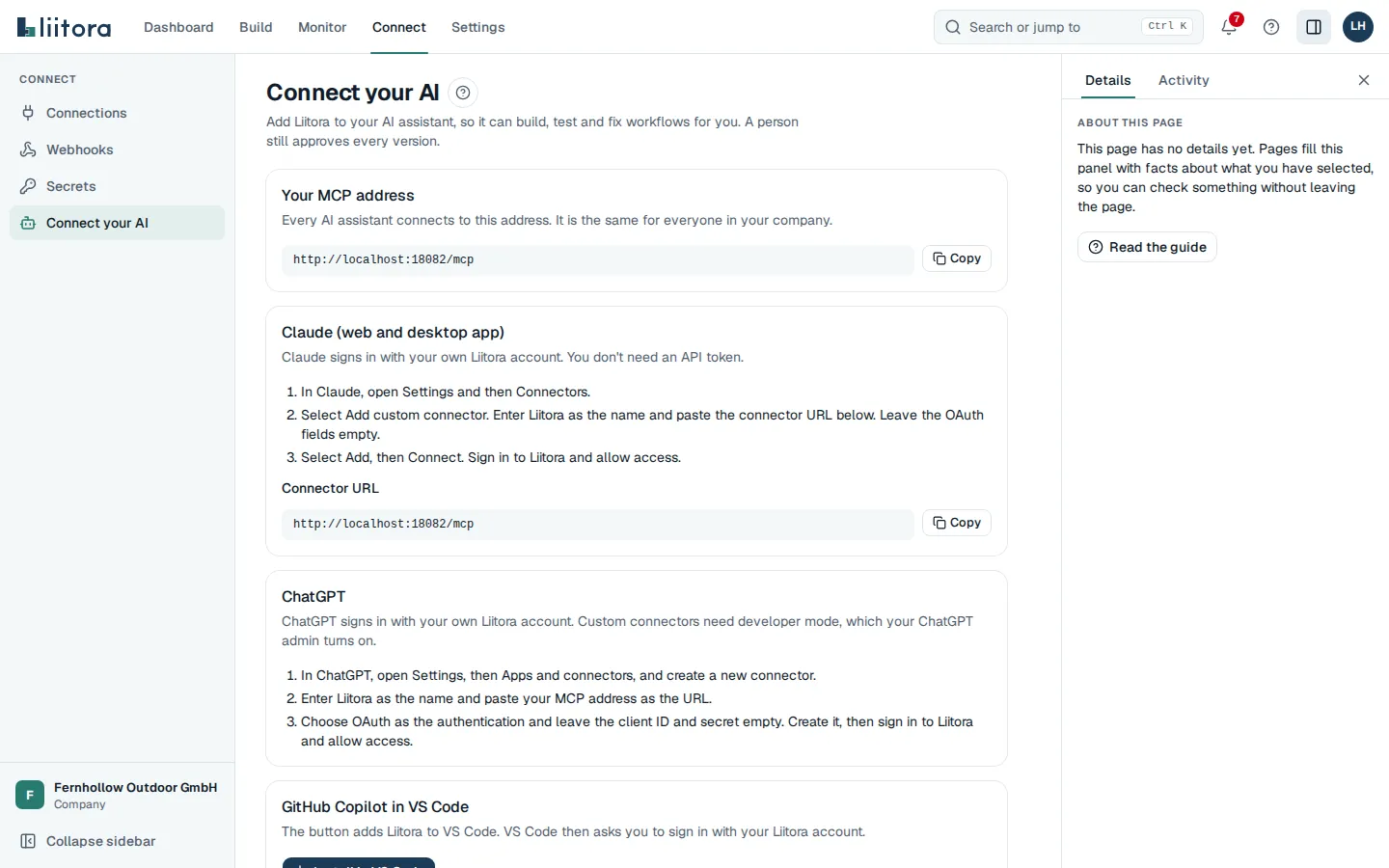
Your MCP address
Section titled “Your MCP address”The address every AI assistant connects to, for example https://mcp.liitora.example/mcp. It is the same for everyone in your company. You find it under Show technical details, with a Copy button, together with the commands and settings of the assistant you picked.
Claude (web and desktop app)
Section titled “Claude (web and desktop app)”Claude signs in with your own Liitora account, so you don’t need an API token.
| Item | What it does |
|---|---|
| Add to Claude | Opens Claude in a new tab with the Add custom connector form already filled in: the name Liitora and your MCP address. Claude says the values came from a link. Check them, select Add, then Connect, and sign in to Liitora. Nothing is added until you select Add. |
| Add for your Claude organization | The same for a Claude Team or Enterprise plan, where only an owner can add connectors. It opens the organization’s connector settings, so Liitora is added for everyone in your Claude organization. Each person still signs in with their own Liitora account. |
| Written steps and Connector URL | For when the button doesn’t open Claude, for example in the desktop app: the three steps in Claude’s settings, and, under Show technical details, your MCP address with a Copy button. |
On Claude’s Free plan you can add one custom connector. See Connect Claude or ChatGPT.
ChatGPT
Section titled “ChatGPT”ChatGPT also signs in with your own Liitora account. The coach bubble’s button copies your MCP address, and the card shows the three steps: create a connector, paste your MCP address and choose OAuth with the client ID and secret left empty. Custom connectors need developer mode in ChatGPT.
Codex has no install button, so the coach bubble’s button copies two commands to run in a terminal. Show technical details shows them. They work for the Codex command line, the Codex IDE extension and the Codex app, which share their settings.
| Item | What it does |
|---|---|
codex mcp add and codex mcp login |
The first adds Liitora as an MCP server named liitora with your MCP address. The second opens your browser to sign in with your Liitora account. Select Copy to copy both. |
| API token command | To use an API token instead, copy this command and put the token in the LIITORA_API_TOKEN environment variable. Codex reads the token from there, so it is never written in Codex’s settings. Create API tokens opens the API tokens page in Settings. |
GitHub Copilot in VS Code
Section titled “GitHub Copilot in VS Code”| Item | What it does |
|---|---|
| Install in VS Code | Opens VS Code and adds Liitora as an MCP server named liitora. VS Code then asks you to sign in with your Liitora account. The link holds only the name and your MCP address. |
.vscode/mcp.json |
Under Show technical details. To use an API token instead, copy this into the file in your project. VS Code asks for the token the first time and keeps it, so the token is never written in the file. |
Claude Code
Section titled “Claude Code”The claude mcp add command with your MCP address, copied by the coach bubble’s button and shown under Show technical details. Select Copy, paste it in a terminal and replace YOUR_API_TOKEN with your API token. Create API tokens, on the card itself, opens the API tokens page in Settings. See Connect your AI assistant.
Check that it works
Section titled “Check that it works”Ask your assistant: “Ping Liitora.” It answers that Liitora replied. Read the step-by-step guide opens Connect your AI assistant.