

Page: Runs
Who this is for: people who check whether workflows ran and look for failures.
Before you start: you need the View runs permission. Every role has it.
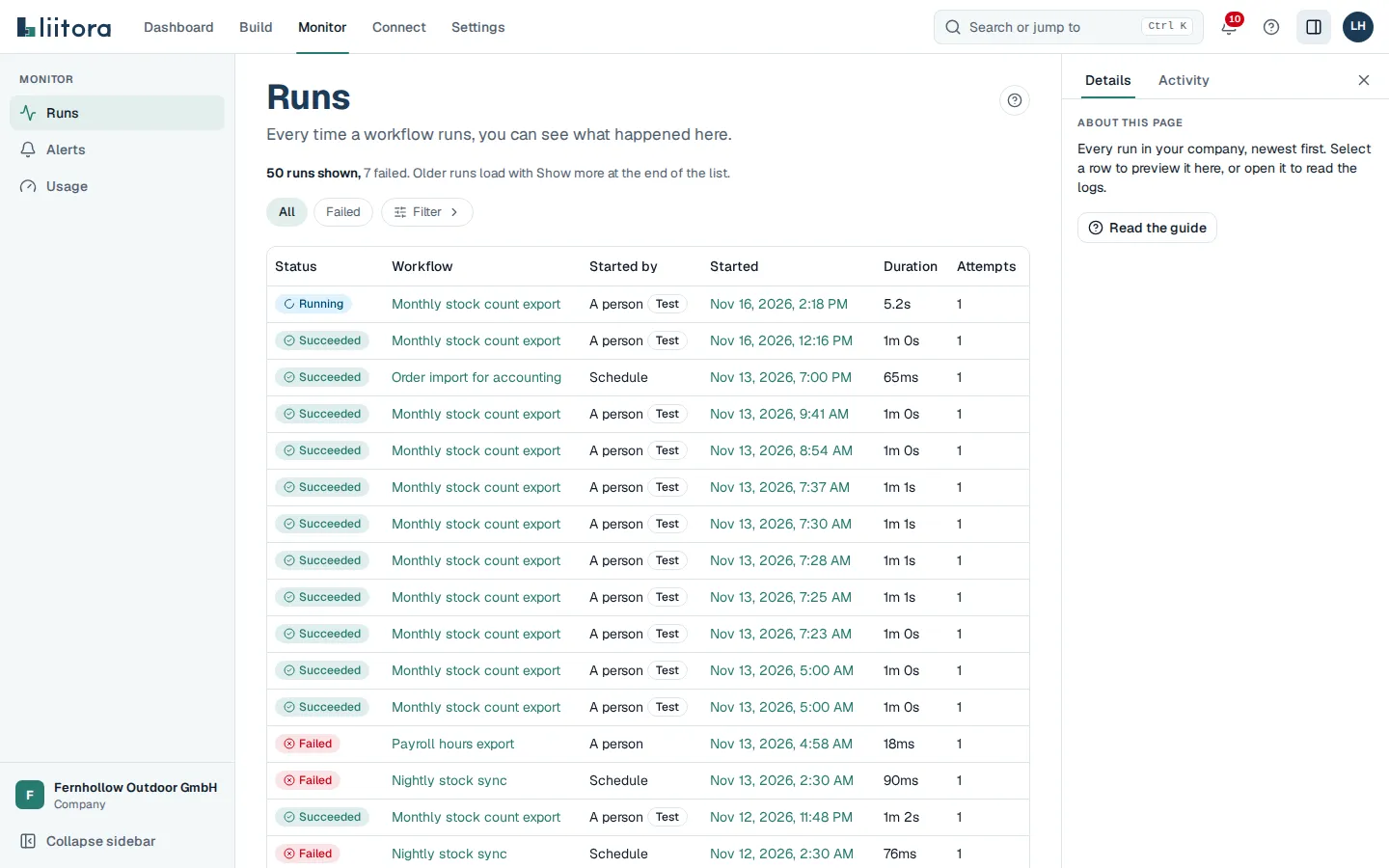
The Runs page lists every time a workflow ran, newest first. At the top a line says how many runs are shown and how many of them failed. When older runs are still to load, it says so: select Show more at the end of the list. Select a run to open it in a panel over the list (see Open a run).
Filters
Section titled “Filters”Select Failed to see only the runs that failed, including those that failed for good, and All to see every run again. Choosing a status under Filter turns the Failed chip off. Select Filter for the other filters. While one is set, the button says Filter is on.
| Filter | Options |
|---|---|
| Status | Any status, Queued, Running, Succeeded, Failed, Failed for good, Skipped, Cancelled |
| Workflow | All workflows or one workflow |
| Started by | Anything, Schedule, Webhook, A person, API call, After another workflow, Called by a workflow |
| Environment | Both, Production or Test |
| From date | Only runs from this day on |
Select Clear filters to show every run again. When no run matches, the page says so and offers the same button.
The table
Section titled “The table”| Column | What it shows |
|---|---|
| Status | See the statuses below. |
| Workflow | Which workflow ran. Select it to open the workflow. |
| Started by | What started it. Test runs carry a Test badge. |
| Started | When it started. Select it to open the run page. |
| Duration | How long it took, or Not yet. |
| Attempts | 1 for a first try. Liitora tries a run again when our side had a temporary problem, and a retried run shows which try it is, for example 2 of 3. |
The statuses mean:
- Queued: waiting to start. A scheduled run can wait in the queue until its time.
- Running: steps are running now.
- Succeeded: every step finished.
- Failed: a step failed.
- Failed for good: every attempt failed, and Liitora won’t try again.
- Skipped: every step was skipped, for example because there was nothing to do.
- Cancelled: a person cancelled it.
Runs are kept for your plan’s retention period. When nothing is there yet, the page says No runs yet and offers Open your workflows.
Open a run
Section titled “Open a run”Select anywhere on a row, outside its links, to open the run in a panel over the list, without leaving it. The panel shows what happened, the steps and, for a failed run, what went wrong and how to fix it. The address keeps the run, so you can share the link or go back to it.
- Select Open it as a page to open the run page itself. Double-click a row, or press Enter on it, to open the run page straight away.
- With the keyboard, move between rows with the arrow keys and press Space to open one in the panel.
- Press Esc or select the close button to go back to the list.
- If the run was removed in the meantime, the panel says We couldn’t find that run.