

Pay for your plan
Who this is for: company admins who want to keep using Liitora after the trial, or change how their company pays.
Before you start: you need the Manage billing permission (company admins have it), and you need to sign in as a person. API tokens and AI assistants can see billing but can’t pay, change the plan, buy runs, tick the small-company box or cancel. For now we sell only to companies in the EU.
Payments go through Mollie, a European payment provider. Liitora never sees or stores your card or bank details.
1. Enter your billing details
Section titled “1. Enter your billing details”- In Settings, select Billing.
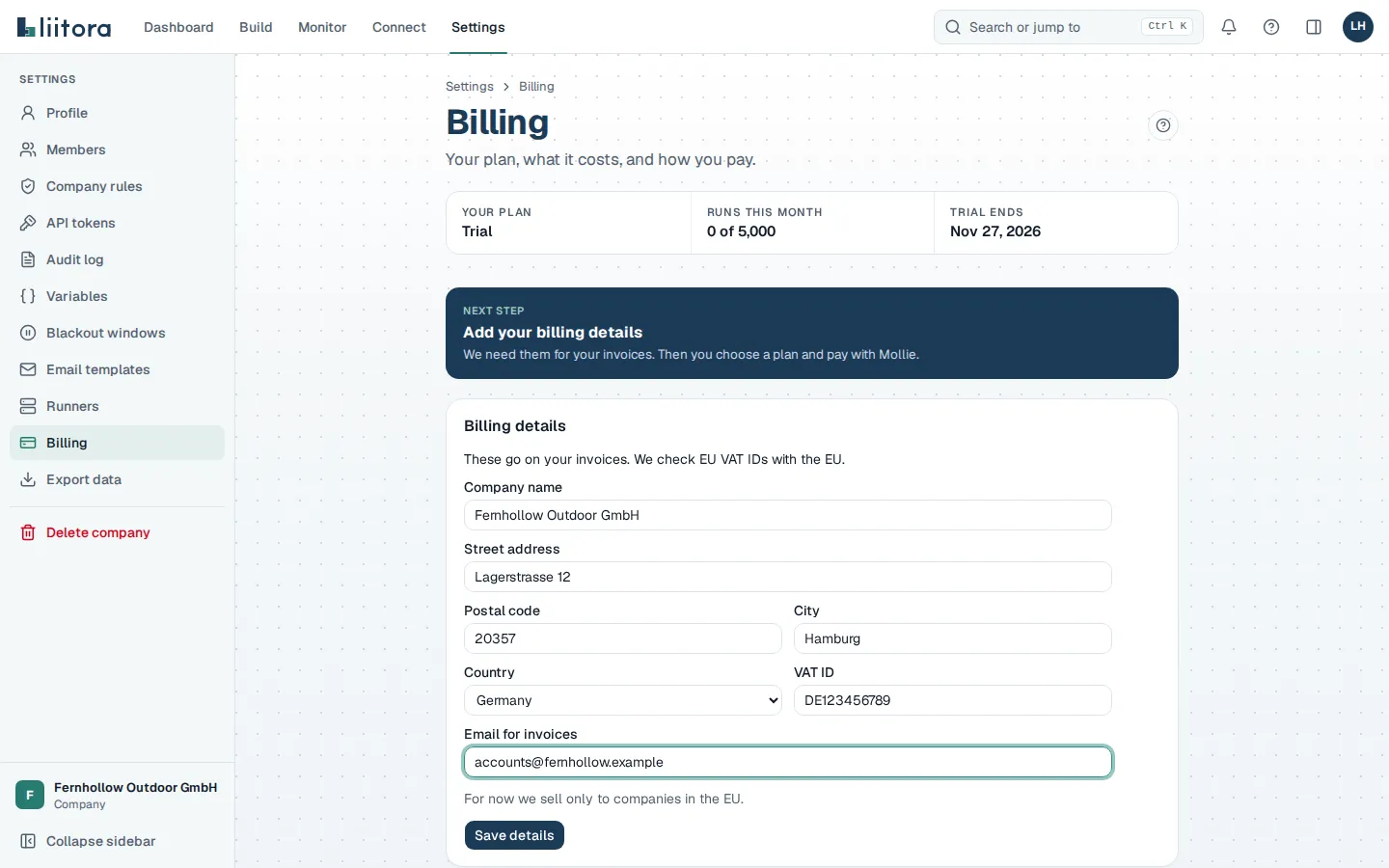
- Under Billing details, fill in the company name, address and the email for invoices.
- Choose your Country.
- In Finland, enter your Business ID (for example
1234567-8). Finnish VAT, 25.5%, is added to your payments. - In other EU countries, enter your VAT ID with its country prefix (for example
DE123456789). Liitora checks it with the EU’s VIES service. No VAT is added: you account for it yourself (reverse charge).
- In Finland, enter your Business ID (for example
- Select Save details.
If VIES says the VAT ID is not valid, check it and try again. If VIES can’t answer right now, wait a few minutes and try again. Your details are only saved after the check.
2. Choose a plan and pay
Section titled “2. Choose a plan and pay”Choose a plan shows the Starter, Team and Business plans, paid monthly or yearly, with the VAT for your country. See Limits per plan for what each plan includes. When a discount applies, the full price is struck through next to the price you pay.
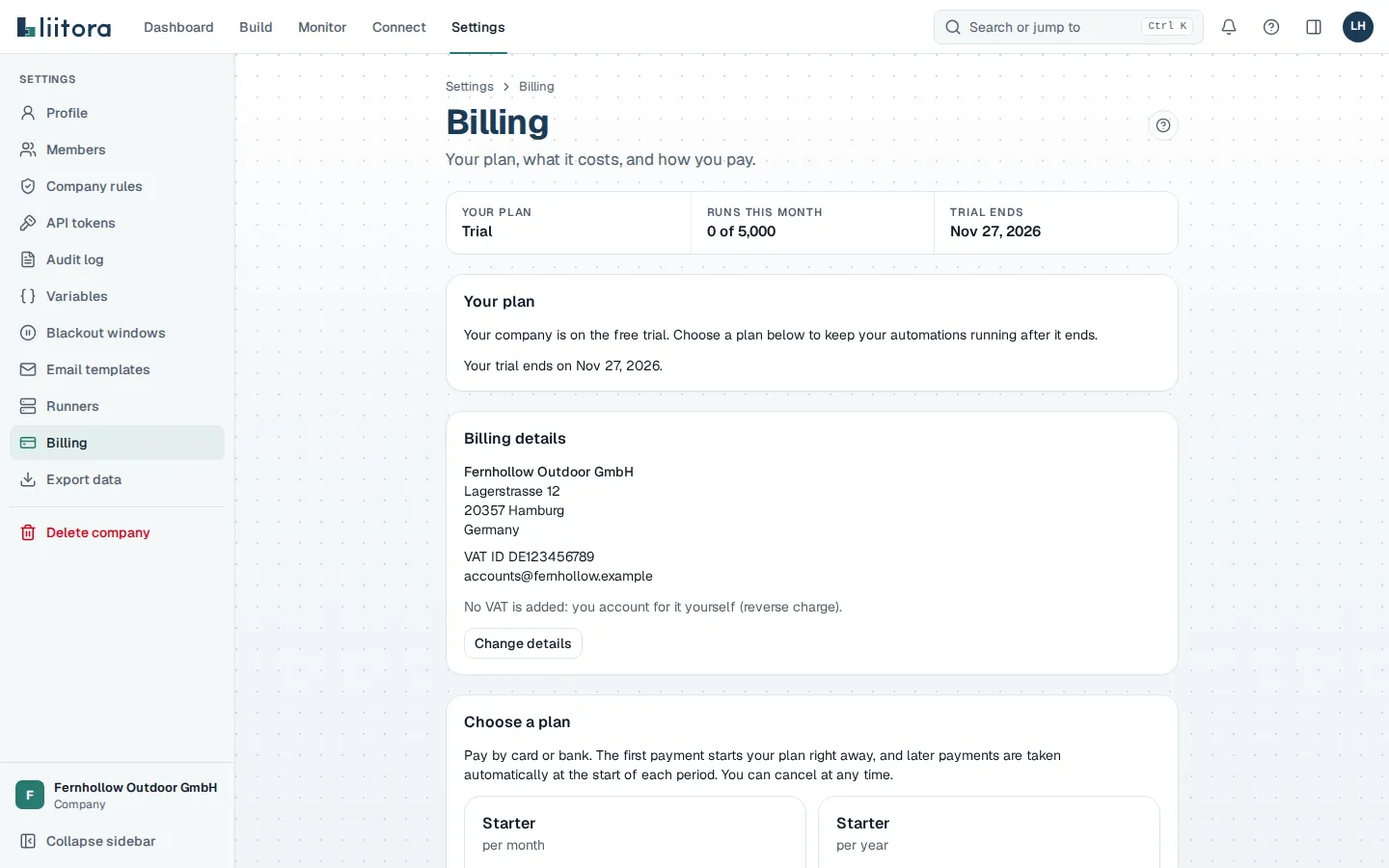
- Select Pay and start under the plan and period you want.
- Mollie’s payment page opens. Pay by card or by your bank.
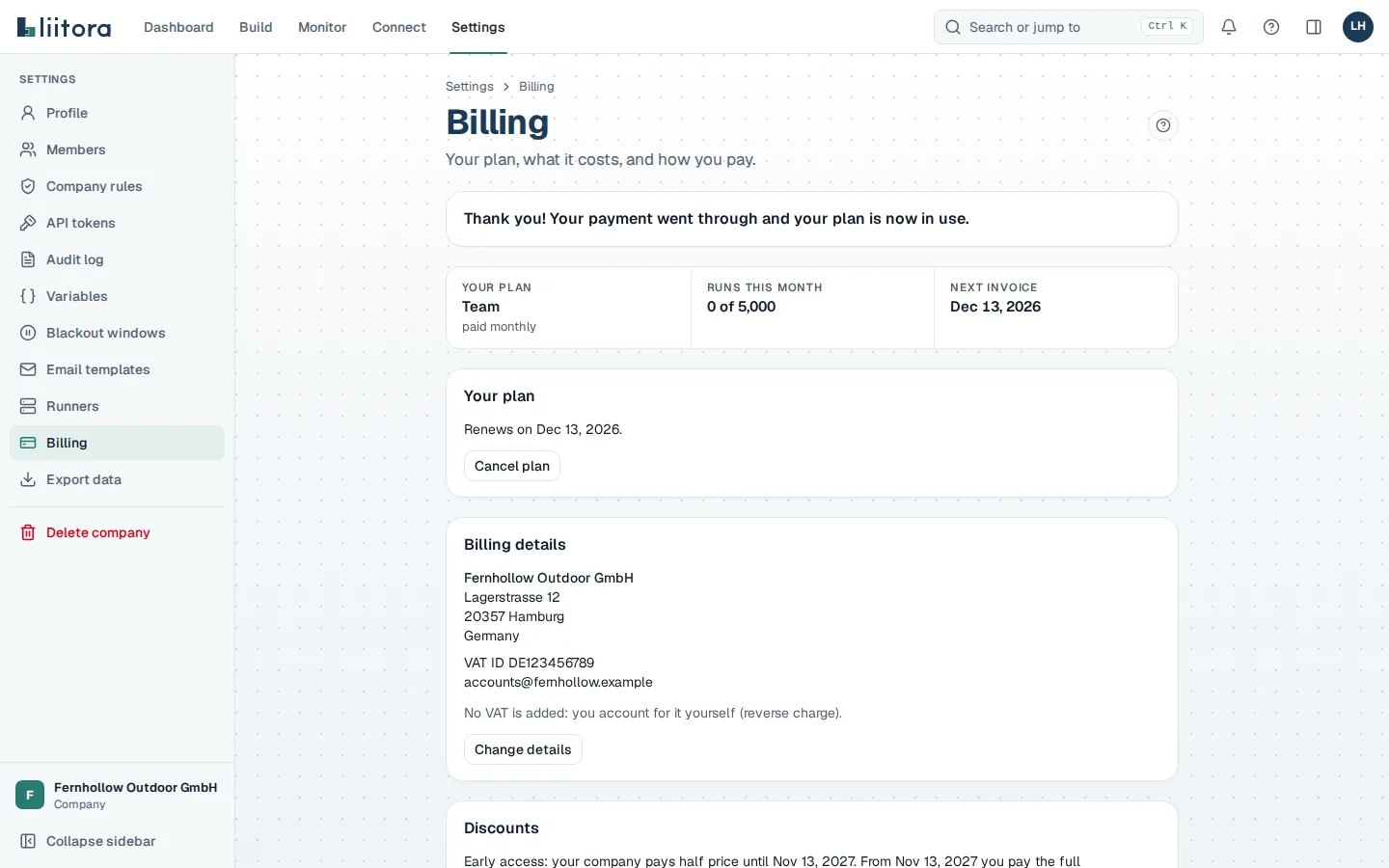
- Mollie sends you back to Billing. The page checks the payment and says when it went through.
If your company has more active integrations than the plan you chose allows, Pay and start is refused and the message says how many workflows to pause first. Workflows paused because of billing count too, because they start again when you pay.
Your company moves to the new plan as soon as the payment goes through. Later payments are taken automatically at the start of each period, with the same method. If you leave Mollie’s page without paying, nothing is charged and you can try again.
Discounts
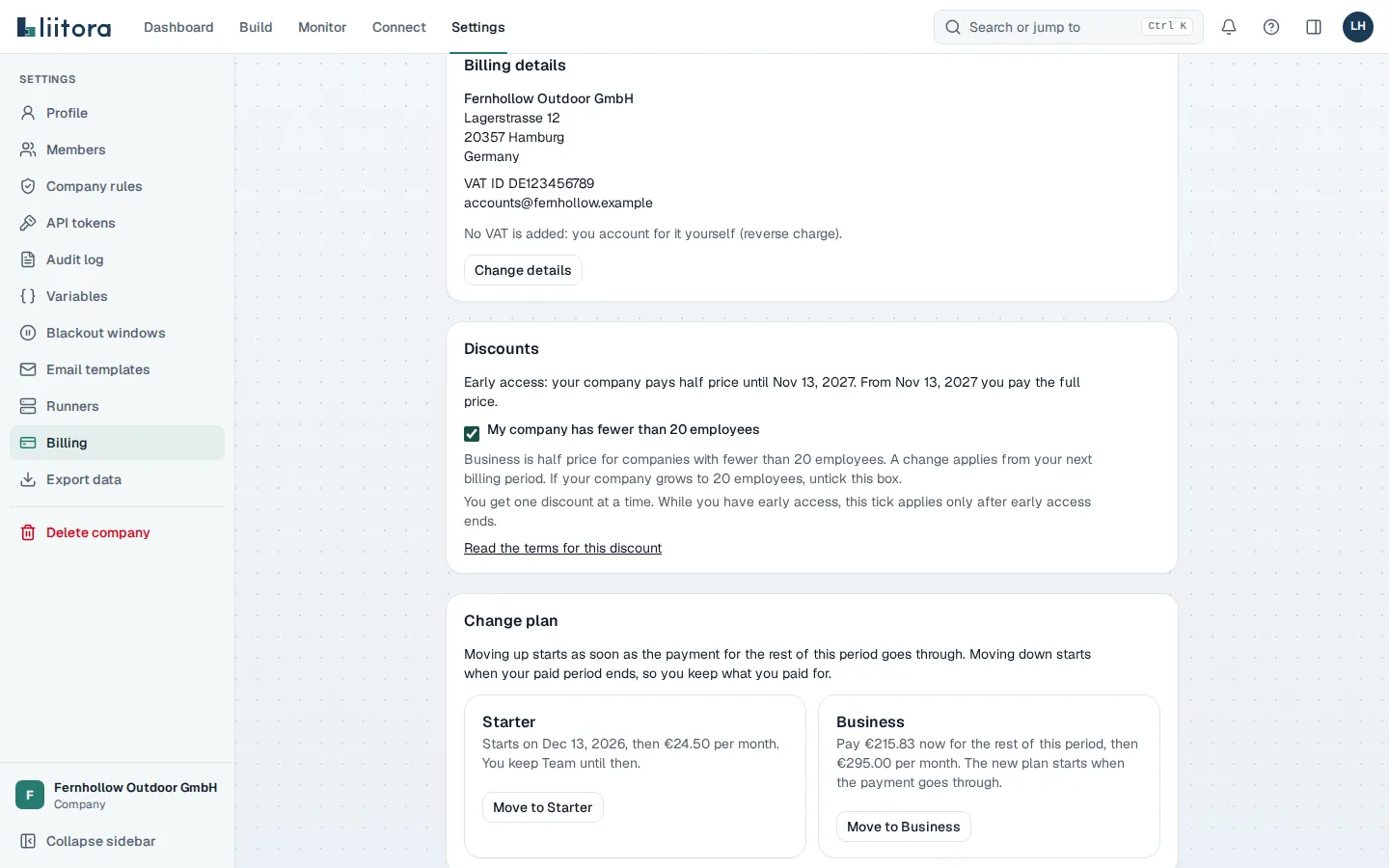
Section titled “Discounts”Liitora has two discounts, each half price. Your company gets one at a time, never both.
Early access. If your company’s first payment for a plan comes from a checkout you start by 31 January 2027 (23:59 Helsinki time), you pay half price for 12 months: your first 12 monthly payments, or your first year. It covers Starter, Team and Business, and you need no code. Enterprise is agreed with us instead.
After you pay, Discounts on Billing shows the date early access ends. From that date you pay the full price. If you pay monthly, company admins get an email 30 days before. If you pay yearly, the renewal email 30 days before the next year gives its price. Changing plans, cancelling or paying again later doesn’t start early access again.
Business for small companies. A company with fewer than 20 employees gets Business at half price.
- Under Discounts, tick My company has fewer than 20 employees.
The half price starts with your next billing period. Nothing is charged or refunded for the current one. It lasts while your company stays on Business and the box stays ticked. If you move to another plan, the box is cleared, and you tick it again if you come back to Business.
We don’t ask for proof. If your company reaches 20 employees, untick the box, and the full price applies from your next billing period. The terms of service say what happens if the box is ticked when it shouldn’t be, and Read the terms for this discount under the box opens them.
While you have early access, the tick waits: when early access ends, Business stays at half price for a company that has ticked the box.
Only people who can manage billing see the box. API tokens and AI assistants can’t tick it.
Run packs are never discounted. When you change plans, the amount is worked out from the discounted prices. Invoices show the full price, the discount and what you paid.
Change your plan
Section titled “Change your plan”Change plan lists the other plans with what moving costs and when it starts. You stay on the same period: a monthly plan moves to another monthly plan, and a yearly plan to another yearly plan.
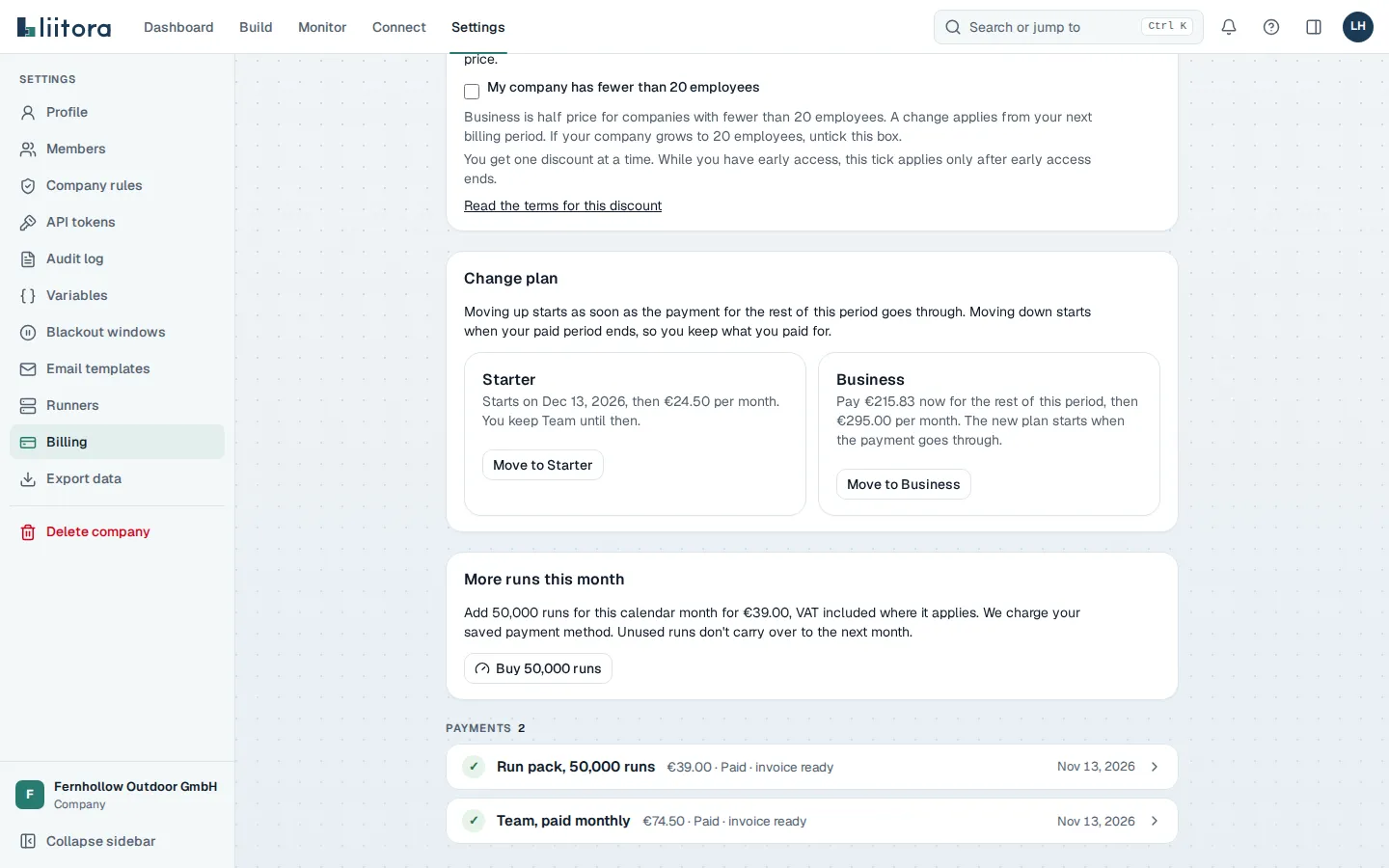
Move up to a bigger plan:
- Under the plan you want, select Move to Business (or the plan’s name).
- Check the amount and select Pay with that amount.
You pay the price difference for the rest of the period you have paid for, with VAT for your country. We charge your saved card or bank account, and the page says when the payment went through. Your company moves to the bigger plan as soon as it does, and later payments are the bigger plan’s price. If the payment fails, your plan stays as it was. If your saved payment method can’t be used any more, Mollie’s payment page opens instead. When less than a euro would be due, nothing is charged and the move happens at once.
Move down to a smaller plan:
- Under the plan you want, select Move to Starter (or the plan’s name), then Confirm.
You keep your current plan until the end of the period you have paid for, so nothing you paid for is lost. The next payment is the smaller plan’s price, and your company moves to the smaller plan when the period ends. Change plan says when the move happens. Changed your mind? Select Stay on your current plan, then Confirm.
Make sure your company fits the smaller plan’s limits before the move happens, for example the shortest schedule. A move down is refused while your company has more active integrations than the smaller plan allows; the message says how many workflows to pause first. Once the move is set, the smaller plan’s number applies to new activations right away.
Buy more runs this month
Section titled “Buy more runs this month”More runs this month offers your plan’s run pack, for example 50,000 more runs on Team.
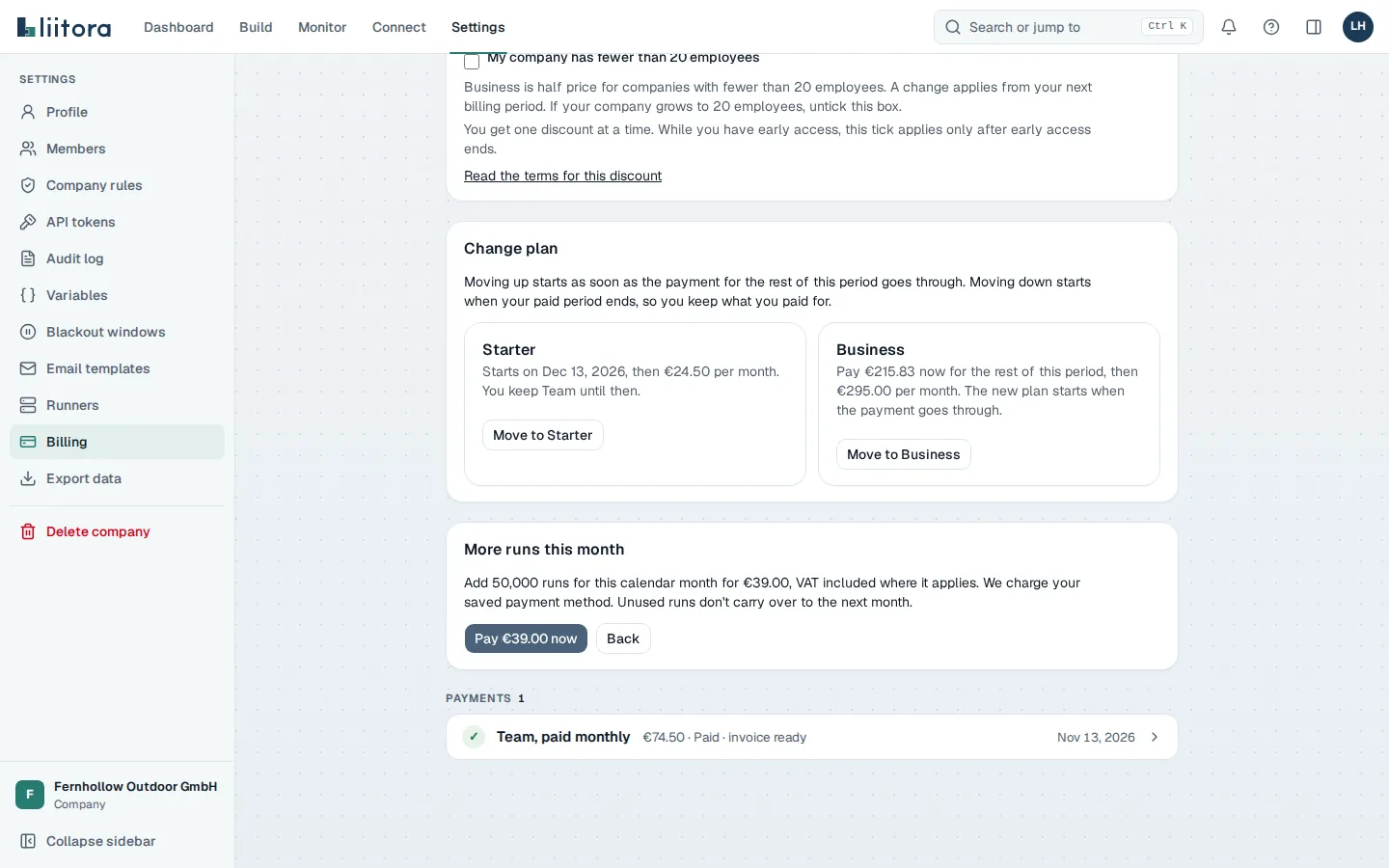
- Select Buy with the number of runs.
- Check the amount and select Pay with that amount.
We charge your saved card or bank account (or open Mollie’s payment page if it can’t be used). The runs are added as soon as the payment goes through, and they are for the current calendar month only.
See your payments and invoices
Section titled “See your payments and invoices”Payments lists your payments with the date, the plan, a plan change or a run pack, the amount with VAT, and the state: Waiting for payment, Processing, Paid, Cancelled, Expired or Failed.
Every paid payment gets an invoice. We email it as a PDF to the email for invoices in your billing details, and you can download it again from Payments with Invoice and its number. The invoice shows your billing details as they were when you paid, the period you paid for, and the VAT, or the reverse-charge note for a company outside Finland. It is marked paid, so there is nothing more to pay.
We keep invoices for bookkeeping until the end of the sixth year after the year they were issued, also if you delete your company.
Change your billing details
Section titled “Change your billing details”Select Change details under Billing details. The new details apply to the next payment.
Cancel
Section titled “Cancel”If you pay yearly, company admins get an email 30 days before the plan renews, with the date and the amount. Nothing needs to be done to keep the plan; cancel before that date if you don’t want the next year.
- Select Cancel plan.
- Confirm with Yes, cancel.
Your plan stays in use until the end of the period you have paid for, and nothing is charged after that. When the period ends, your workflows pause. For 90 days you can still sign in, see your data and export it, and you can pay again on Billing to continue as before. After that, your company is deleted. Admins get an email 7 days and 1 day before. See When a paid plan ends.
When a payment fails
Section titled “When a payment fails”If an automatic payment does not go through, it shows Failed under Payments, and:
- For 7 days your workflows keep running. Company admins get an email, and everyone in your company sees a message at the top of the app with the date your workflows pause. Billing shows the same date.
- After 7 days your workflows pause if nothing has been paid. Admins get another email. Your data stays, and you can still sign in and export it. A failed payment alone never deletes your company.
- When a payment goes through, everything starts again. Paused workflows start again by themselves, as many as your plan’s active integrations allow, oldest first. Any others stay paused until you make room and resume them.
The same happens when the payment for a new period does not arrive within 3 days of the period’s end, for example when your bank stopped the mandate. A bank payment that is still on its way gets 10 days, because a bank debit can take several working days.
To pay, open Billing, choose your plan and pay with a card or bank account that works. This replaces the old payment method, and your next payments use the new one. Until it is paid, you can’t change your plan or buy more runs, and you can’t cancel.
If your company had a billing agreement with us and it has ended, company admins get an email with the last day your workflows run. Before that day, open Billing, choose a plan and pay by card or bank account. If nothing is paid by then, your workflows pause until you pay, as after a failed payment.
If something looks wrong, report a problem and we sort it out with you.
Enterprise billed as agreed
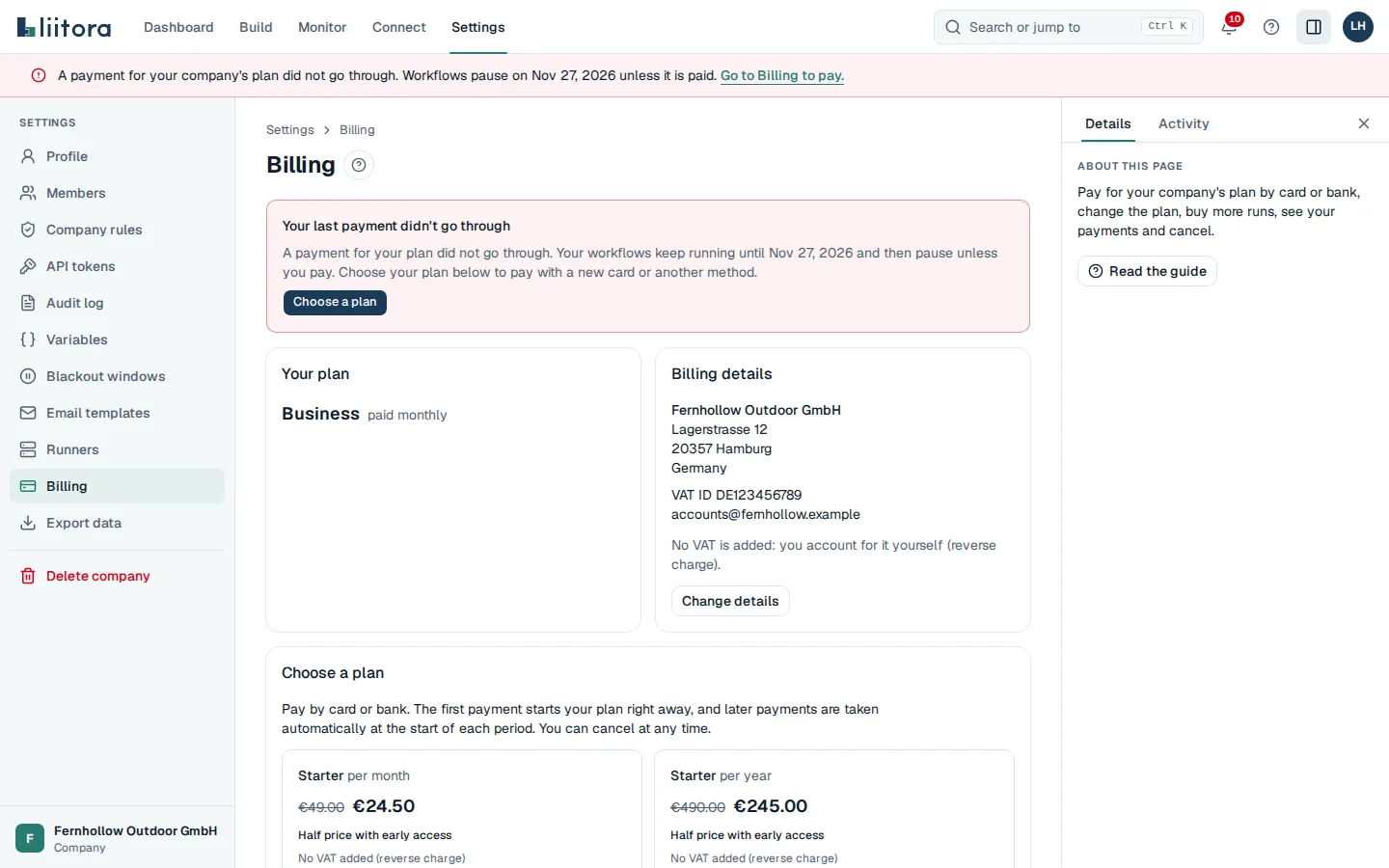
Section titled “Enterprise billed as agreed”If your company has an Enterprise agreement with us, we bill it as the agreement says, not by card. Billing then shows your plan with “Your plan is billed as agreed with us. Contact us to change it.” Your billing details and past payments stay on the page. There are no prices, discounts, plan changes or extra runs to buy there, and nothing to cancel: contact us for any change.
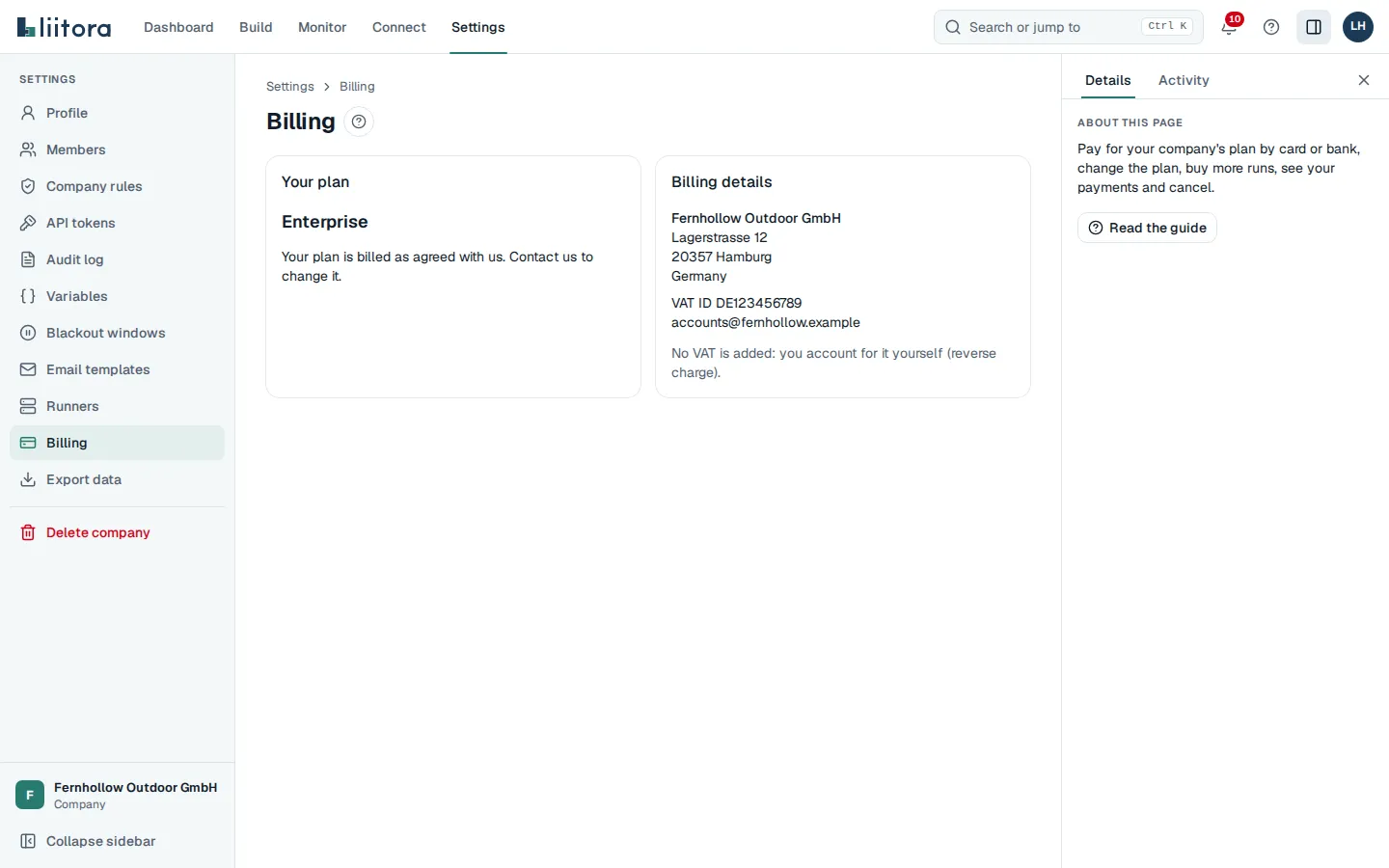
When the agreement ends, your plan stays and you pay for it by card from then on. Company admins get an email with the last day your workflows run, and Billing shows that day with Choose a plan. See When a payment fails.
Audit log and API
Section titled “Audit log and API”Paying, plan changes, run packs, cancelling, changes to the billing details, ticking or unticking the small-company box, a discount starting or ending, failed payments and the pause are recorded in the audit log.
The app uses these API routes: GET /api/v1/billing shows the plan, details, prices and payments, PUT /api/v1/billing/details saves the details, POST /api/v1/billing/checkout starts a payment and returns Mollie’s checkout_url, POST /api/v1/billing/payments/{id}/check checks a payment, POST /api/v1/billing/plan with {"plan": "business"} changes the plan, POST /api/v1/billing/run-packs buys the plan’s run pack, PUT /api/v1/billing/small-company with {"small_company": true} ticks the small-company box (a person only), GET /api/v1/billing/invoices/{id}/pdf downloads an invoice, and POST /api/v1/billing/cancel cancels. A plan change or run pack returns the payment_id to check, and a checkout_url when Mollie’s payment page must open. They need the Manage billing permission. The API’s full description is at /api/v1/openapi.json.