

Page: Run
Who this is for: people who check what a run did or why it failed.
Before you start: you need the View runs permission. Open Runs and select a run.
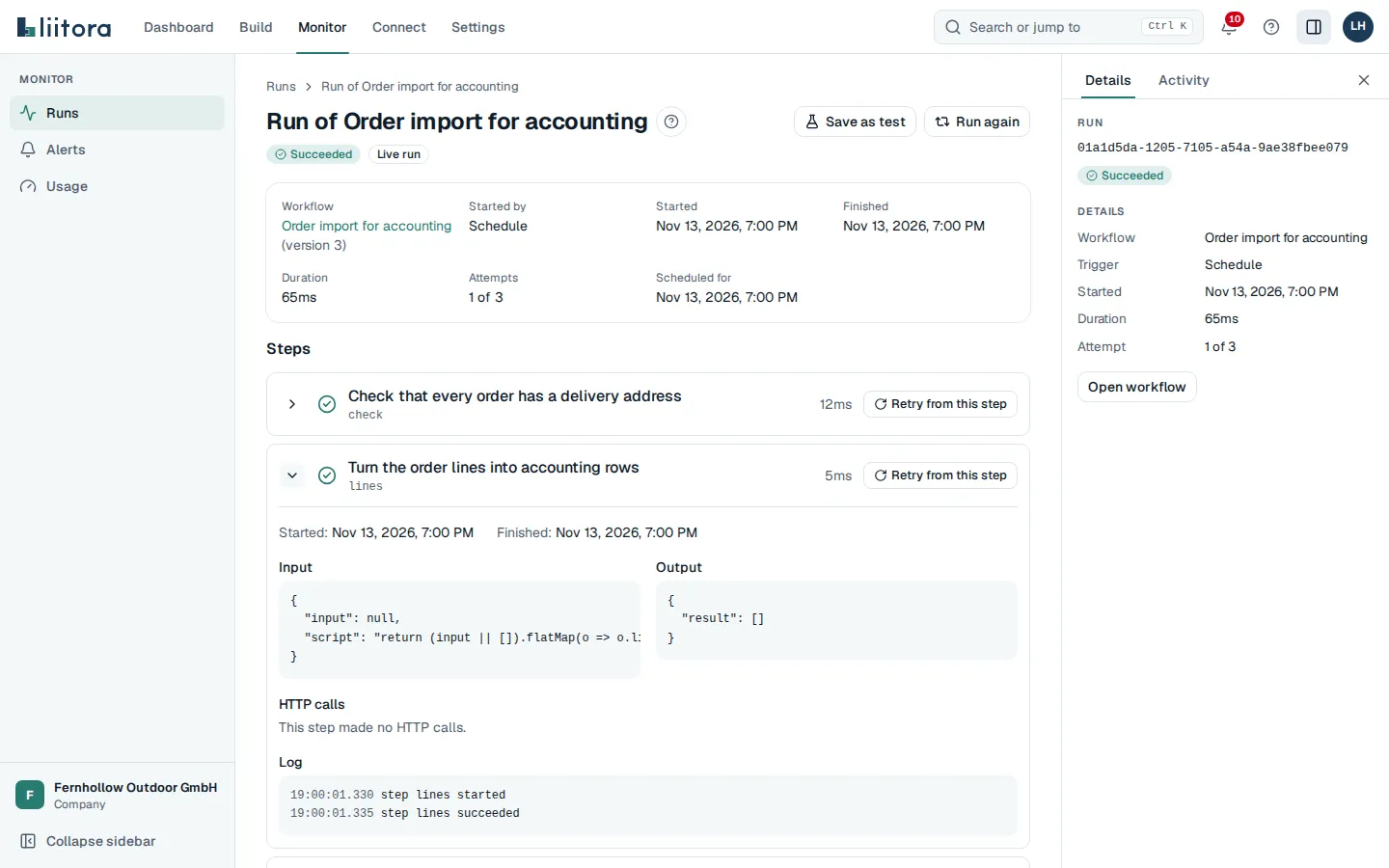
The run page shows one run of a workflow, step by step. You can also open a run in a panel from the Runs page. While the run is going, the page says Updating live and refreshes by itself.
Details
Section titled “Details”At the top you see the status and badges such as Test run, Live run or Dry run, then:
- Workflow and its version;
- Started by, Started, Finished (or Still running) and Duration;
- Attempts, for example 1 of 3, and Scheduled for;
- Retry of the original run and from step the step’s name, when this run is a retry;
- Lookup tables read, with the version of each.
A test run that uses a connection marked as having no separate test system runs as a dry run, even when you didn’t ask for one. The page then shows Dry run and a note that names the connection. Reads went out, but nothing was sent or changed, and each write and email is listed as what it would have done. See When a system has no test copy.
When the run failed, what went wrong shows under Details in plain words, with a Read about this error link to the error catalogue. Select Error as the system wrote it to see the original message with its error code. A run refused because it tried to use a secret, connection or action version its version did not declare also shows an Open the workflow to fix it link. See Refused because of what the workflow can use.
A run that your own runner’s local policy refused (policy_refused) also shows Refused by a runner’s local policy with the Rule it hit, What the policy does not allow (the destination, secret name or action, when there is one) and the Runner group. Liitora never shows the policy itself. See Limit what your runner may run.
Every step in order, by its name, with its status, duration and attempt. A step that failed shows what went wrong in plain words. Select a step to see:
- Started and Finished: when the step started and finished, or not yet.
- Input and Output: what went in and what came out. Secret values and credential fields are masked. Large values say This is too large to show here.
- HTTP calls: every request the step made: Method, Address, Status (or No answer) and Time. Credential headers are masked.
- Log: the step’s log lines.
- For a for-each step, one entry per item (Item 1, Item 2 and so on).
Set-aside items
Section titled “Set-aside items”The box is called Set-aside items (quarantined items). It is shown when the run ended with items_quarantined: items of a for-each step that kept failing and were set aside. Each item shows its step and position, its last error in plain words with Read about this error, and its state (Waiting, Replaying or Replayed). An item that was replayed has an Open the replay run link. Select Technical details on an item for its error code, the error as the system wrote it, the attempts it used and when it last changed.
With the permissions for the buttons below, Replay on a waiting item starts a new run for that item only, and Replay all starts one for every waiting item (one run per step). The replay run opens. On a replay run the box says that the items belong to the original run, with an Open the original run link. See Replay quarantined items.
Files (artifacts) the run made, with their size, the step that made them and how long they are kept. Select Download to save one. The file is always saved, never opened in the browser. Files larger than 25 MiB can’t be downloaded here, and expired files are no longer listed. See Work with files in a run. When there are none, it says This run made no files.
Result and Run log
Section titled “Result and Run log”Result shows the outputs of every step. Run log shows all log lines of the run.
Buttons
Section titled “Buttons”You need the Edit workflows permission for these. A production run also needs the Activate workflows permission.
| Button | What it does |
|---|---|
| Cancel run | Stops the run. A queued run stops right away. A running run starts no new step or item after you cancel, and a step that is still running is stopped within about 20 seconds. The steps that did not start show as cancelled. |
| Run again | Starts a new run from the first step with the same input. |
| Save as test | On a finished run that wasn’t cancelled: drafts a test case from the run’s input, the answers it got from other systems and how it ended. You review and change the case, then Add the test saves it to the workflow’s newest version as a new version. Secret values are never copied. For a production run you must first confirm that you have checked the data, because it can hold personal data. See Save a run as a test. |
| Retry from this step | On a step of a finished run: starts a new run at this step. Steps before it are not run again: their results are reused, so nothing is sent twice. |