

Page: Settings
Who this is for: everyone who uses Liitora, and admins who manage the company, its members, API tokens and billing.
Before you start: everyone can open Settings. The API tokens page needs the Manage API tokens permission, the audit log needs the View audit log permission, members need the Manage members permission, billing needs the Manage billing permission, the data export needs the Export company data permission and deleting the company needs the Delete company permission. All of these are Admin only. A page your role can’t use says so, and who can.
Select Settings, the last section in the top bar. Its twelve pages are in the sidebar on the left: Profile, Members, Company rules, API tokens, Audit log, Variables, Blackout windows, Email templates, Runners, Billing, Export data and Delete company. On a phone, pick the page in the list above the title. The page you pick is kept in the page address, so you can link to it. Above the title, Settings takes you back to Profile.
Lists are tables, with what you can do on each row. Names show in words, with the exact name your workflows use below them.
Profile
Section titled “Profile”You and your company shows who you are:
- Company: your company’s name;
- Email, and for an AI assistant or an API token, Signed in as;
- Roles: your roles in this company, such as Admin. An admin sets your role.
What you can do says in one sentence what your role allows, such as “You can build and run workflows, but not change company settings.”, and lists every permission you hold, in plain words, such as Approve workflows.
Signing in (people only) has three buttons: Add a passkey or security key, Set up another authenticator app and Get new recovery codes. Each opens a short setup on the sign-in pages and brings you back here. See Sign in safely and reset your password.
Address for your firewall shows the public address Liitora connects to your systems from. Add it to your firewall’s allowlist if your systems only accept known addresses. When the platform has no fixed address yet, the card says so. See Allow Liitora through your firewall.
It also shows the Service status: “Connected. The Liitora service is running.” when the app can reach Liitora.
Members
Section titled “Members”Admins see who is in the company and manage access. Other people see only what each role can do.
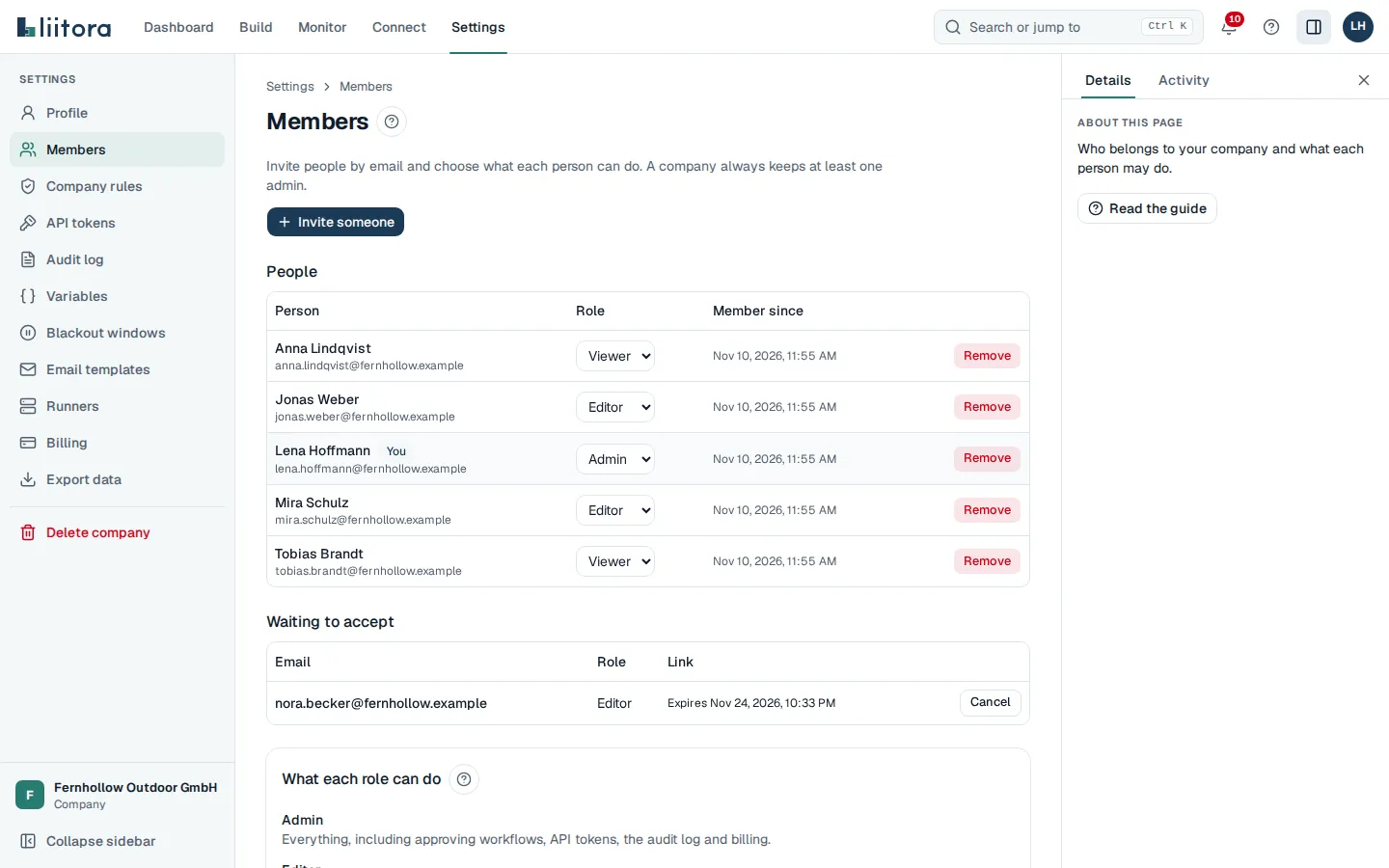
- Invite someone: opens a form with Email and Role, and Send invite. The invite goes out by email.
- People: each member with their name and email, You next to yourself, the Role (change it right there), Member since with the date and time, and Remove.
- Waiting to accept: open invites with their email, role and when the link expires (Expired when it has), and Cancel. Expired invites come first, each with Invite again, which opens the invite form with the address filled in.
- What each role can do: Admin, Editor, Viewer and AI assistant.
The last admin can’t pick another role or be removed. The approval and AI rules are on Company rules. See Manage users and roles.
Company rules
Section titled “Company rules”Rules that hold for every workflow in your company. Everyone can read them; only admins change them.
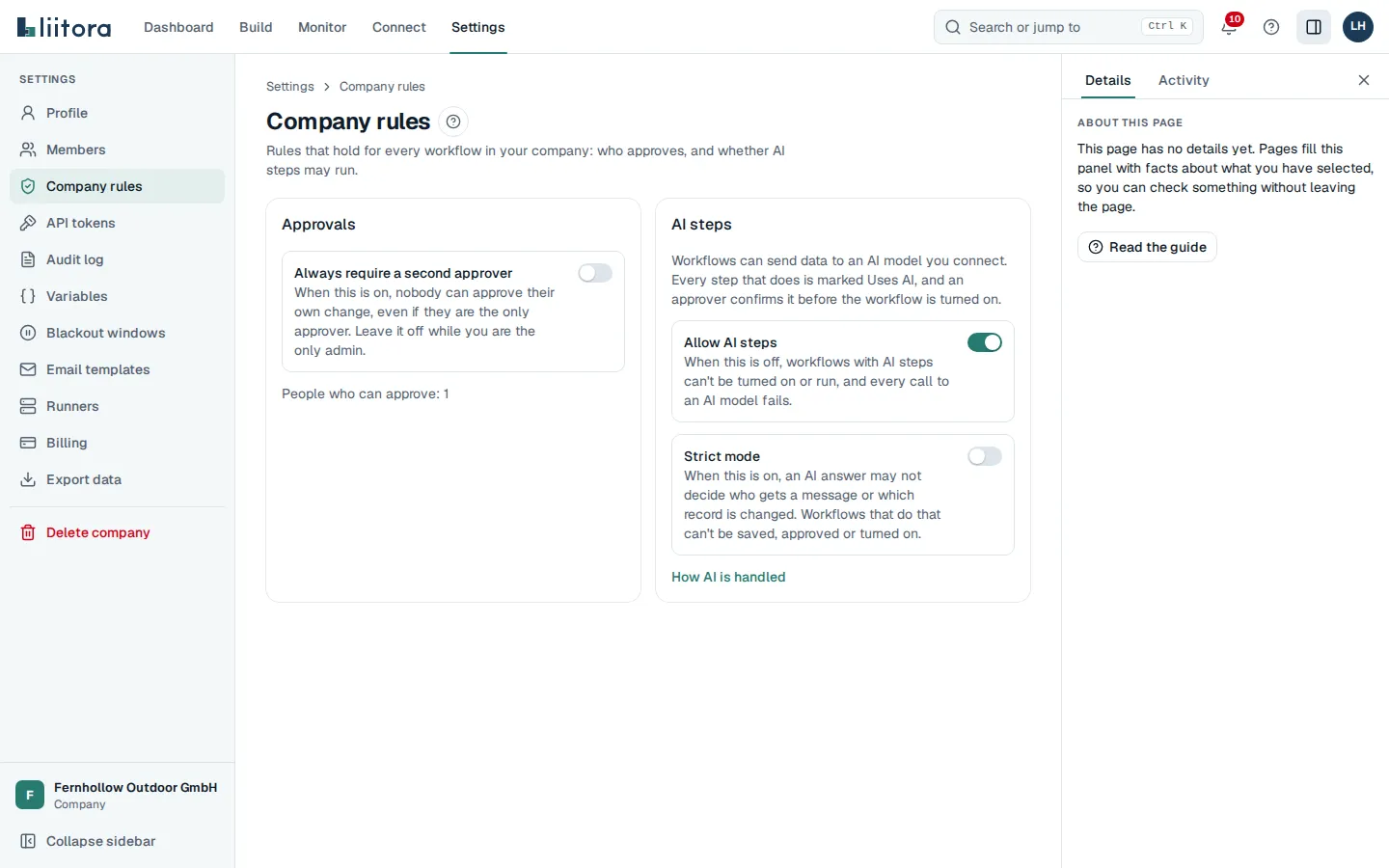
- Approvals: Always require a second approver, and how many people can approve. When it is on, nobody approves their own change, even the only admin, and nobody approves what their AI assistant made for them or what they saved with their API token. It starts on for Business and Enterprise, and off for Starter, Team and the trial. See Who may approve.
- AI steps: Allow AI steps (on by default) and Strict mode (off by default), with when they were last changed. See AI in workflows.
API tokens
Section titled “API tokens”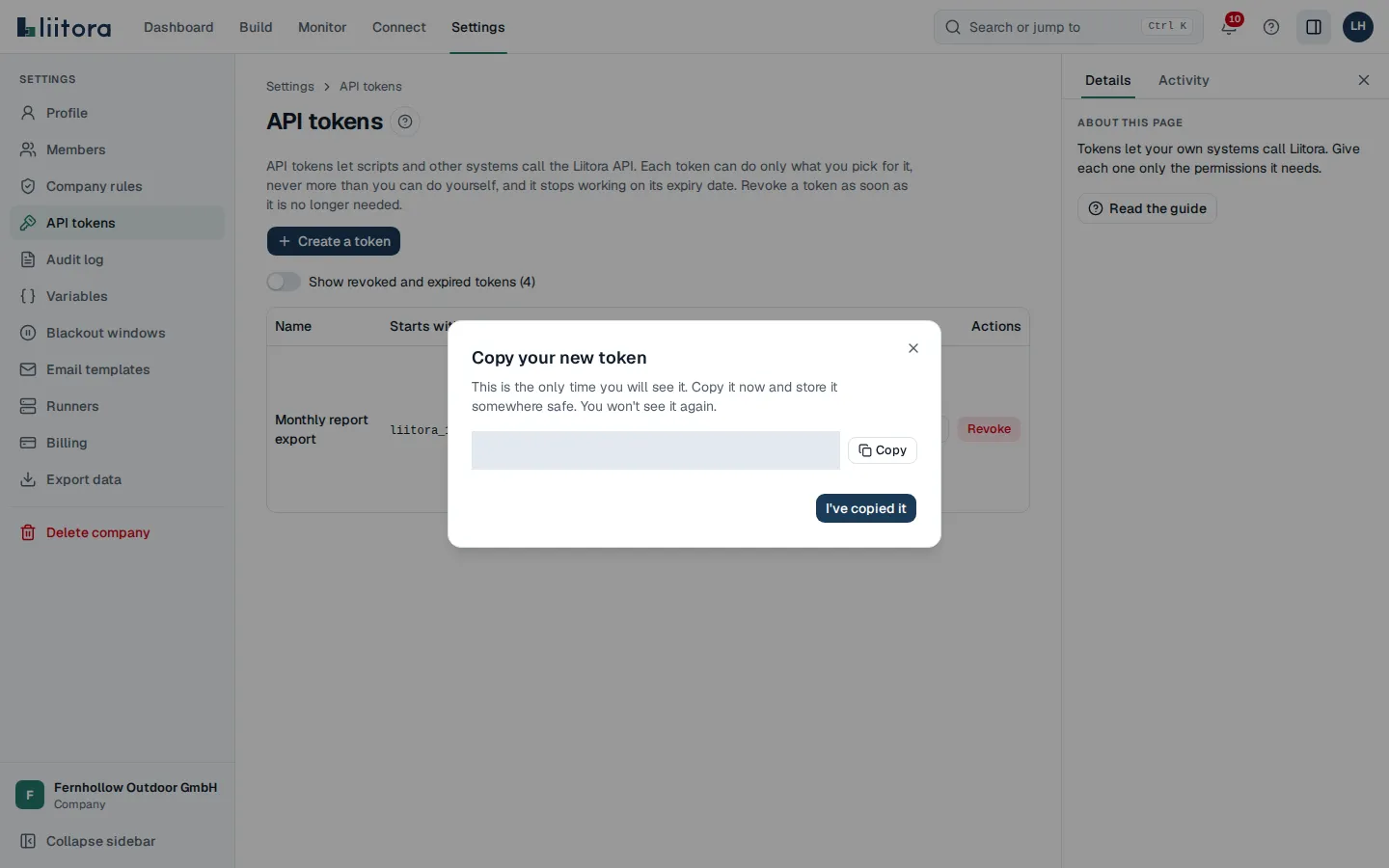
API tokens let scripts, other systems and AI assistants call the Liitora API and the MCP server. Each token can do only what it was given, never more than the person who created it can do, and it always expires.
| Column | What it shows |
|---|---|
| Name | What the token is for. |
| Starts with | The first characters, so you can recognise it. The full token is never shown again. |
| Access | Read-only or Can make changes, the list of what the token may do, and Allowed addresses (Any address when there is no limit). |
| Status | Active, Paused (the sign-in account of the person who created it is turned off), Expired or Revoked. |
| Used | When it was created, last used and when it expires. |
| Actions | Edit: change the name, what the token may do, the expiry date and the allowed addresses. The token stays the same, so anything using it keeps working. Revoke: anything using the token stops working at once. This can’t be undone. |
Create a token asks for a Name, What the token may do (the reading permissions are ticked to start with; approving and managing tokens are never offered, and no token can see a secret value), Expires on (90 days from today to start with, at most about a year; empty means 90 days) and Allowed addresses (IP addresses or ranges; empty means any address). After Create you see the token once: select Copy the token, store it safely and select I’ve copied it.
The list shows the tokens that work or are paused. When some are revoked or have expired, switch on Show revoked and expired tokens to see them too. When no token works, the page says so.
Edit opens the same form with the token’s current settings filled in. The expiry date can be at most a year after the day the token was created. Only active and paused tokens can be changed.
Only people can create, change and revoke tokens. A token or an AI assistant can never create or change a token. See Create API tokens.
Audit log
Section titled “Audit log”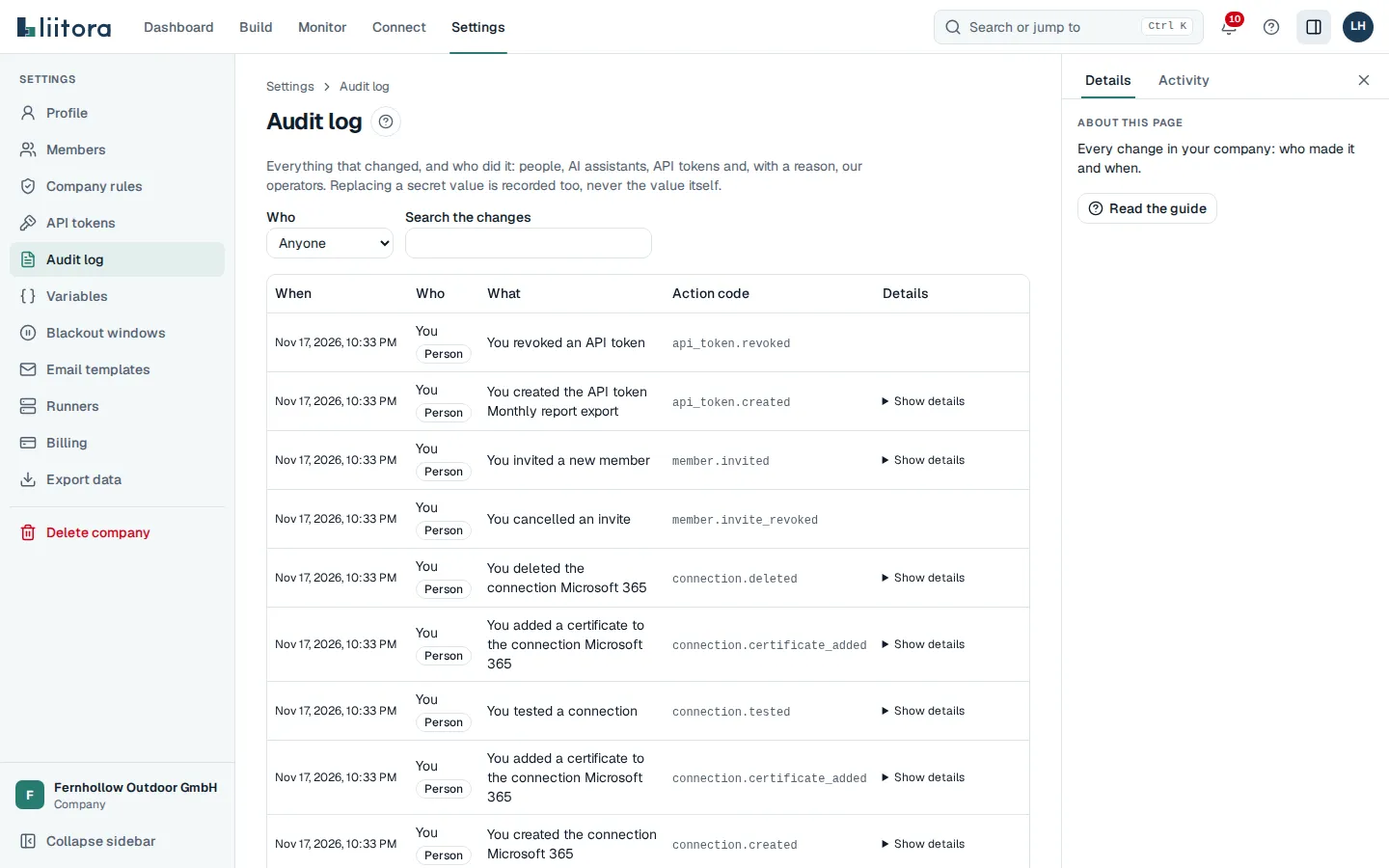
Everything that changed, and who did it: people, AI assistants, API tokens and, with a reason, our operators. Replacing a secret value is recorded too (never the value). The log can’t be edited or deleted.
- Columns: When, Who, What, Action code and Details.
- Who names who did it, or says You, An AI assistant, The API token with its name, A Liitora operator (with Reason:) or Liitora for changes the system made, with the kind below: Person, AI assistant, API token, Liitora operator or Liitora.
- What is one sentence that names what changed when Liitora knows its name, such as “You deleted the secret Partner key” or “Anna created a workflow”. Action code keeps the code as Liitora stores it, such as
secret.rotated. - Show details shows each changed value before and after, such as Strict mode: On to Off, and the full details.
- Filters: Who, and Search the changes, which finds words in the sentence, a name or an action code such as
secret.rotatedorworkflow.. Both look at the entries already loaded; select Show more for older ones. When loading older entries fails, the loaded ones stay, with Try again.
The invite page
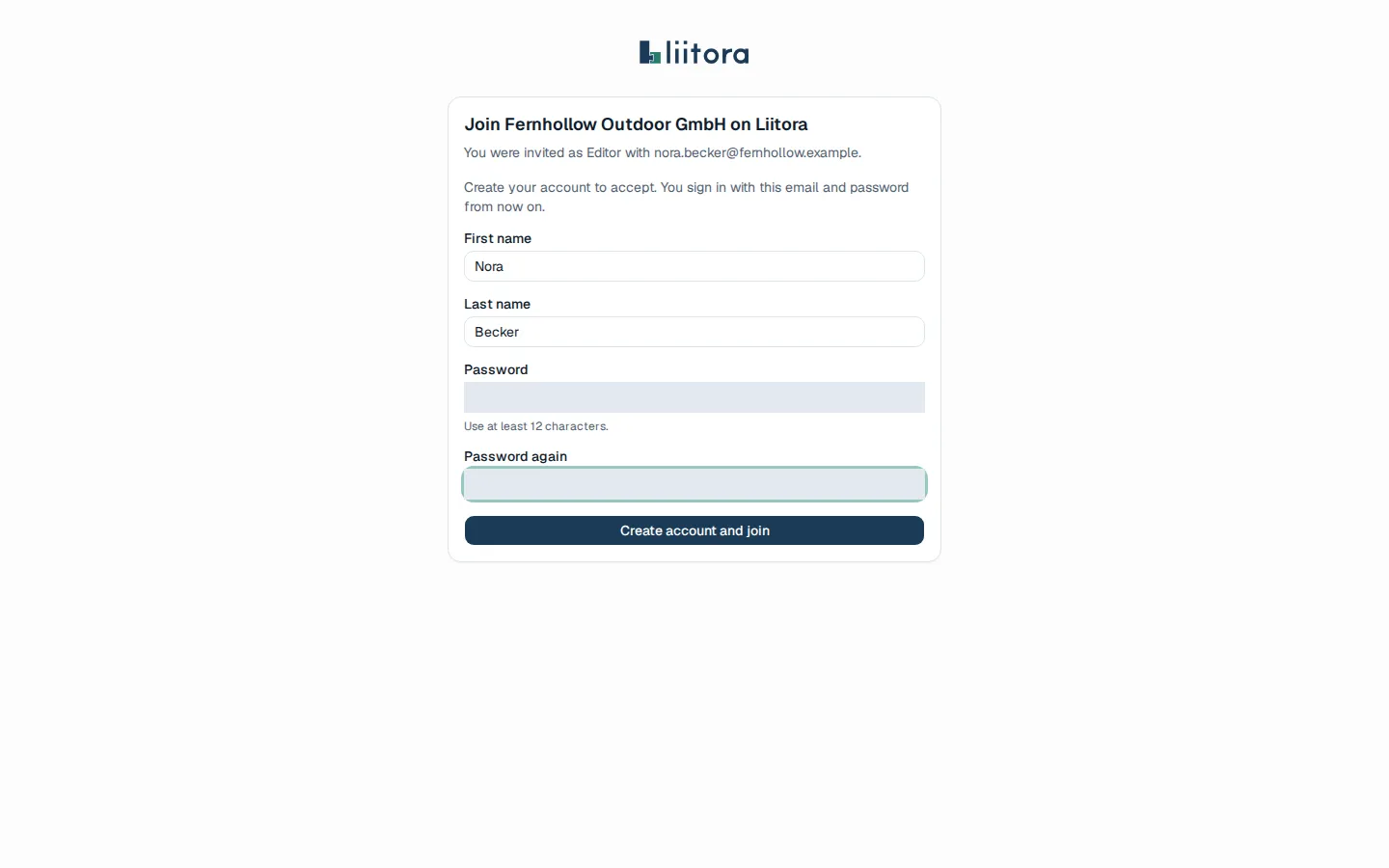
Section titled “The invite page”The page an invite email links to. It says which company you join, with which role and email. New people need no sign-in: they enter First name, Last name, Password and Password again, then select Create account and join. People who already have an account with the invited email select Sign in to accept, sign in with that account and come back to the page, which then shows who is signed in, Accept the invite and Sign out. Afterwards, Sign in opens the sign-in page.
An invite that has expired, was already used or doesn’t exist says so, asks you to get a new invite from your admin, and offers Go to sign in. When the invite page can’t be reached, it offers Try again.
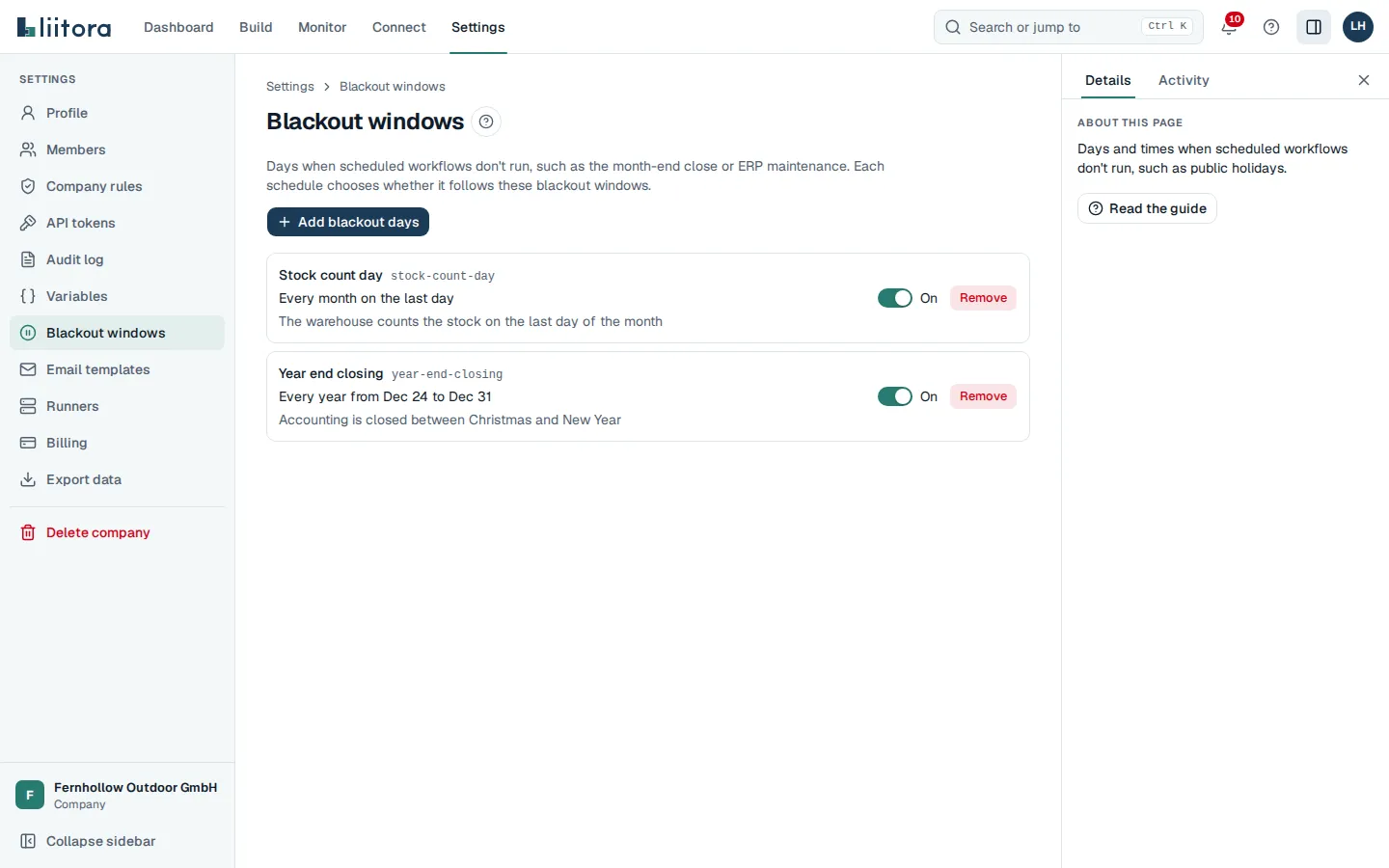
Blackout windows
Section titled “Blackout windows”Days when scheduled workflows don’t run, such as the month-end close or ERP maintenance. Each schedule chooses whether it follows them (skip_on: [tenant_blackouts] in its calendar). Each window shows its name in words with its exact name below, its rule in words with dates in your own format (for example Every month on the last day), its description, On and Remove. Add blackout days asks for a Name, a Description, how it Repeats and the days. Adding, switching and removing need the Activate workflows permission; without it the page says so and is read-only. See Your own blackout windows.
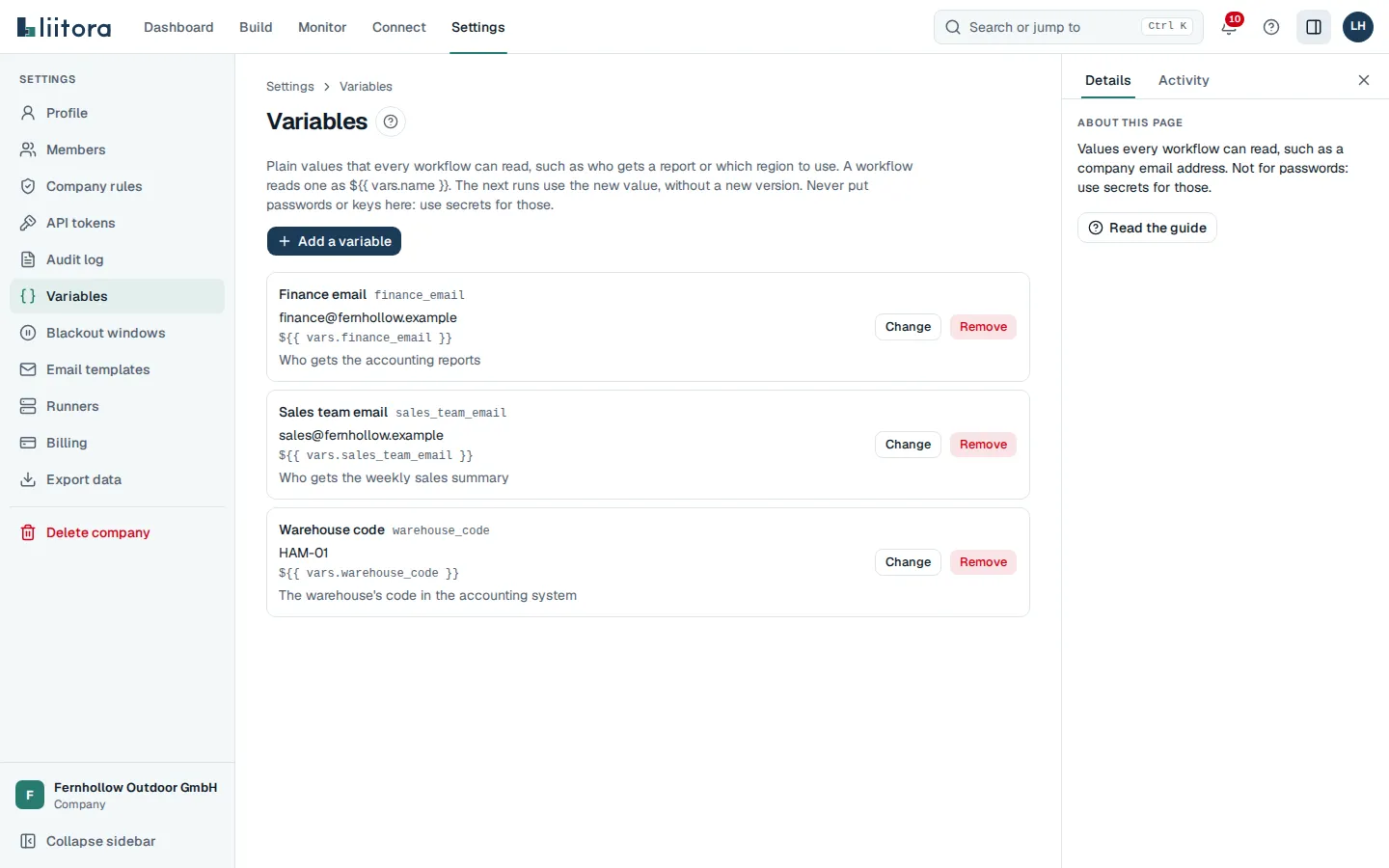
Variables
Section titled “Variables”Company variables that every workflow reads as ${{ vars.<name> }}. Each one shows its name in words with its exact name below, its value (or what kind of value it is, such as A list of 3 values), how a workflow reads it and what it’s for. A variable whose name looks like a secret never shows its value here, with a link to Secrets, where secret values belong. Add a variable asks for a Name, a Type (Text, or Number, true/false, list or object (JSON)), a Value and what it’s for. Change and Remove need the Activate workflows permission; without it the page is read-only. See Use company variables.
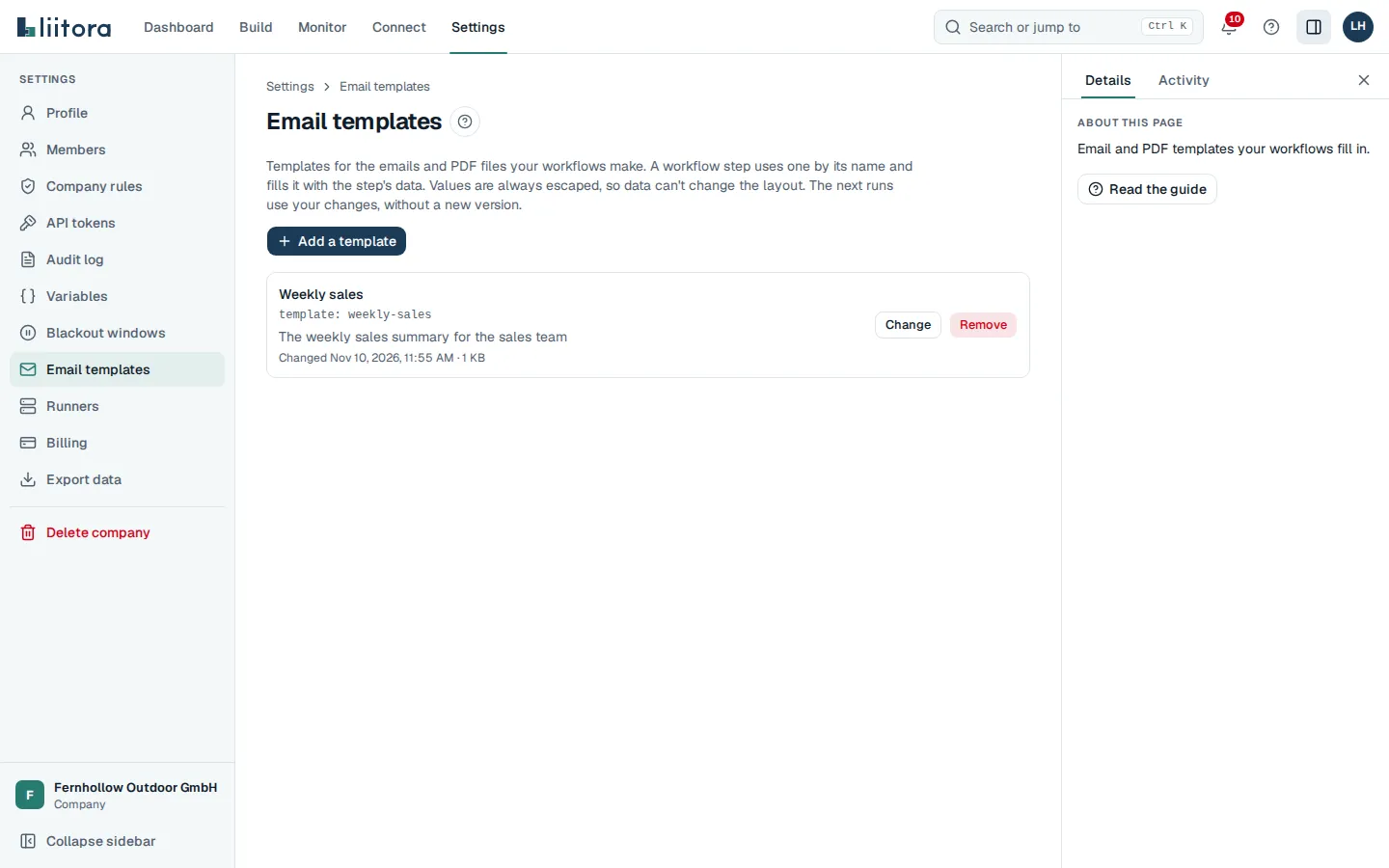
Email templates
Section titled “Email templates”HTML templates for the emails and PDF files your workflows make. Each one shows its name in words, how a step uses it (template: <name>), what it’s for, when it last changed and its size. Add a template asks for a Name, what it’s for and the Template itself; Liitora checks it when you save and names the line of any mistake. Change loads the saved template to edit. Change and Remove need the Activate workflows permission. See Use email and PDF templates.
Runners
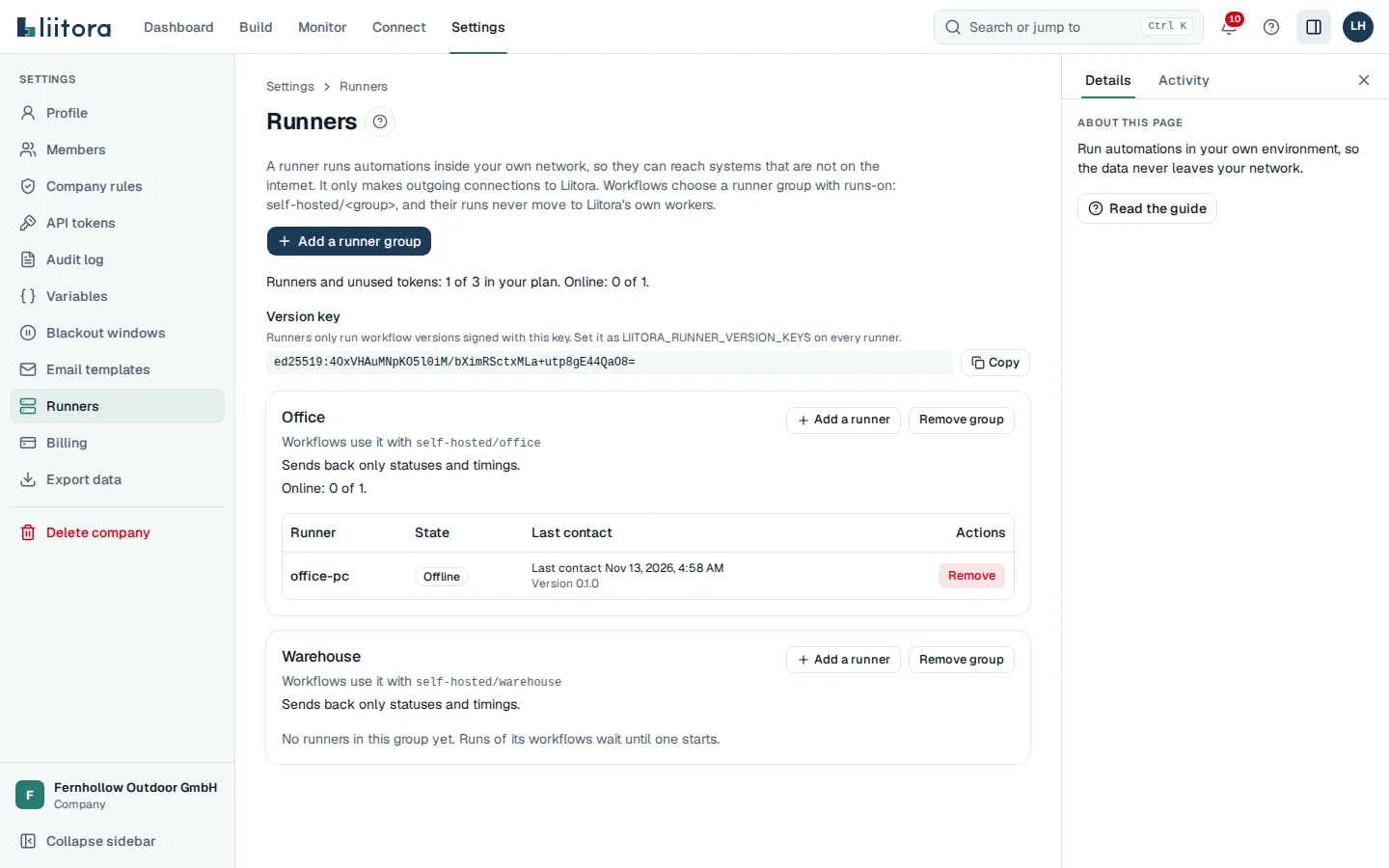
Section titled “Runners”Runner groups and the runners in your own network. Each group shows its name in words, how workflows use it (runs-on: self-hosted/<group>), what its runners send back, how many of its runners are online, its unused registration tokens, and its runners with Online or Offline, their last contact and their version. A runner is Online when it contacted Liitora in the last 2 minutes. The list refreshes every 30 seconds.
The page also shows the Version key to set on every runner, and how many runners and unused tokens your plan allows. Add a runner group, Add a runner, Remove and Remove group need the Manage runners permission. When your plan has no runners, the page says so, with See the plans for people who manage billing and “Ask an admin to change the plan.” for everyone else. See Run automations in your own environment.
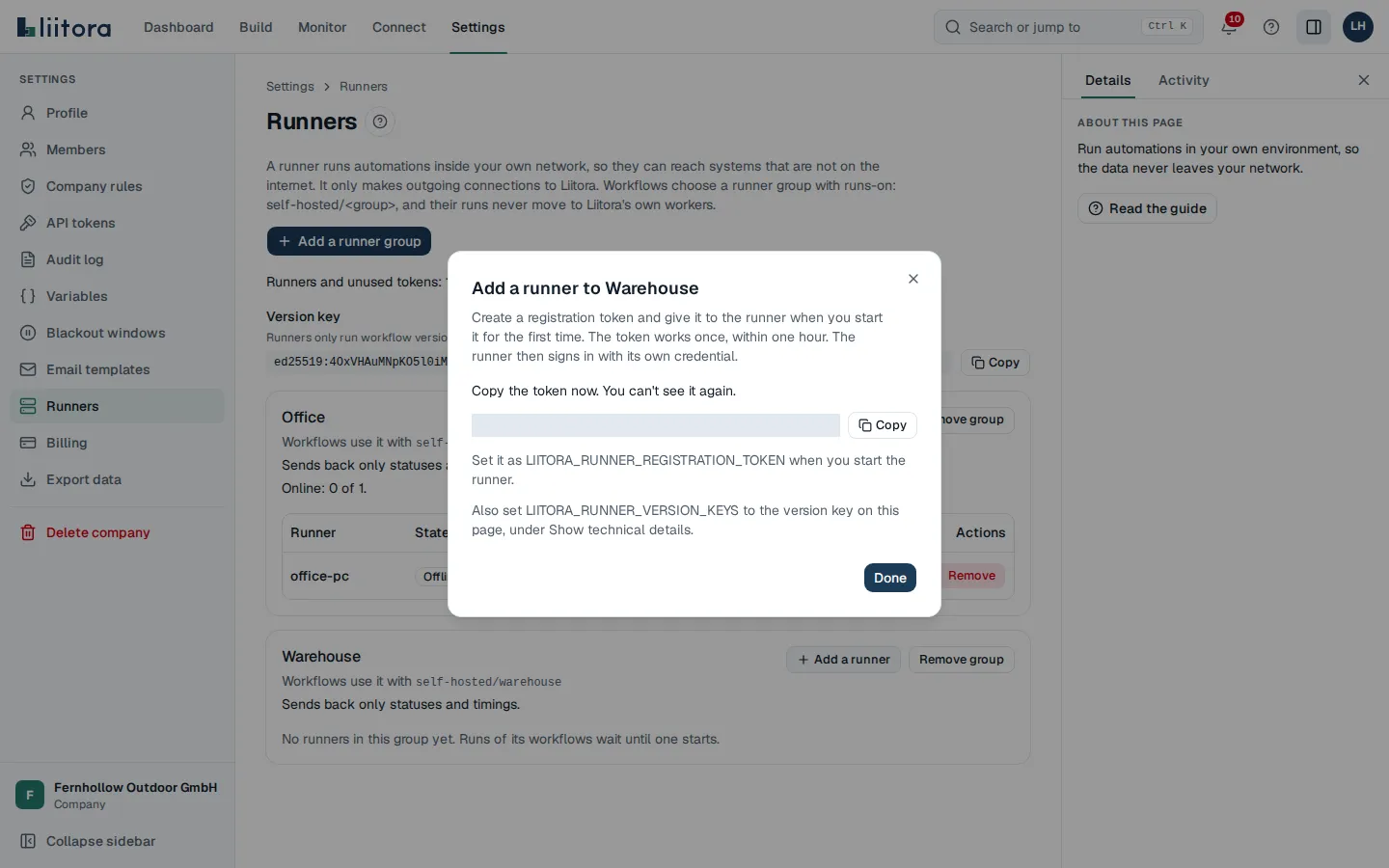
Add a runner creates a registration token and shows it once.
Billing
Section titled “Billing”Your company’s plan and how it is paid. When something needs you, a message at the top says what and how to fix it: a payment that didn’t go through (also when this server takes no payments), billing details to add before you choose a plan, or a trial that ends within a week or has ended. Choose a plan in the message takes you to the prices.
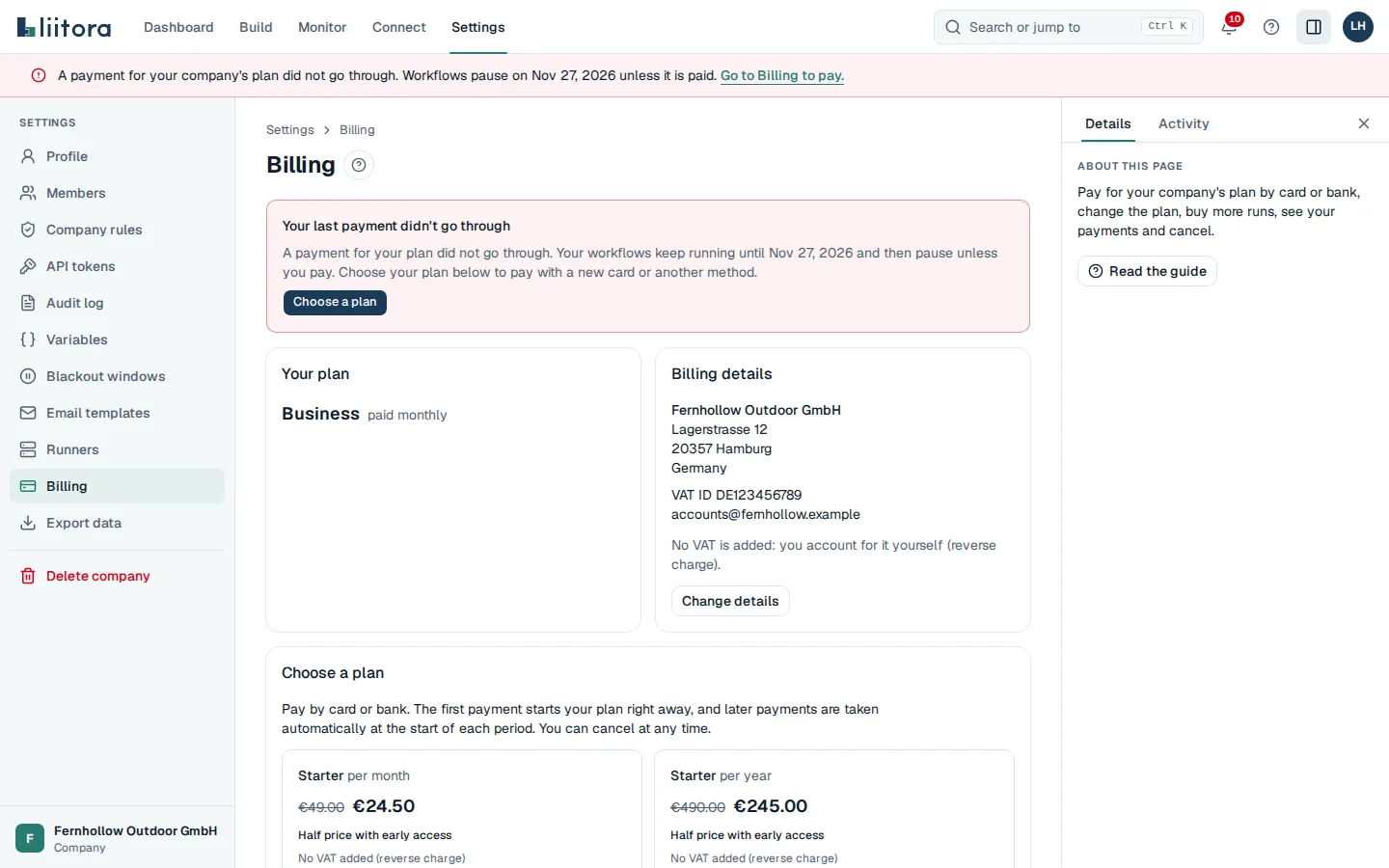
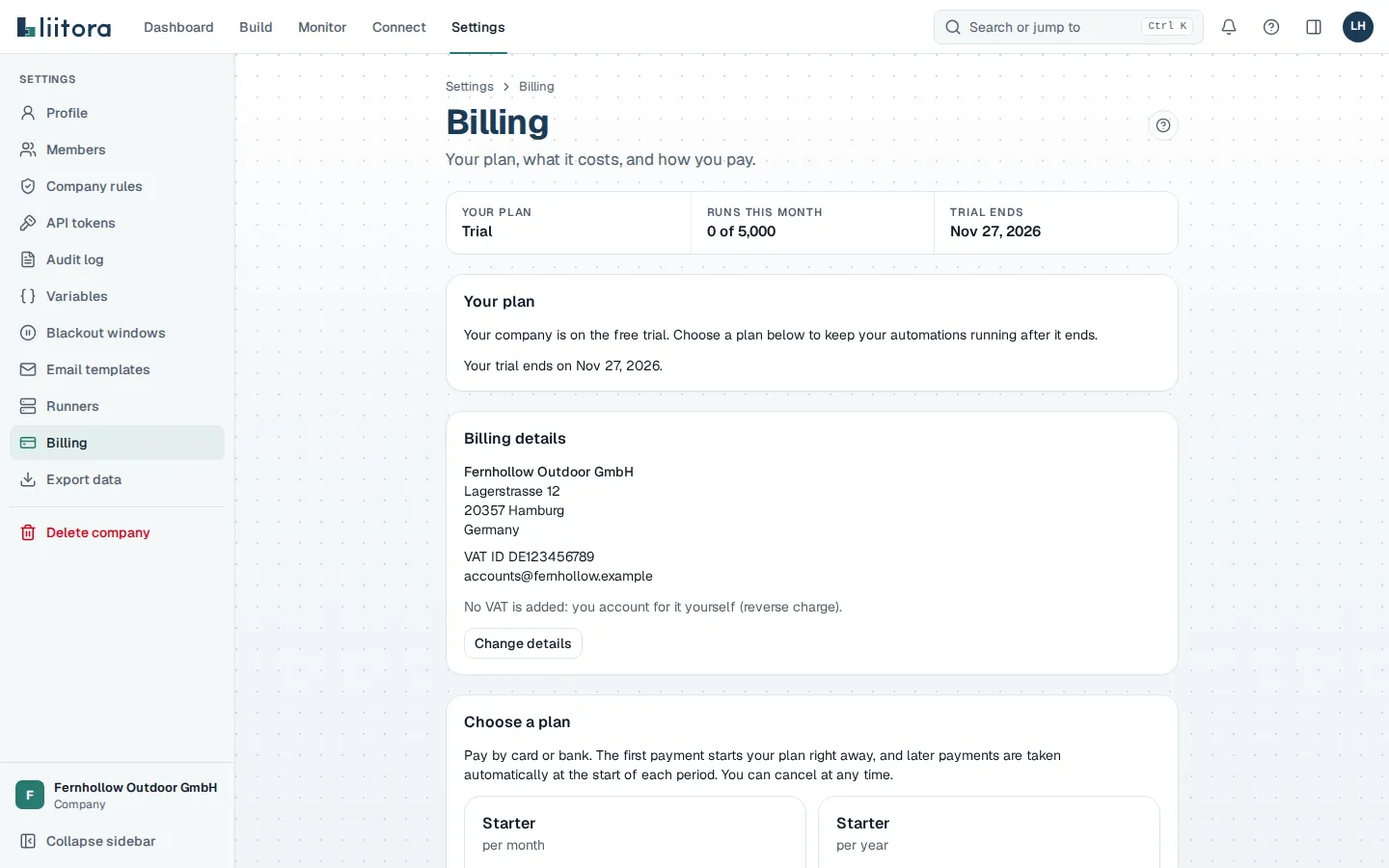
- Your plan shows the plan, whether it is paid monthly or yearly, and when it renews or ends (or that the trial ended), with Cancel plan, which asks for confirmation and ends the plan at the end of the paid period.
- Billing details holds the company name, address, Business ID (Finland) or VAT ID (other EU countries) and the email for invoices, and says whether Finnish VAT is added or reverse charge applies.
- Choose a plan lists the Starter, Team and Business prices, monthly and yearly, with VAT, each with Pay and start, which opens Mollie’s payment page. Every company pays by card.
- Discounts shows the discounts your company can get and how to ask for them.
- Change plan (on a paid plan) lists the other plans of the same period: a move up shows the amount to pay now for the rest of the period and starts when it is paid; a move down shows the date it starts, at the end of the paid period; Stay on undoes a waiting move down.
- More runs this month buys the plan’s run pack. Both ask for confirmation before anything is charged.
- Payments is a table with the Date, the Plan (or plan change or run pack), the Amount, the State and the Invoice to download.
When your company’s Enterprise plan is billed as agreed with us, Your plan says “Your plan is billed as agreed with us. Contact us to change it.” and the page shows only the plan, the billing details and the payments. When that agreement has ended, the message at the top says so, with the last day to pay by card and Choose a plan. See Enterprise billed as agreed.
Only people with the Manage billing permission see the page. If the server takes no payments, the page says so. See Pay for your plan.
Export data
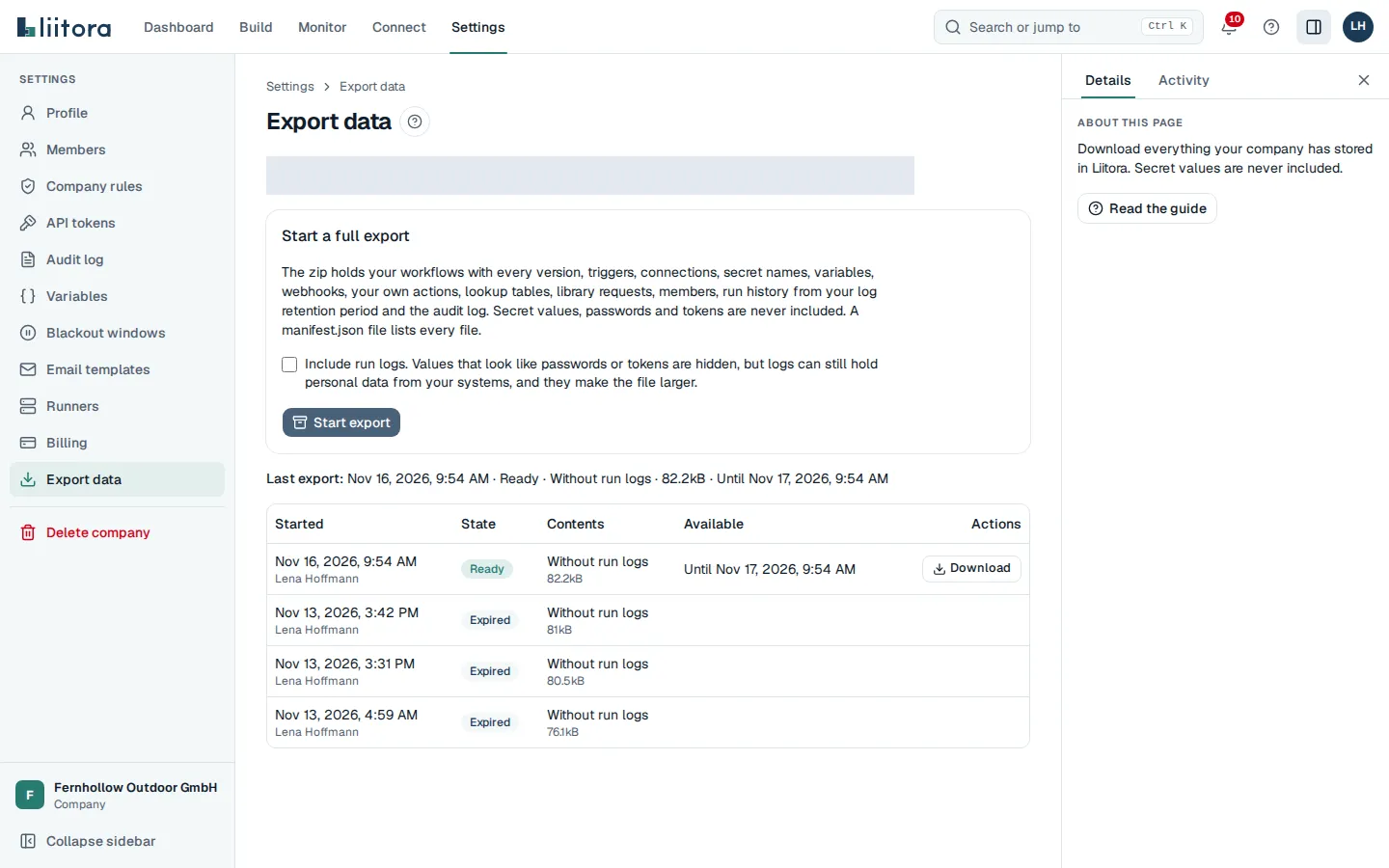
Section titled “Export data”Download a copy of all your company’s data as one zip file. Start a full export lists what the zip holds and has the Include run logs choice, off by default, and the Start export button. While an export is waiting or being built, the button is turned off.
Last export: says in one line how the newest export is doing. The table below lists your company’s recent exports with when and by whom each was started, its state (Waiting, Being built, Ready, Failed or Expired), whether it has run logs, its size and until when it can be downloaded. Download saves a ready export. A failed export shows why it failed. The list refreshes by itself while an export is being built.
Only people with the Export company data permission see the list. Everyone else sees “Only company admins can export all of the company’s data.” See Download a full export.
Delete company
Section titled “Delete company”Delete the whole company and everything it holds in Liitora. Delete this company says what is erased, how long the waiting period is, and that you should download a full export first. Type the company’s name in the box to confirm. Delete the company turns on only when the name matches exactly.
After you confirm, the page shows The company will be deleted with the date after which everything is erased, and a Sign out button. Nobody can sign in to the company any more from that moment.
Only people with the Delete company permission see the form. Everyone else sees “Only company admins can delete the company.” See Delete your company.