

Page: Workflows
Who this is for: people who review and manage their company’s workflows in the Liitora app.
Before you start: you need a Liitora account. Everyone in your company can see this page (the View workflows permission).
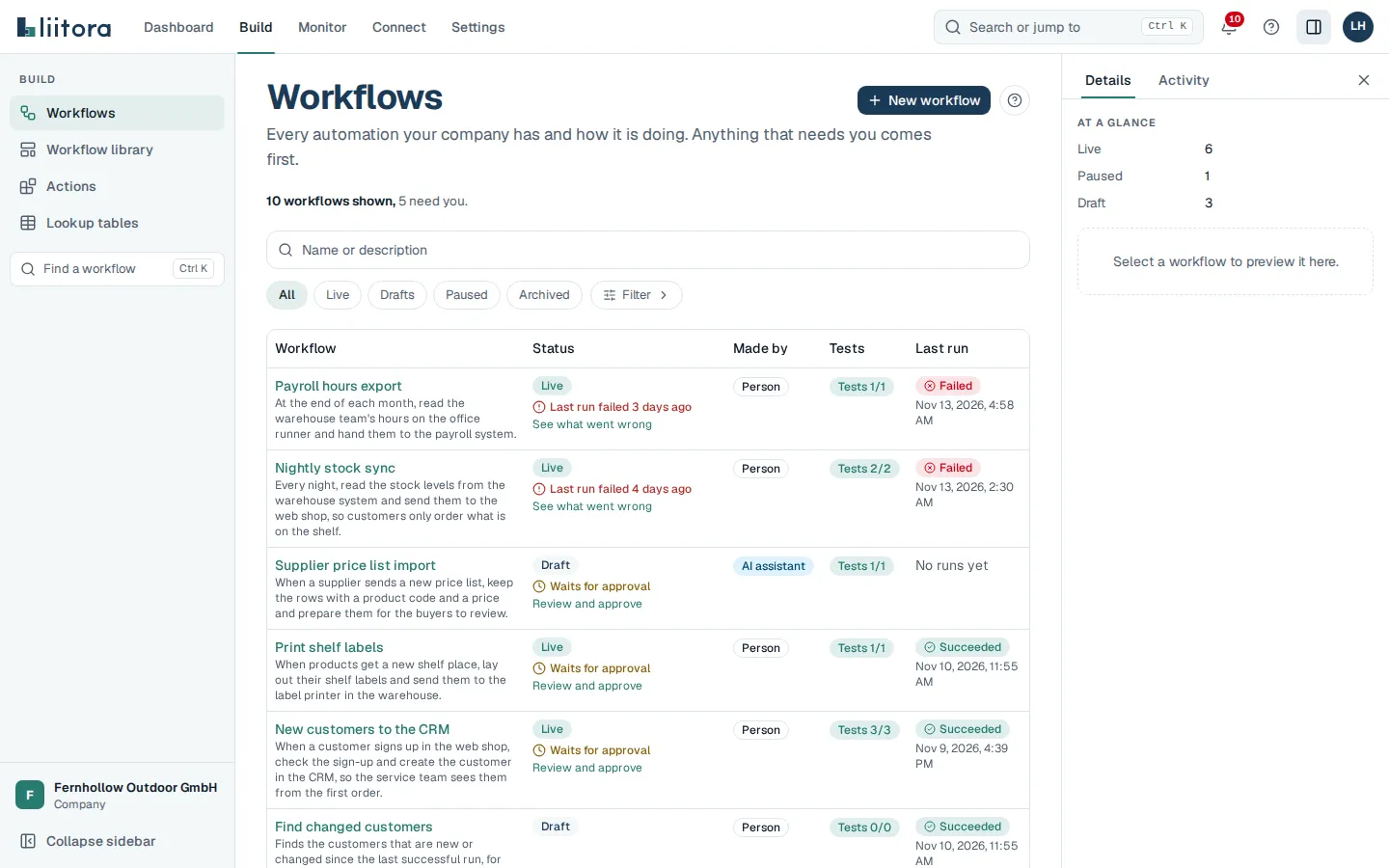
The Workflows page lists every workflow in your company in a table, with anything that needs you first. Select a name to open the workflow page.
At the top
Section titled “At the top”Under the title, one line sums up the list, for example 12 workflows shown, 1 needs you. If your company has more workflows than one page holds, it says that older ones load with Show more at the end of the list.
Find a workflow
Section titled “Find a workflow”| Control | What it does |
|---|---|
| Find a workflow | Finds workflows by name or description, among all of them, not only those already shown. |
| All, Live, Drafts, Paused, Archived | Quick switches for one kind of workflow. All shows everything but archived workflows. |
| Filter | Opens two more choices. Status: All but archived (to start with), Any status, Draft, Live, Paused or Archived. Made by: Anyone, AI assistant, Person or API token, who made the newest version. While one is set, the button says Filter is on. |
Your choices are kept in the page address, so you can bookmark or share a filtered list. Select Clear filters to show everything again. When nothing matches, the page says No workflows match and offers Clear filters.
The list
Section titled “The list”The workflows are in a table, one row each. Rows that need you come first, then the workflows you pinned, then the rest. Each group keeps the usual order, the most recently changed first. The columns are:
| Column | What it shows |
|---|---|
| Workflow | The name, which opens the workflow page, and the whole description under it. A pin mark shows a workflow you pinned on its page (More, then Pin). |
| Status | Draft, Live, Paused or Archived, a mark when the workflow uses AI, and for a row that needs you, why and what to do next. |
| Made by | Who made the newest version: a person, an AI assistant or an API token. |
| Tests | How many of the workflow’s tests pass, for example Tests 3/3. |
| Last run | When it last ran and how it went. Select it to open the run in a panel on the right. |
Select a row (or move to it and press Enter) to see a short preview in the side panel, if it is open. With no row selected, the panel shows At a glance: how many workflows are Live, Paused and Draft, once the whole list has loaded.
What needs you
Section titled “What needs you”A row needs you when the last run failed, the workflow waits for approval, its tests fail, or a plan limit or a billing problem paused it. Its Status cell says why in words, for example Last run failed yesterday or Tests fail, 2 of 3 pass, with the next step to take:
- See what went wrong (a failed run) opens the run on this page, in a panel on the right, so you can see which step stopped and why.
- Review and approve opens the approval page, if you can approve workflows.
- See your plan usage or Open billing (paused by a limit or a billing problem), if your role can see them.
For failing tests, open the workflow to see which test fails.
New workflow
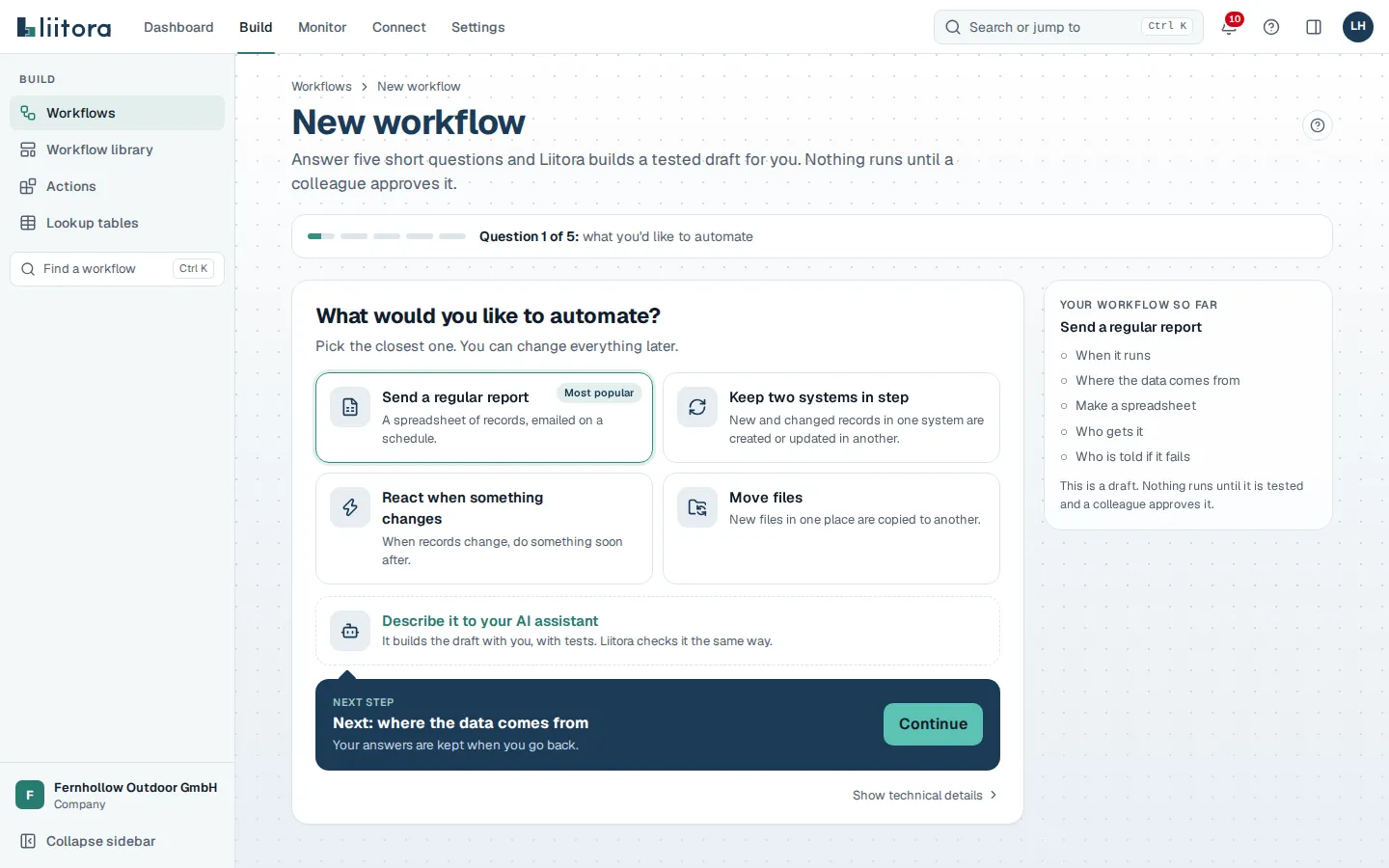
Section titled “New workflow”People who can edit workflows see New workflow. It asks five short questions, one at a time (Question 2 of 5), and builds a tested draft from your answers. Back keeps every answer. Your workflow so far, beside the questions (below them on a phone), shows what you have picked.
-
What would you like to automate? Send a regular report, Keep two systems in step, React when something changes or Move files. Describe it to your AI assistant is always another way in.
-
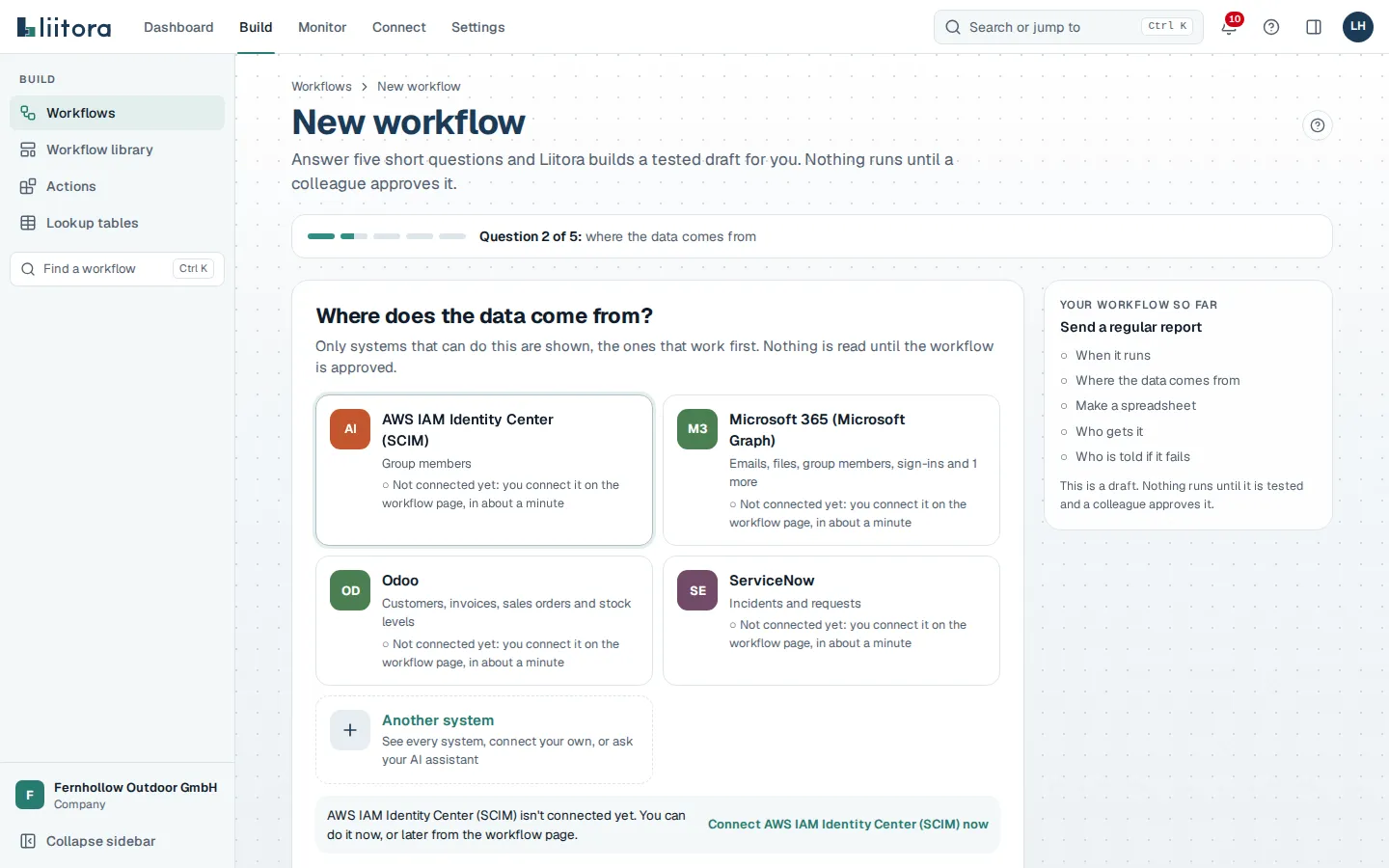
Where does the data come from? Only the systems that can do what you picked are listed, the ones that work first, with their state: Connected, works, Connected, needs attention, Set up for tests only or Not connected yet. If nothing is connected yet, nothing is picked for you. The draft uses the connection you already have, also one set up for tests only, so you only add its real settings on the workflow page. Then pick the kind of data, for example Invoices. Another system opens every system, the ones that can’t do this kind of workflow yet and why, and ways to connect your own system or ask your AI assistant.
-
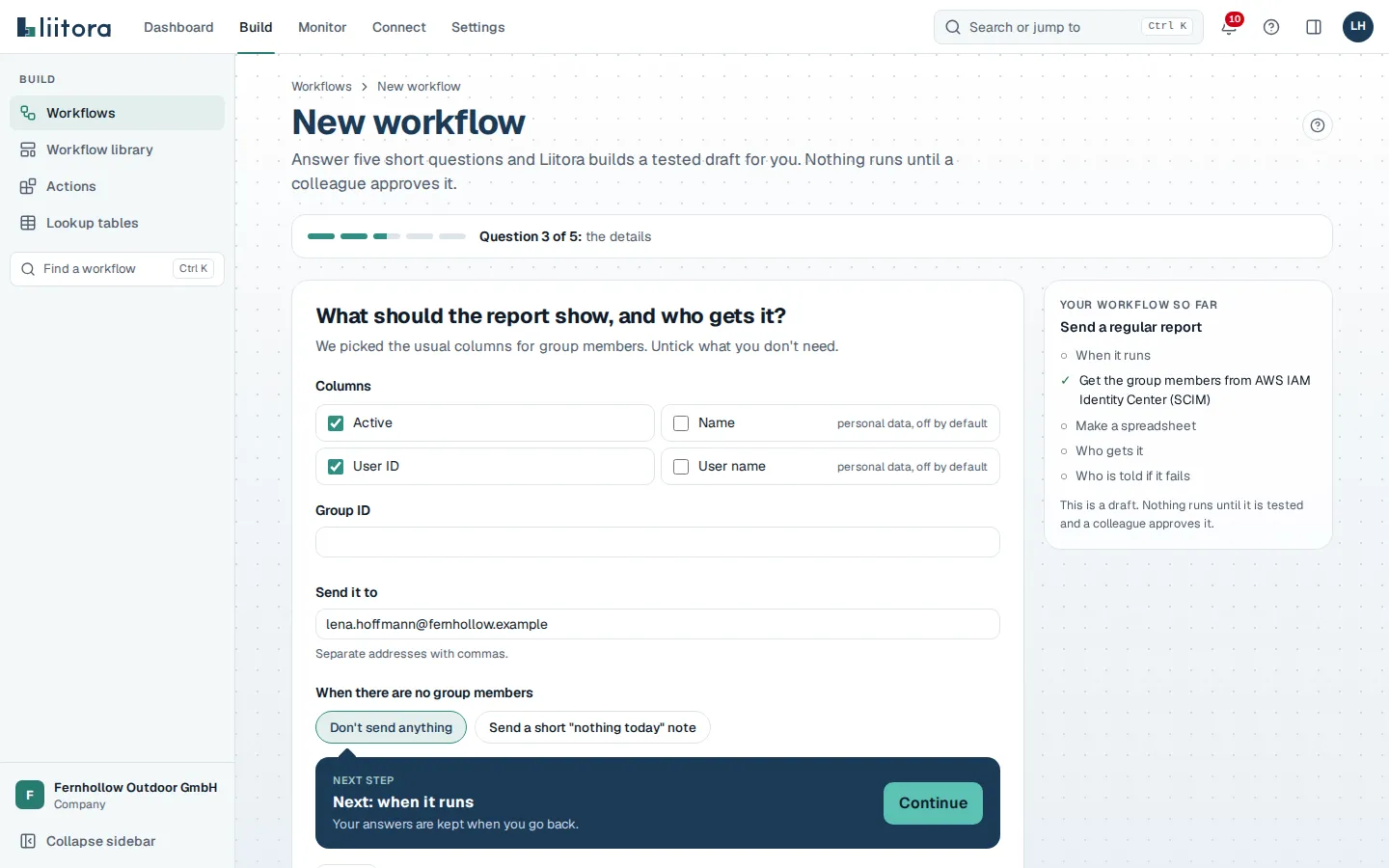
The details. For a report, the columns and who gets it. Personal data, such as email addresses and phone numbers, is left out unless you tick it. For keeping systems in step, where the records go and which field fills which.
-
When should it run? Times in words, for example Every weekday at 07:00, in your browser’s time zone. If it fails, tell says who gets an email when a run fails; leave it empty to tell only the admins.
-
Try it. Liitora saves the draft and tests it on made-up example data. Nothing real is read or sent. You see what each step found, made or would send. Open the workflow opens the workflow page.
If another workflow already has the name, the draft gets the next free number, for example Customers report from Odoo 2. Nothing runs until its tests pass, its systems are connected and a person approves it.
Show technical details, under the questions, has Start from a template or YAML: tested examples under Start from and My own YAML. Picking an example fills Workflow YAML and brings its tests along. Select Create the draft to open it.
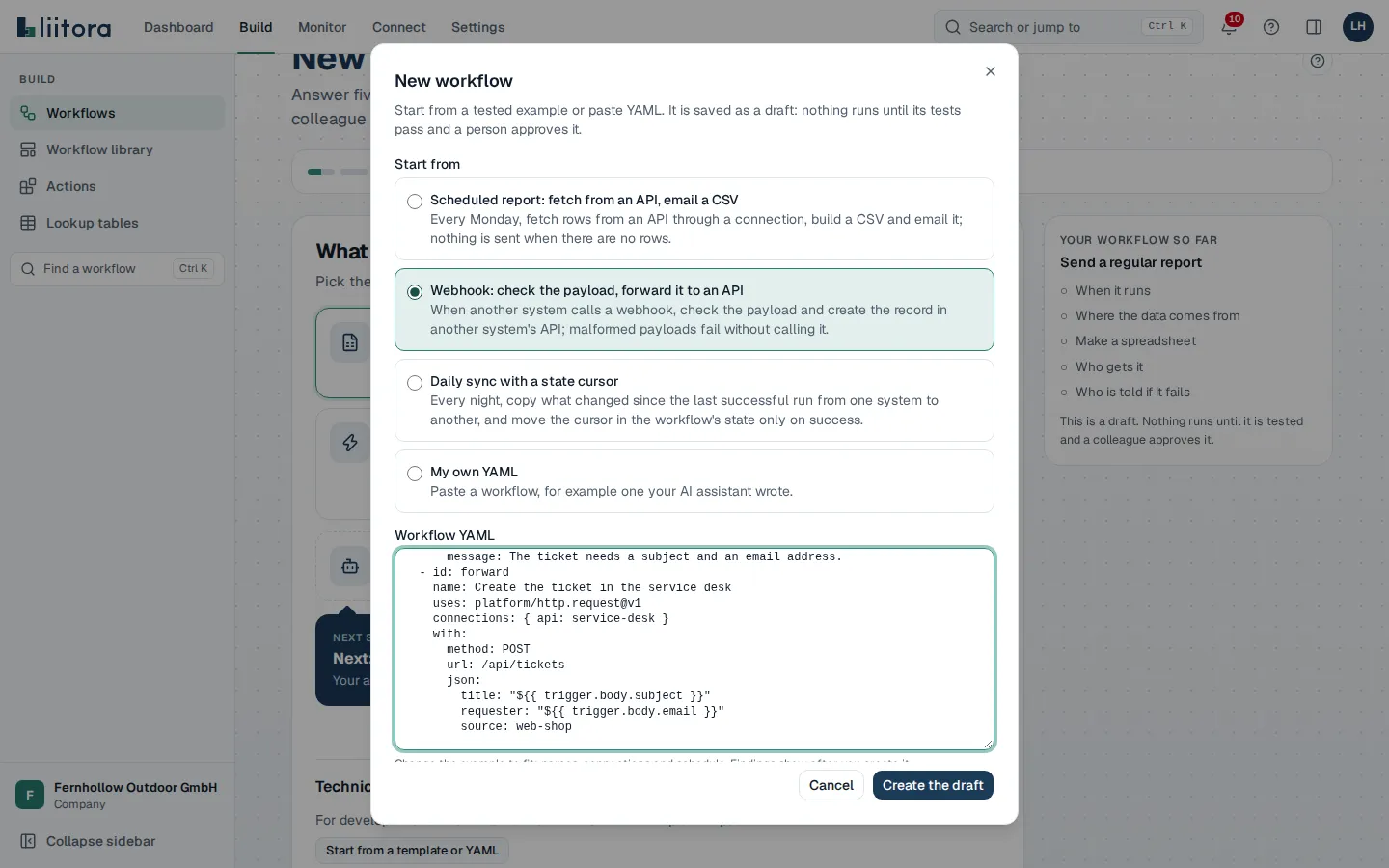
If your role can’t build workflows, the page says Only editors can build workflows. If your company has no systems Liitora knows yet, it points you to your AI assistant.
When there are no workflows
Section titled “When there are no workflows”The page says Make your first workflow. Select Connect your AI assistant to connect it and ask it to build one, or select New workflow to make one step by step. If you can only view workflows, the page says that someone who can edit workflows makes the first one.
If every workflow is archived, the page says so and offers Show archived workflows.
When the list can’t load
Section titled “When the list can’t load”The page says what went wrong and offers Try again.
Old links
Section titled “Old links”This page used to be called Jobs. Links to the old address in the app (/jobs) and in this guide still work and take you here.