

Page: Secrets
Who this is for: people who add and look after the passwords and API keys your workflows use.
Before you start: everyone can see which secrets exist. To add, rotate or delete values you need the Manage secrets permission (Admin and Editor).
Secrets are the passwords, API keys and tokens your workflows and connections use. Only people can add or change the values. Once a value is saved, nobody can see it again, admins included: you can replace a value, but never show it. AI assistants only see names and statuses.
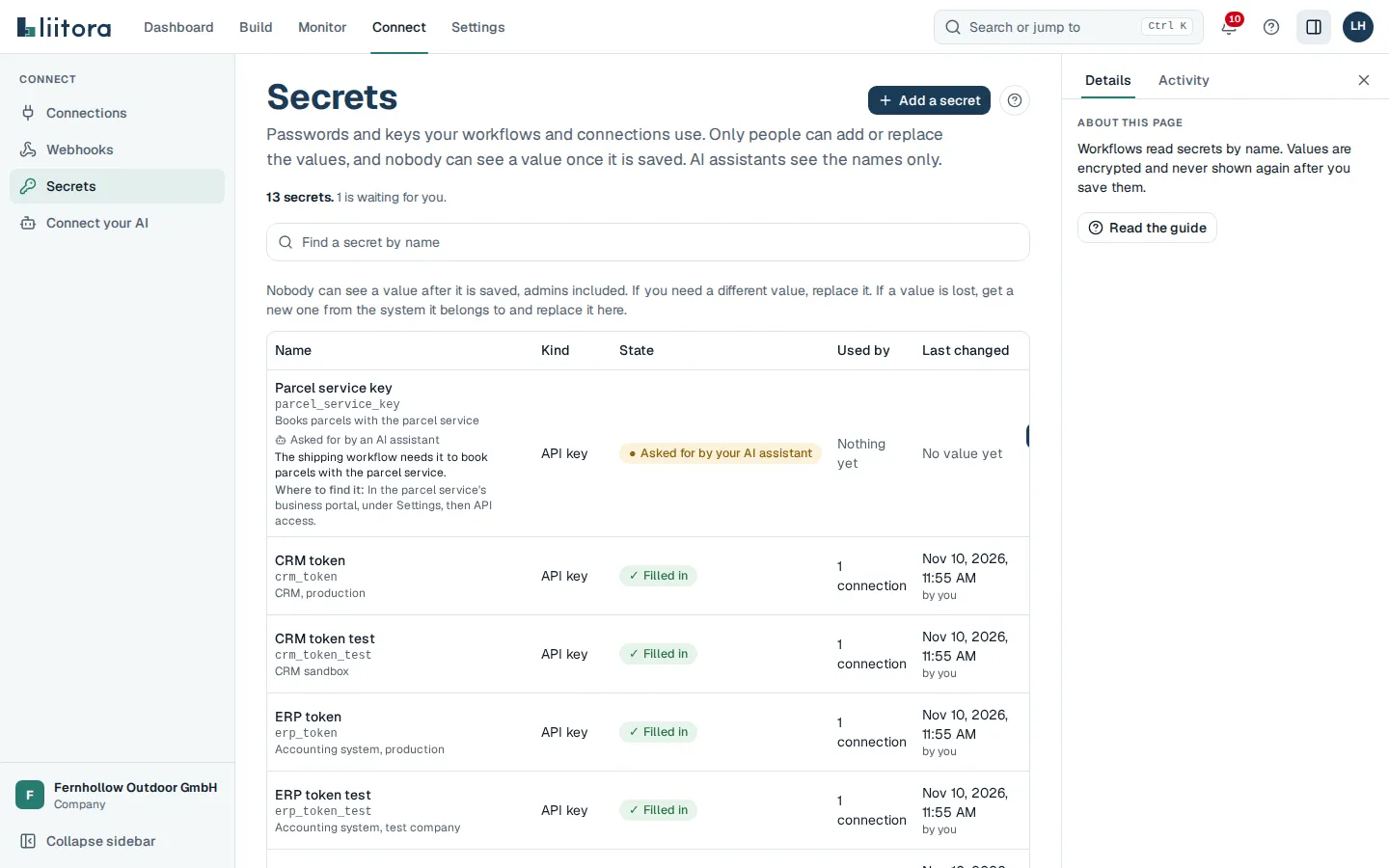
The list
Section titled “The list”The page starts with one sentence that says what secrets are for, and a line that says how many secrets there are, how many wait for you and how many have expired or expire soon. Above the table, the page says that nobody can see a value after it is saved, and that you replace a value instead. Below it, a table of secrets. Secrets your AI assistant or a colleague asked for come first, then the ones that have expired or expire within two weeks, then the rest.
| Column | What it shows |
|---|---|
| Name | The name in words (for example Visma API), with the name workflows use (visma_api) in small grey text and the description. For a secret someone asked for, also who asked (Asked for by an AI assistant, Asked for by a person or Asked for through the API), the reason, and Where to find it. The one-time fill link is never shown. |
| Kind | API key, Username and password, OAuth client, Password, Text or Certificate. |
| State | Asked for (or Asked for by your AI assistant), Filled in, Expires soon or Expired, the same words as the workflow page, and when it expires. Below it, the Scripts may read the value switch for people who manage secrets, or the words Scripts may read the value for everyone else when it is on. |
| Used by | What uses it, for example 2 workflows or 1 workflow and 1 connection, or Nothing yet. |
| Last changed | When the value last changed and whether by you or by a person in your team, or No value yet. |
With seven or more secrets, a Search box finds one by its name or description. A link that names secrets (from a workflow that waits for them) marks their lines and scrolls to the first. If your role can’t see secrets, the page says so.
Buttons
Section titled “Buttons”| Button | What it does |
|---|---|
| Add a secret | Creates a secret: Name, Description, Kind, its fields, optional Expires on and Scripts may read the value (off). |
| Add the value | Fills in a requested or expired secret. If you can’t manage secrets, the line says that someone who can needs to add the value. |
| Rotate | Replaces the value with a new one. Once it is saved, the previous value is destroyed and can no longer be read. |
| Delete | Removes the value and its history. If workflows or connections still use it, the dialog warns you. This can’t be undone. |
There is no button to show a value. If you lost a value, get a new one from the system it belongs to (for example a new API key) and select Rotate.
A secret with Expires on set is marked Expires soon two weeks before that date. Admins also get email reminders. See Rotate and expire secrets.
When there are none, the page says No secrets yet, and its button adds the first one.