

Page: Alerts
Who this is for: people who look after failing workflows, and admins who decide where alerts go.
Before you start: everyone who can see runs can open Alerts. Changing channels, email senders and company settings needs a signed-in person with Manage connections (admins and editors). Rules need Manage connections too.
Select Monitor in the top bar, then Alerts in the sidebar. Under Alerts the sidebar lists its five pages: Incidents, Channels, Rules, Senders and Notifications. The page you pick is kept in the page address.
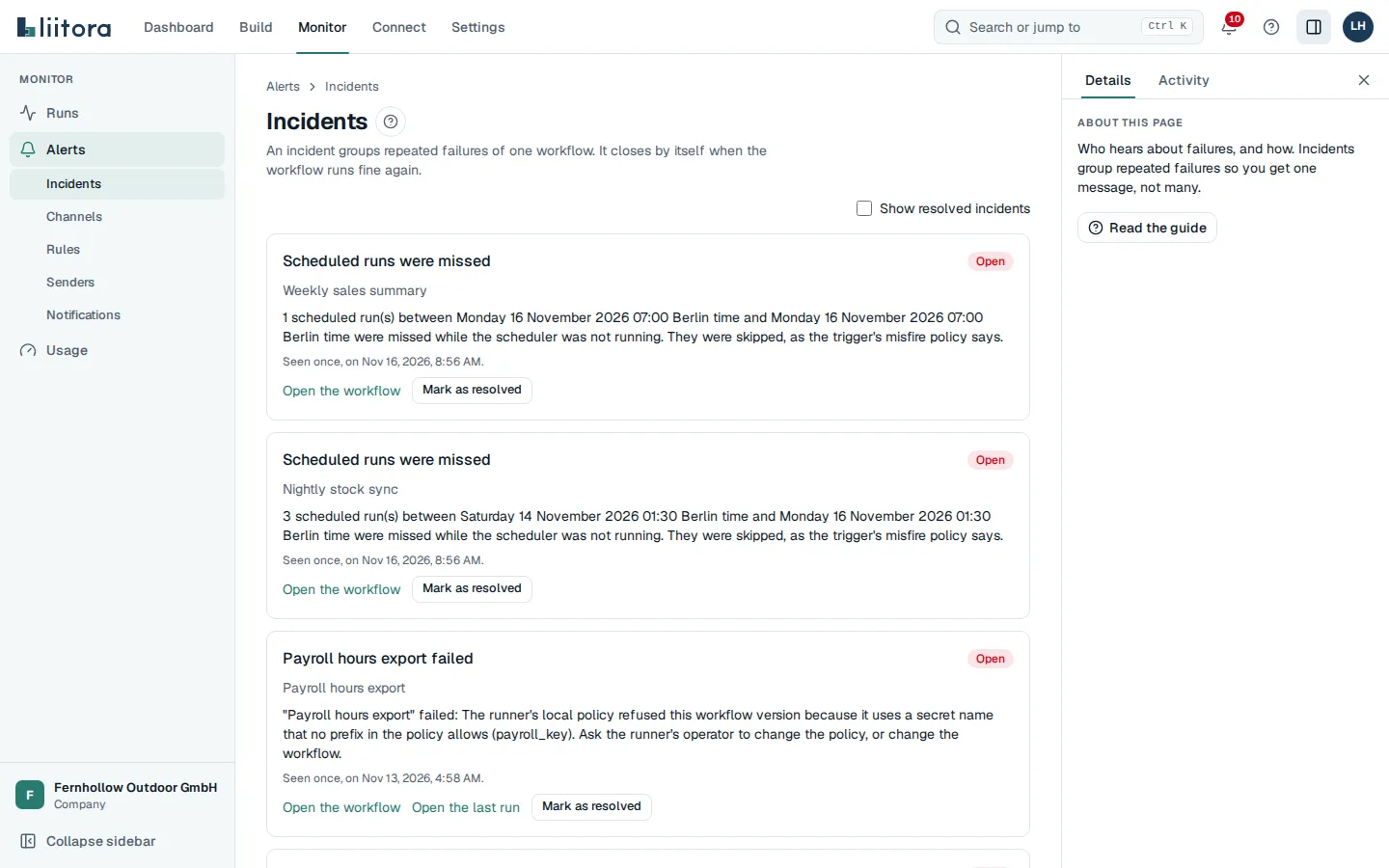
Incidents
Section titled “Incidents”Each page starts with one sentence under its title that says what it is for.
Open problems, newest first: the title and a summary in plain words, the workflow, how often it happened, and links to Open the workflow and Open the last run. A problem of an archived workflow has no workflow link. Mark as resolved closes an incident by hand; it also closes by itself when the workflow runs fine again. Tick Show resolved incidents to see closed ones too.
With nothing open, the page says No open incidents. When no rule tells anyone yet, it offers Add a rule, which opens the Rules page.
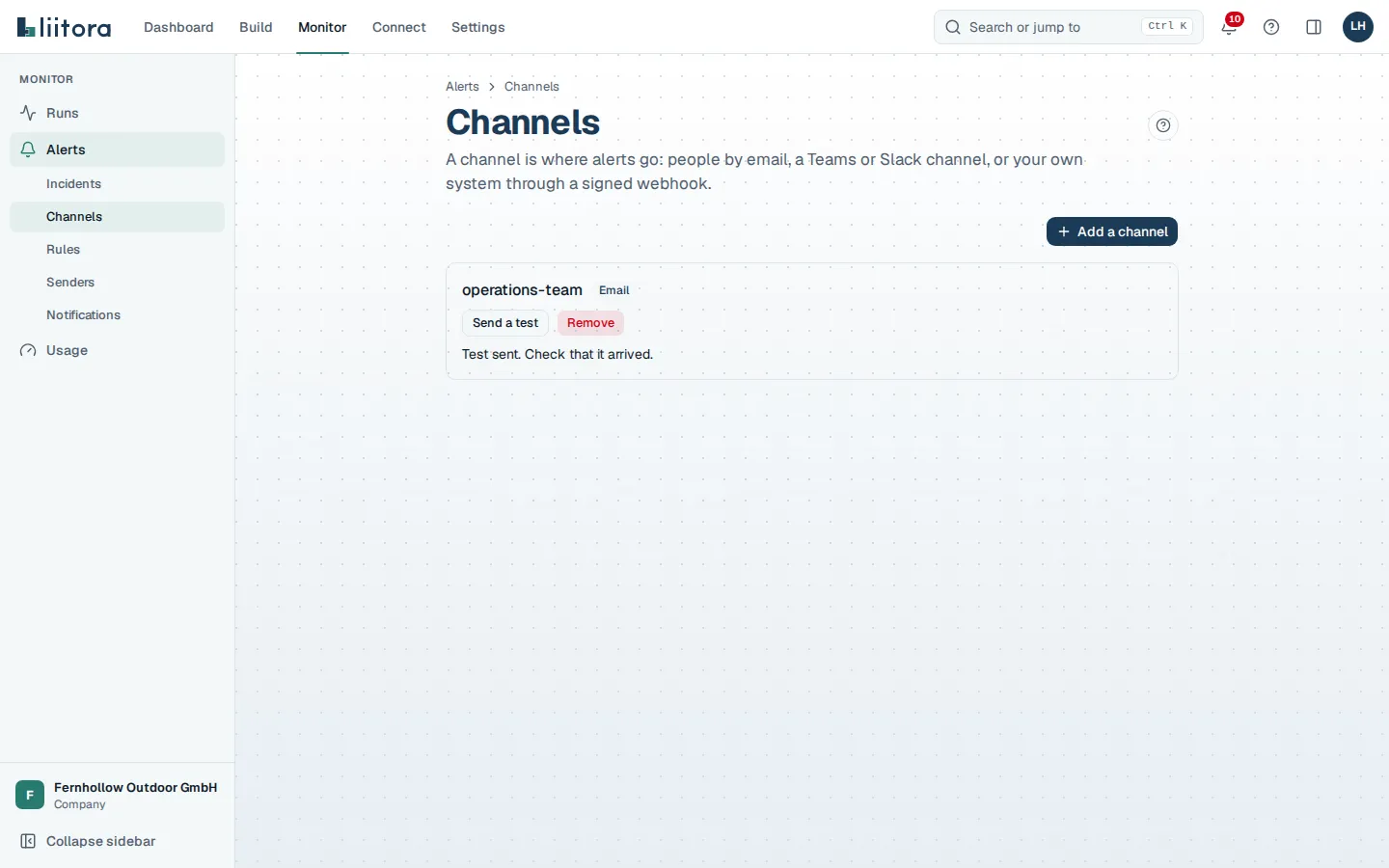
Channels
Section titled “Channels”Where alerts go. Add a channel asks for a Name, a Type (Email, Microsoft Teams, Slack or Webhook) and:
- Email: Email addresses, or empty to email your admins.
- Microsoft Teams and Slack: the Secret name that holds the incoming webhook address.
- Webhook: the Webhook address (https) and the Secret name of the signing key.
With no channel yet, the page says Choose where alerts go; people who can’t add one are told to ask an admin. A channel whose secret isn’t filled in yet shows Secret missing and a link to fill it in. Send a test sends a test alert now. Remove also removes the rules that use the channel.
Which event goes to which channel. Add a rule asks for the Event, the Channel and the Delivery: Right away or Daily digest. For Runs keep failing, also Failures in a row (2 to 100). The On box turns a rule off without removing it. With no rule yet, the page says Choose which problems send an alert. When there is no channel to send to yet, it says so with an Add a channel link to the Channels page; add the channel there first.
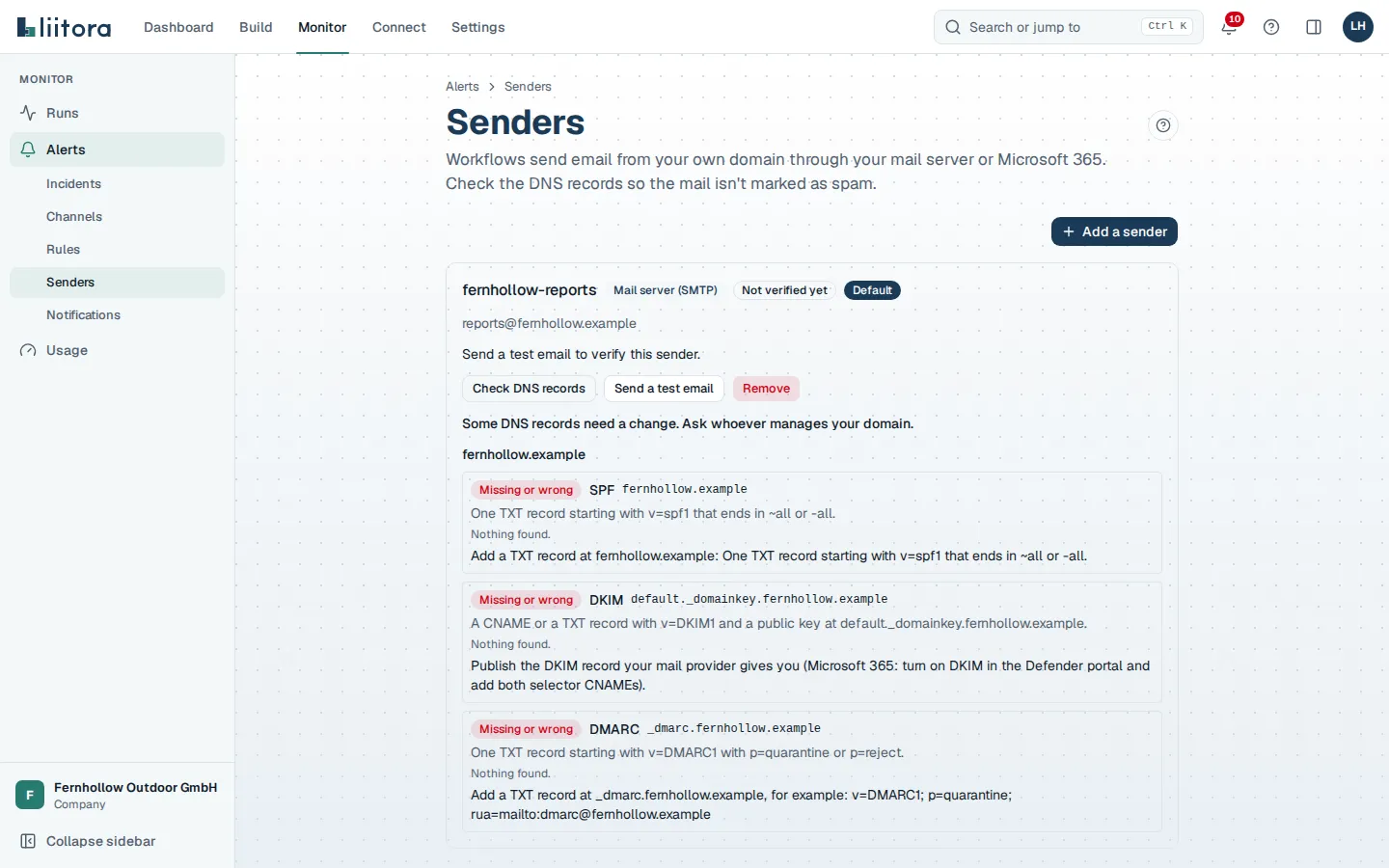
Email senders
Section titled “Email senders”The senders workflows send email from. With none yet, the page says Send email from your own domain, and that Liitora’s own sender sends to up to 20 people per hour. Add a sender asks for the Type (Mail server (SMTP) or Microsoft 365), a Name, the From address, a Display name, the server settings and the Secret name of the credentials.
Each sender shows its status (Not verified yet, Verified or Needs attention), Default, and the next step in words. A sender whose saved settings need a fix shows Needs a fix and says what to change, for example a Microsoft 365 tenant that is not a tenant ID or domain name. It still sends, but you can’t save changes to it until you fix it. Check DNS records shows the SPF, DKIM and DMARC checks for each domain: Good, Works, could be better or Missing or wrong, with the records found and what to change. Send a test email sends one to you, Make default picks it for workflow emails, Remove deletes it. A Liitora default sender also says how many people it sends to per hour, and that your own sender removes this limit.
Notifications
Section titled “Notifications”- Company settings: Time zone, Minutes between repeated alerts, Hour of the daily digest and the weekly health digest, with Save settings. People without Manage connections see them read-only.
- Your emails: Email me alerts and Email me the weekly health digest, for you only.