

Page: Workflow
Who this is for: people who review, test, approve or manage one workflow in the Liitora app.
Before you start: you need a Liitora account. Open Workflows and select a workflow.
A workflow’s page tells you in plain words what the workflow does, whether it works and what to do next. Everything technical (its YAML, versions, tests and runs) is one click away under Show technical details.
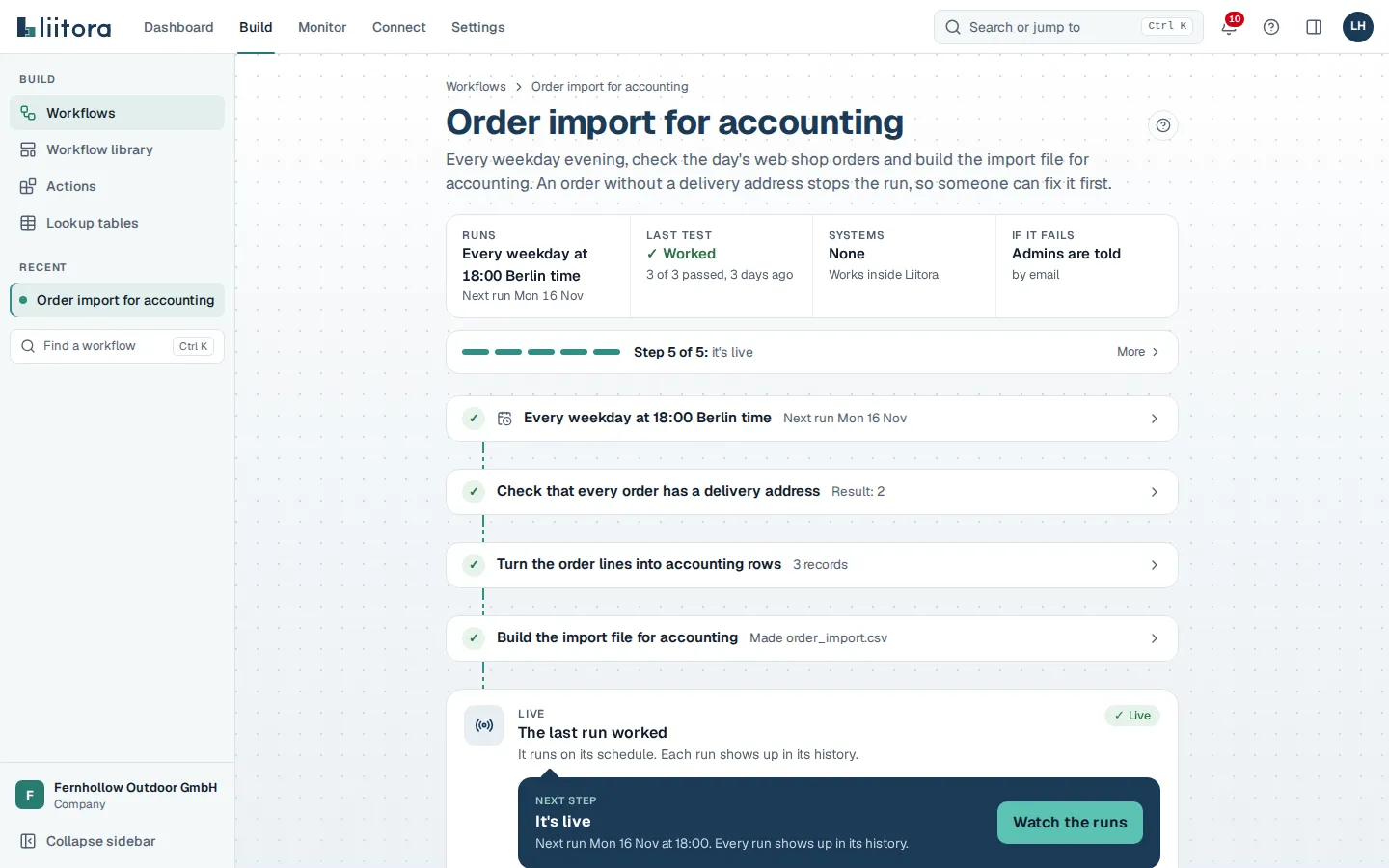
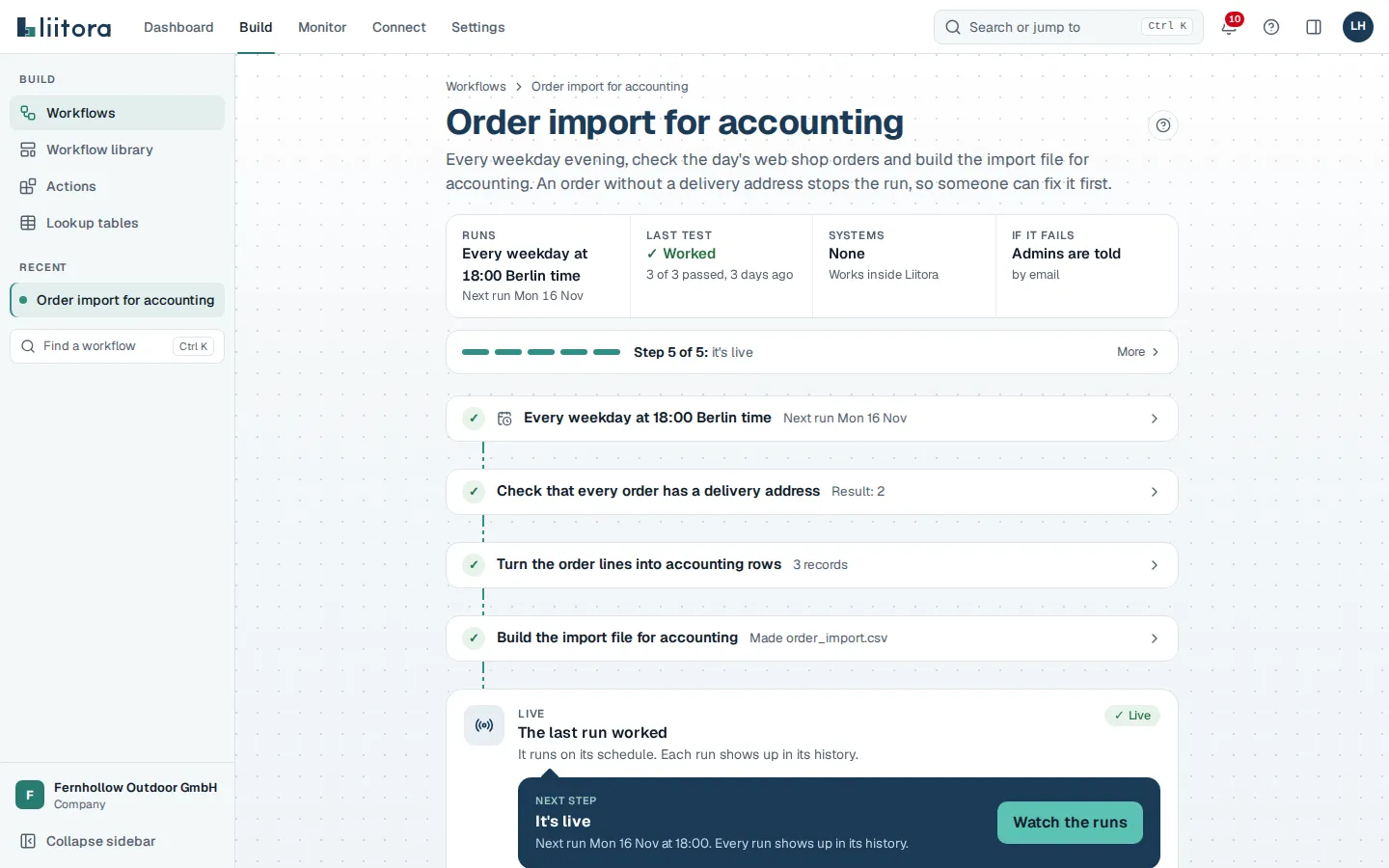
The page at a glance
Section titled “The page at a glance”From top to bottom:
- The name and one sentence saying what the workflow does for your business.
- Four facts:
- Runs: when it runs, in words, for example Every Monday at 07:00 Helsinki time, and, once it is live, the next run. You can also start it by hand means a person can start it too, besides the schedule.
- Last test: Worked, Failed or Not tested yet, with how many tests passed.
- Sends to the email addresses it sends to, or Systems: the systems it connects to.
- If it fails: who is told.
- Progress: five stages, Describe, Test, Connect, Approve and Live, and which one you are at, for example Step 3 of 5: connect your systems.
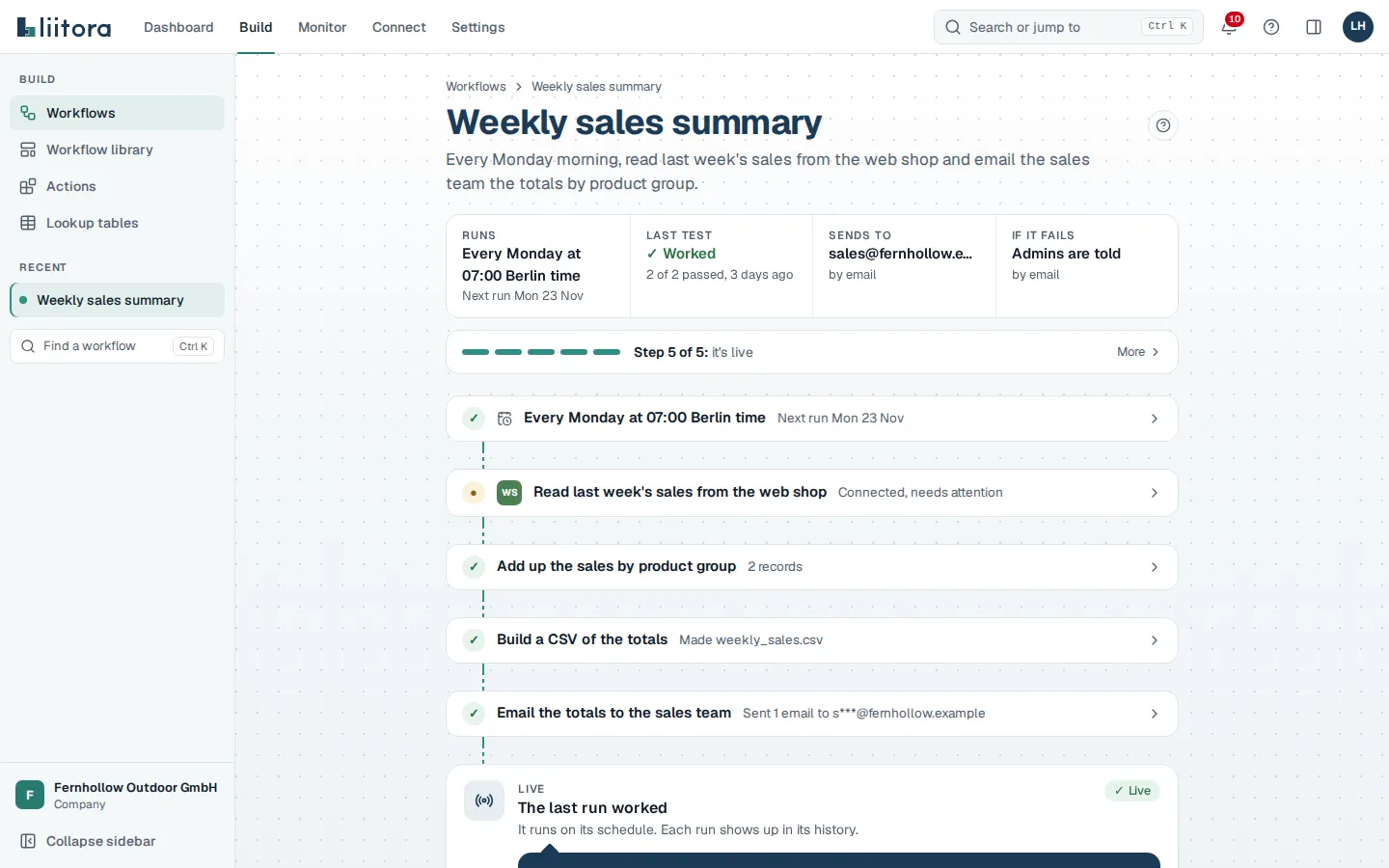
- The steps. A step that is fine is one line with a ✓ and what it did in the last test on sample data, for example Found 2 invoices, Made open_orders.csv or Sent 1 email to s***@example.com. The step that needs you is an open card with its system, a status such as Not connected or Needs the real settings (its connection is set up for tests only), and a few sample rows from the test. A system that is connected but failed its last check shows Connected, needs attention; open the step and select Check the connection to test or fix it in place. Personal data stays hidden in the sample. Select any folded step to open it. See What the steps show.
- Next step: a dark box inside the card that needs you. It says what to do, why, and has the one button that does it, for example Connect order system, Run the tests or Ask a colleague to approve it. When nothing is missing, it shows the next milestone, such as It’s live with when it runs next. If you don’t have the permission to do the next step yourself, it says who can.
- A summary line, for example 2 of 3 steps ready. Connect your order system, then a colleague approves it.
- + Add a step, and the small + between steps, open Add a step. You need the Edit workflows permission.
- Show technical details opens the tabs described below. Links from elsewhere in the app that point at a tab open them too.
The Details panel (the panel button in the top bar) starts closed on this page, so the page has room. Open it when you want it; it stays open until you leave the page.
What the steps show
Section titled “What the steps show”Each step shows what it did in the latest test on sample data:
- what it found (Found 2 invoices), made (Made customers.csv) or sent (Sent 1 email to s***@example.com);
- Skipped in the test when its condition was false, Not reached in the test when an earlier step stopped the run, or Failed in the test with what went wrong;
- Not tested yet before the tests have run.
The open card also shows a few sample rows. Email addresses and other personal data show masked, for example A*** Ltd, and the hidden columns are named. Test again with sample data runs the tests again (Edit workflows permission). If the test result can’t be loaded, the card says so and offers Try again.
The steps also show the shape of the workflow:
- Only if the number of orders is more than 0, on the line above a step, means the step runs only then.
- If and Otherwise side by side: one of the two runs, depending on the condition.
- For each: the steps inside run once for each record, for example once for each customer.
- If something fails, last on a dashed card: who is told when a step fails.
Add a step
Section titled “Add a step”+ Add a step at the bottom adds a step after the last one. The small + between two steps adds one right there. A panel opens on the same page and says where the step goes, for example After “Get the customers from Odoo”.
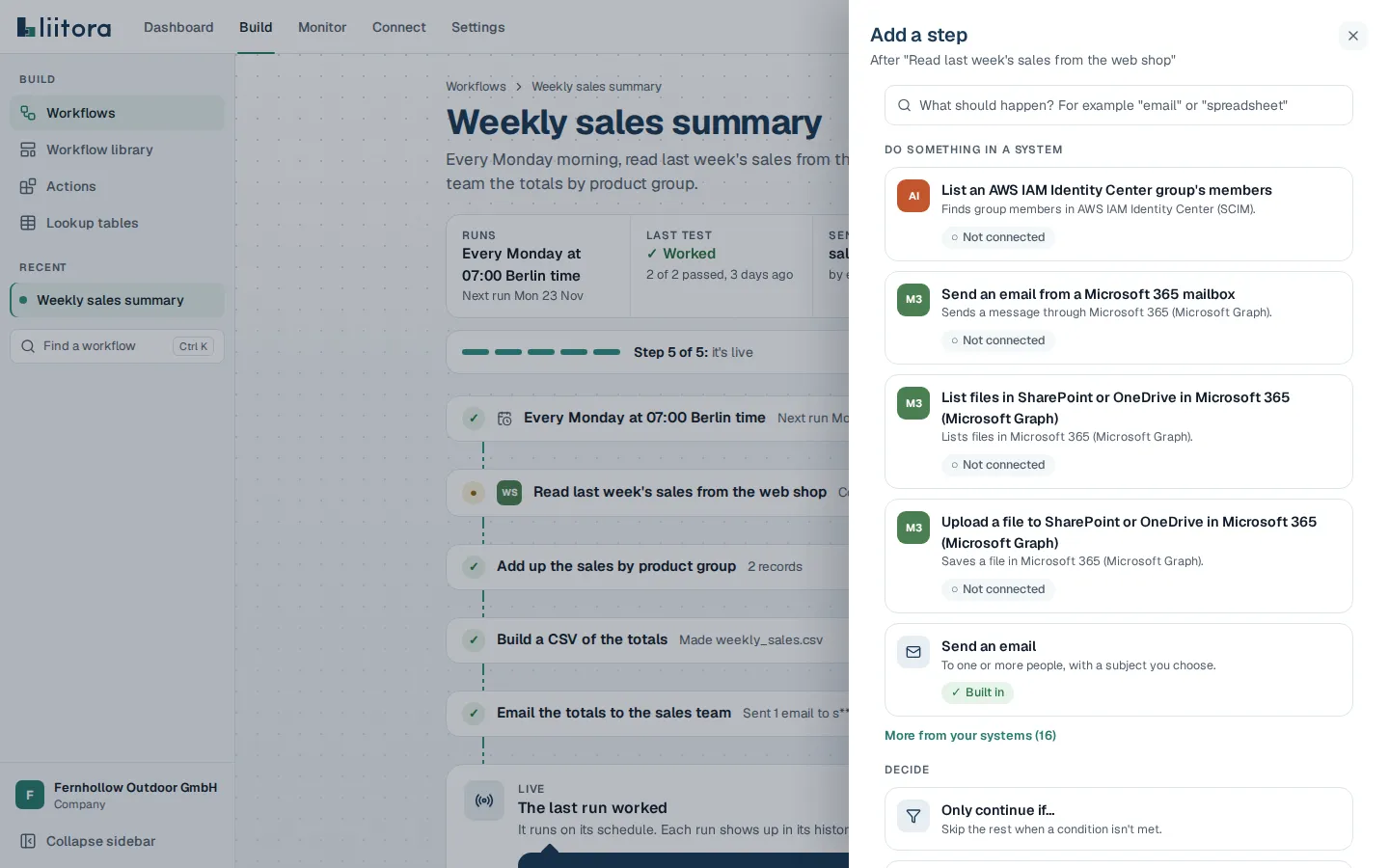
Pick what should happen, or search for it. The choices are in groups:
- Do something in a system: the actions of your systems, the ones that work first, and Send an email. Another system shows every system Liitora knows.
- Decide: Only continue if… (the rest of the workflow runs only when a condition is true), If… otherwise… (one step when a condition is true and, if you want, another when it is false; the rest runs either way) and For each… (repeat a step once for each record an earlier step found, for example one email per customer).
- Work with the data: Make a spreadsheet, Make an Excel file, Match fields and Look up in a table.
- Timing and safety: Wait and If something fails… (email someone when any step fails).
- Something else: Ask your AI assistant to write this step, or Write it as code (for developers, in the technical details).
A condition is picked, never typed as a formula: a result of an earlier step, a comparison (is, is not, is more than, is less than, contains) and a value. + and… adds another. Leave out quote marks in the value. Under it you see what the condition would do with the last test’s sample data, for example The test found 2, so it would continue.
A condition checks a step’s result as a whole, for example how many records it found. To check each record, add For each… first and ask your AI assistant for the check.
Select Add this step (or Add this condition). Liitora saves a new version and runs the tests again, and says whether they passed. If a test checks exactly who gets an email, adding an email step can make it fail; the Next step box then helps you fix the tests. If someone saved a newer version meanwhile, the panel says so and stays open.
Lookup tables in place
Section titled “Lookup tables in place”A step that reads a lookup table shows Uses the table and its name on its card. It opens the table on the same page: what it is for, its columns, the first rows and when it was saved. If the table doesn’t exist yet, you can make it there by typing its column names, separated by commas (Edit workflows permission). Add the rows on the Lookup tables page or from a file.
Fix it without leaving the page
Section titled “Fix it without leaving the page”The button in Next step, and the system on a step’s card, open what you need in a panel on the same page. Close it and you are back on the same card, with the next thing to do.
- Connect a system: shows the connection the step uses, with its status and a Test it button. To change it, choose one of your connections (the ones for the same kind of system come first, working ones on top) and select Use followed by its name. This saves a new version of the workflow. Connect a new one (for example Connect a new order system) creates the connection under the name the step already uses, then tests it. Changing the step needs the Edit workflows permission; creating a connection needs Manage connections.
- Ask for a key or password: shows each one the workflow waits for. Ask a colleague for it makes a link for the person who has the value: Copy it or Write an email with it. The link works once and isn’t shown on the page. They type the value in and it goes straight into the vault, so nobody sees it here. Asking needs the Edit workflows permission. If you have the value yourself, Fill it in yourself (you need the Manage secrets permission).
- Ask a colleague to approve it: someone other than the person who made the version must approve it. Admins see the others who can approve, and selecting one opens an email to them with the approval link in your own mail app. If nobody else can approve, an admin can invite someone right there: type their email and select Send the invite. They join as an admin, because only admins approve. Everyone can Copy the approval link or Write an email with it. The request to approve goes from your own mail app; Liitora sends only the invite.
- Approve it yourself: if you are the only person in your company who can approve, and your company doesn’t require a second approver, you may approve your own version. Review and approve opens the approval page, where you confirm it.
- Watch it: once the workflow is live, shows its last five runs and how each went, and All runs. A workflow that only runs when someone starts it says Start it whenever you need it, and Run it now starts a real run (you need the Activate workflows permission); the last runs open so you can follow it.
More, at the end of the progress line, opens the rest: Pin (puts the workflow at the top of your sidebar), the workflow’s buttons, and links to its versions, runs and checks.
The buttons depend on the workflow’s status and your permissions:
| Button | What it does | Who sees it |
|---|---|---|
| Test run | Runs the version you are looking at once with your test connections. Nothing changes in production. You can give Input (optional) as a JSON object. | Edit workflows |
| Run now | Starts a real run of the active version with your production connections. Only on active workflows. | Activate workflows |
| Approve and activate | Opens the approval page for this version. | Approve workflows or Activate workflows |
| Pause | Stops starting new runs. Production runs that were waiting to start stop before their first step. Runs that already started a step finish. | Activate workflows, on active workflows |
| Resume | Makes a workflow that a person paused active again. A billing or limit pause can’t be lifted by hand. | Activate workflows |
| Archive | Stops the workflow for good. It can’t be changed afterwards; its history stays. To use it again, create a new workflow from its YAML. | Activate workflows |
Each button that changes something asks you to confirm first.
Technical details
Section titled “Technical details”Show technical details shows badges and seven tabs.
The badges:
- the status (Draft, Live, Paused or Archived), and why it is paused: Paused by a person, Paused because of billing or Paused because a plan limit was reached;
- who made the version (AI assistant, Person or API token);
- the tests badge, for example Tests 3/3;
- the version, for example Version 4, version 3 is active;
- the activation policy: A person approves each version, or The AI assistant may activate tested versions. Admins see Change next to it, which opens Who may activate this workflow with both choices and Save. See Let the AI assistant activate tested versions.
Each tab has its own About link to the matching part of this page.
Overview
Section titled “Overview”- What it does: the plain-English summary Liitora writes from the YAML.
- When it runs: every trigger in words, for example Every weekday at 08:00 Europe/Helsinki, When the webhook devices-changed receives a delivery or When a person starts it (You can also start it by hand when it has another trigger too). A workflow with no trigger shows It runs only when another workflow calls it.
- Connections it uses and Secrets it uses, with links.
- Approvals: who approved which version and when.
- Where your data goes: where this version runs, whether webhook payloads enter Liitora, who holds its secrets (names only) and whether logs and results come back in full or as metadata only. How the data path works opens Where your data goes.
- Warnings: problems that don’t stop saving, such as a connection that doesn’t exist yet.
- Update available: shown only when a newer version of an action the workflow uses is available. It names the version the steps run now, a compatible update (works with your inputs as they are) and a major update with its breaking changes. Update to saves a new version of the workflow that uses the newer action. It needs passing tests and approval like any other change. People without the Edit workflows permission see the list without the button. See Update available.
- What sync steps remember: shown only when a
sync.diffstep in snapshot mode has saved a snapshot. One row per step and environment, with how many records it saw and when a successful run last saved it. The remembered values are never shown. Reset deletes one snapshot after you confirm, so that step’s next run there treats every record as new. People without the Activate workflows permission see the table without the button. See Reset what a sync step remembers. - Before it can be activated: the checklist. Each item says Done or Missing, and a missing item has a Fix it link:
- The tests pass on this version
- A person approved this version
- Every secret it needs is filled in
- Every connection it needs exists
- Every action it uses exists
When every item is done, it says Ready to activate. For the version that is already running, the list is called Checks on this version and says This version is running., and the page offers no Approve and activate for it.
The plan is the design of the workflow in plain words: what it does and for whom, the systems, when it runs, the steps and what happens when something fails. Your AI assistant writes the plan with you before it builds, and it can’t save a workflow or a change without one: it sends a new plan version, or says the latest plan still describes the change. People who change a workflow in the app or through the API are not asked for a plan.
- Plan version: pick a version to read. The newest is marked (latest). Plan versions never change after they are saved.
- Under it you see who wrote it (AI assistant, Person or API token), when, and what changed in that version.
- Workflow version N: says which plan the version you are looking at was built from:
- Plan version N, saved with this version. The plan was written together with this change.
- Plan version N. The author said the plan still describes this change.
- Plan version N. Changed by hand after the plan was written, so check that the plan still fits. A person, an API token or a rollback changed the workflow after the plan.
- No plan. It was made or changed without one.
- Change the plan (or Write a plan when there is none) opens the plan text. Add a short What changed note and select Save as a new plan version. Saving a plan does not change the workflow. If someone saved a newer plan meanwhile, you see a message with the latest version number: reload the page and make your change again.
Name secrets in a plan, never write their values: a plan that looks like it holds a key, token, password or a web address with a login is refused. Anyone who can see the workflow can read its plan. You need the Edit workflows permission to change it. Archived workflows are read-only.
A graph of the steps and a list of the same steps in order. On a narrow screen such as a phone, the graph starts at the first step at a size you can read; drag it or use the zoom buttons to see the rest. For each step you see its name, the action it uses (or Inline script), and labels such as Runs only if, For each item and Continues on error. Each step says Starts first. or Runs after: the steps it waits for.
With the Edit workflows permission you can change the steps here. The Steps tab and the YAML tab edit the same draft, so a change on one shows on the other. Nothing is saved until you select Save as new version, and Discard changes throws the draft away.
- Add a step opens the list of actions. Search for an action and select it. The new step goes at the end of the list, and its form opens.
- Select a step in the graph, or Change next to it in the list, to open its form.
- Move up and Move down change the order. Remove takes the step out of the draft.
- In the graph you can also drag from a step’s right edge to another step to make that step wait for it. Select a line and press Delete to remove it.
The step form has:
- Name: the step’s plain-language name.
- Inputs: one field for each input the action lists, with its type, whether it is required, its default and its allowed values. A field accepts a value or an expression such as
${{ steps.fetch.outputs.items }}. A yes-or-no input, or one with allowed values, is a list to pick from; choose Use an expression… to type an expression instead, and Pick from the list to go back. A value of the wrong type is marked before you save. - Script: for an inline script step, the script in an editor.
- Connections: one choice for each connection the action needs. The list shows your connections of the right kind.
- Runs after: tick the steps this step waits for. With nothing changed, a step runs after the step above it in the list. Run after the step above again goes back to that.
- Run only if: an expression. The step runs only when it is true. Leave it empty to always run.
- Carry on if this step fails: the run goes on to the next steps instead of stopping.
Everything in the graph also works from the keyboard: the list’s buttons and the Runs after checkboxes make the same changes as dragging.
People without the Edit workflows permission see the graph and the list only, with This view is read-only. Archived workflows are read-only too. If the YAML has a mistake, the Steps tab says so; fix it on the YAML tab.
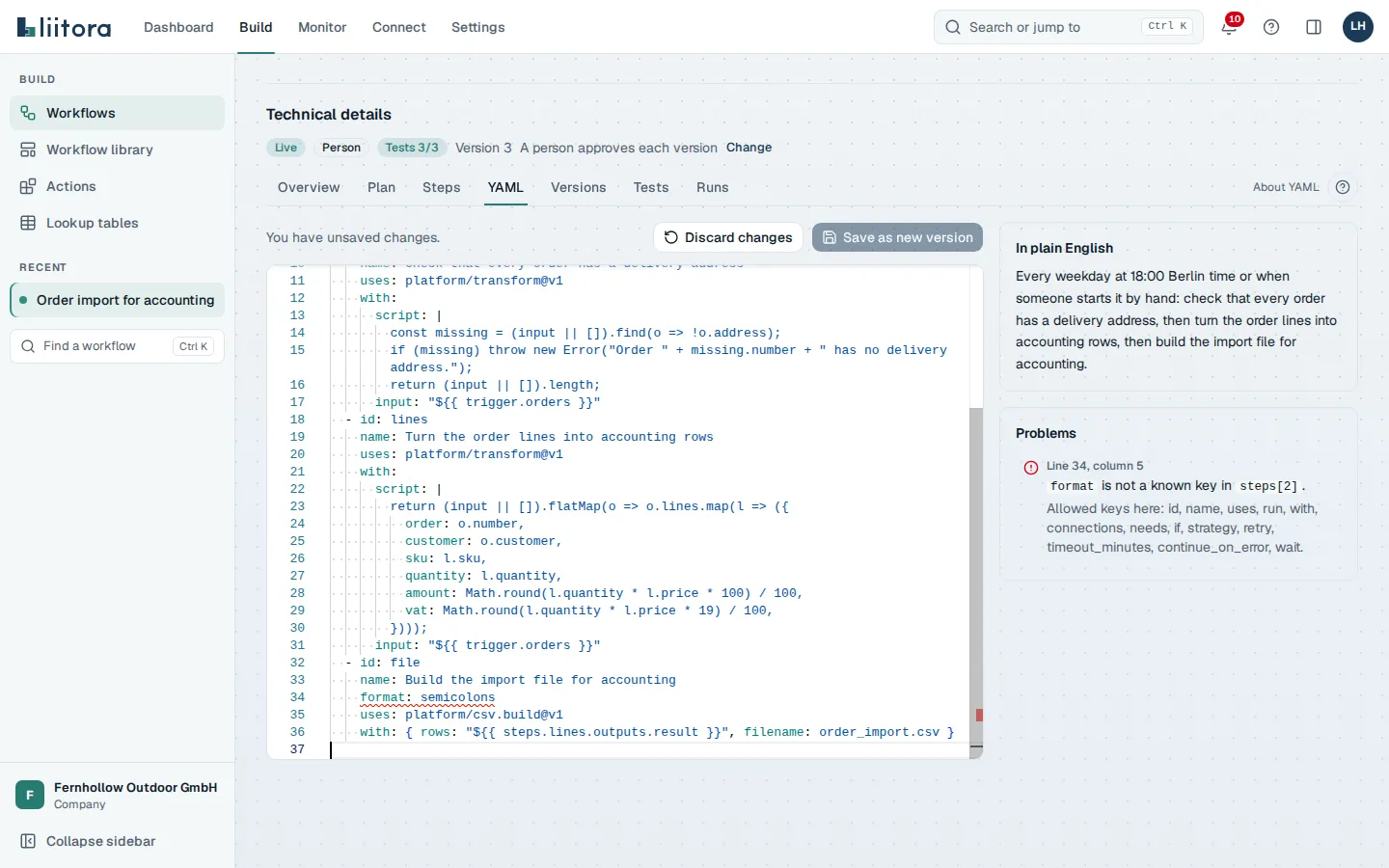
The workflow file in an editor. The workflow file format explains every key.
- Liitora checks the YAML while you type. Problems lists each error or warning with its line and column, what went wrong and how to fix it. In plain English shows the summary.
- Save as new version saves your changes as a new version. Versions never change after they are saved. Tests run on every save.
- Discard changes throws your edits away.
- If someone saved a newer version while you were editing, you see a conflict message. Select Reload the latest version, then apply your changes again.
You need the Edit workflows permission to change the YAML. Archived workflows are read-only.
Versions
Section titled “Versions”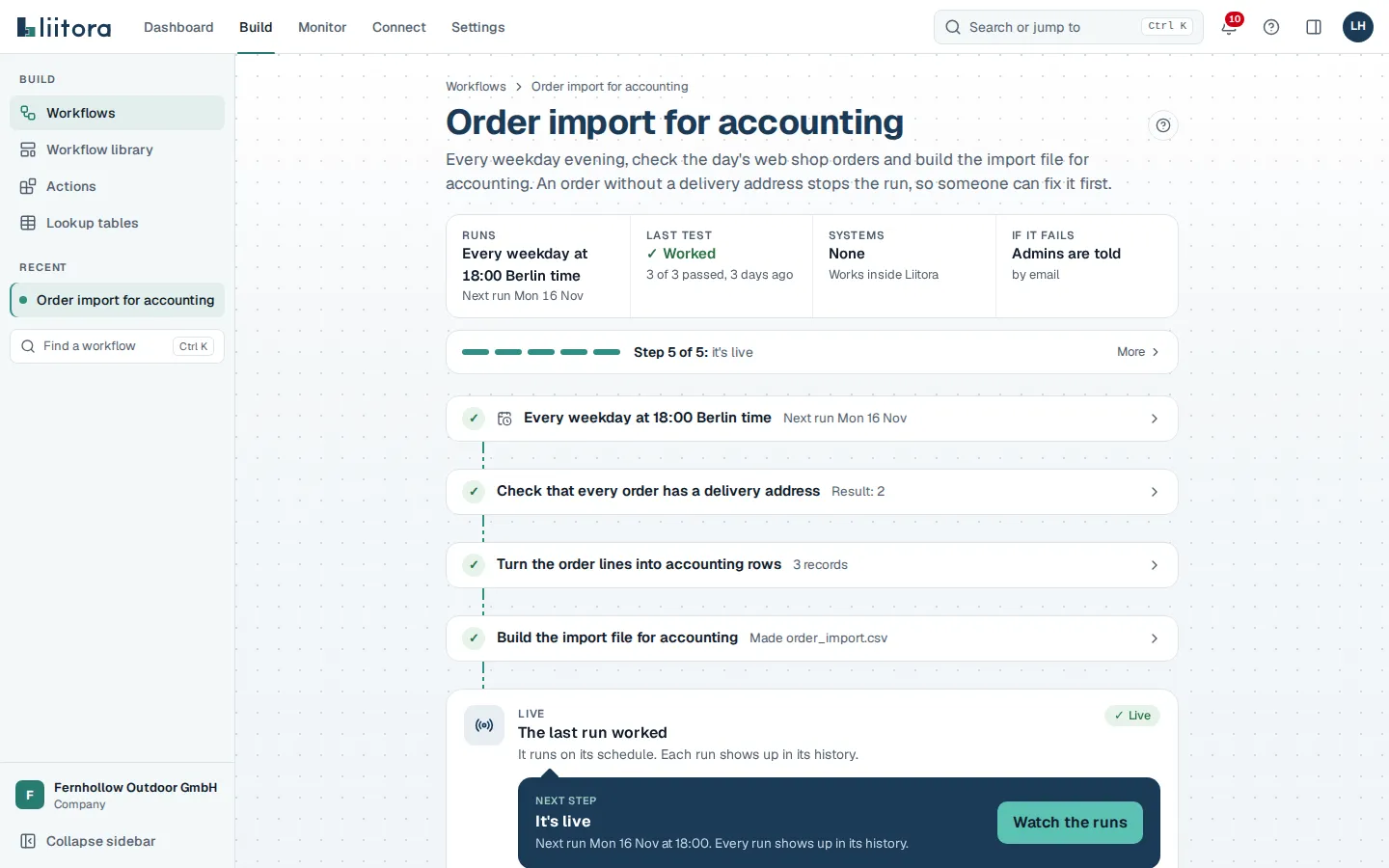
Every saved version, newest first: Version, Made by, Created, Summary and Tests (Passed or Not passed). The badges Latest and Active mark the newest and the running version.
- Compare versions: pick From and To to see what changed in the YAML, in what the workflow can use and in where the data goes. Where the data goes did not change. means all four answers are the same.
- Roll back: creates a new version with the YAML and tests of an old one. Nothing is deleted. You need the Edit workflows permission.
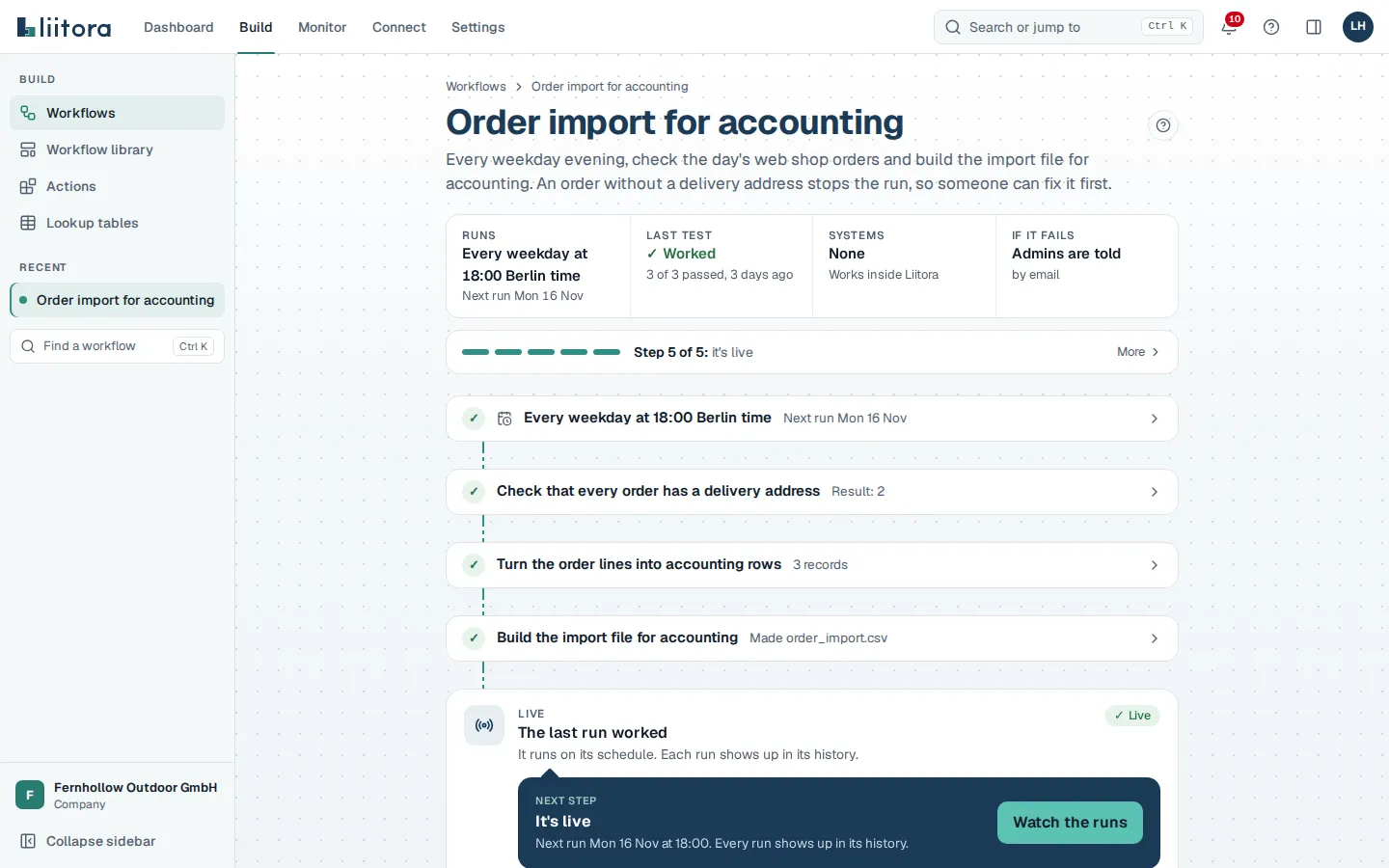
The test cases of the version you are looking at, and their last result.
- Each case shows Passed, Failed, Can’t run or Not run, and What it checks as plain sentences, such as “Sends email to sales@example.com”. A failed check shows Expected and Actual.
- Some required test cases are missing: the version doesn’t meet the required minimum yet, for example it has no test for a failing upstream system.
- Run tests runs the cases again. They also run on every save.
- Run next to a case (people who can edit) runs only that case. The result shows on the case and isn’t saved.
- Edit tests (people who can edit, on the newest version) opens the test cases. Form shows one case at a time in fields: Case to edit, Add a case, Duplicate and Remove this case, then the input event, the mocks, the stubbed steps and what the test expects. A field with a mistake is marked with what to fix. JSON shows all cases as JSON, including settings the form doesn’t show. Save as a new version keeps the YAML, saves the cases as a new version and runs them. It checks that every case has a name and an expect before it saves.
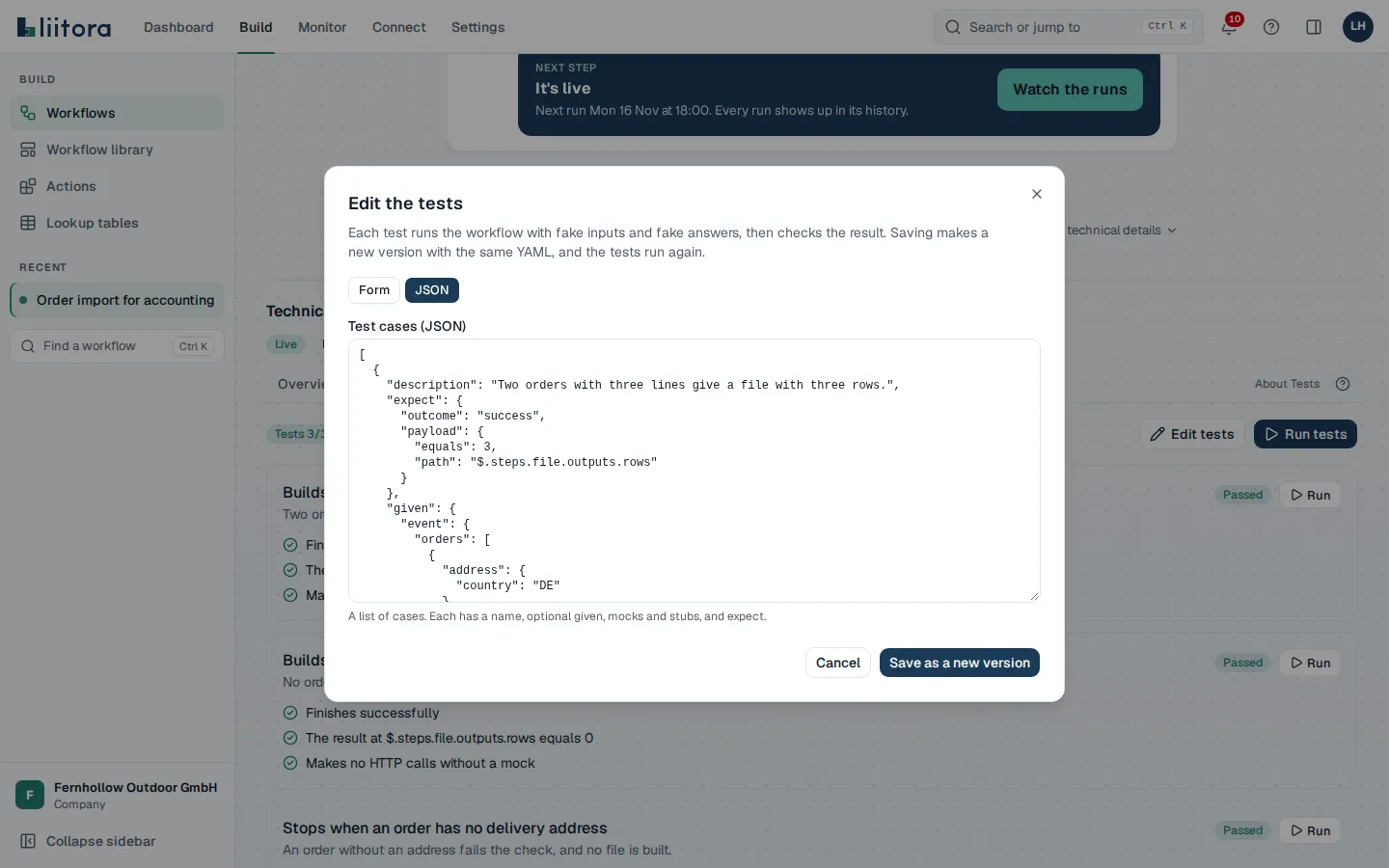
A workflow can only be activated when its tests pass on that exact version. See Read and write workflow tests.
The latest runs of this workflow. Select See all runs of this workflow to open Runs filtered to it. When there are none, the tab says No runs yet.